

Start an evaluation
In the sidebar, under Voice evaluation, click Text-to-Speech. Then click New evaluation.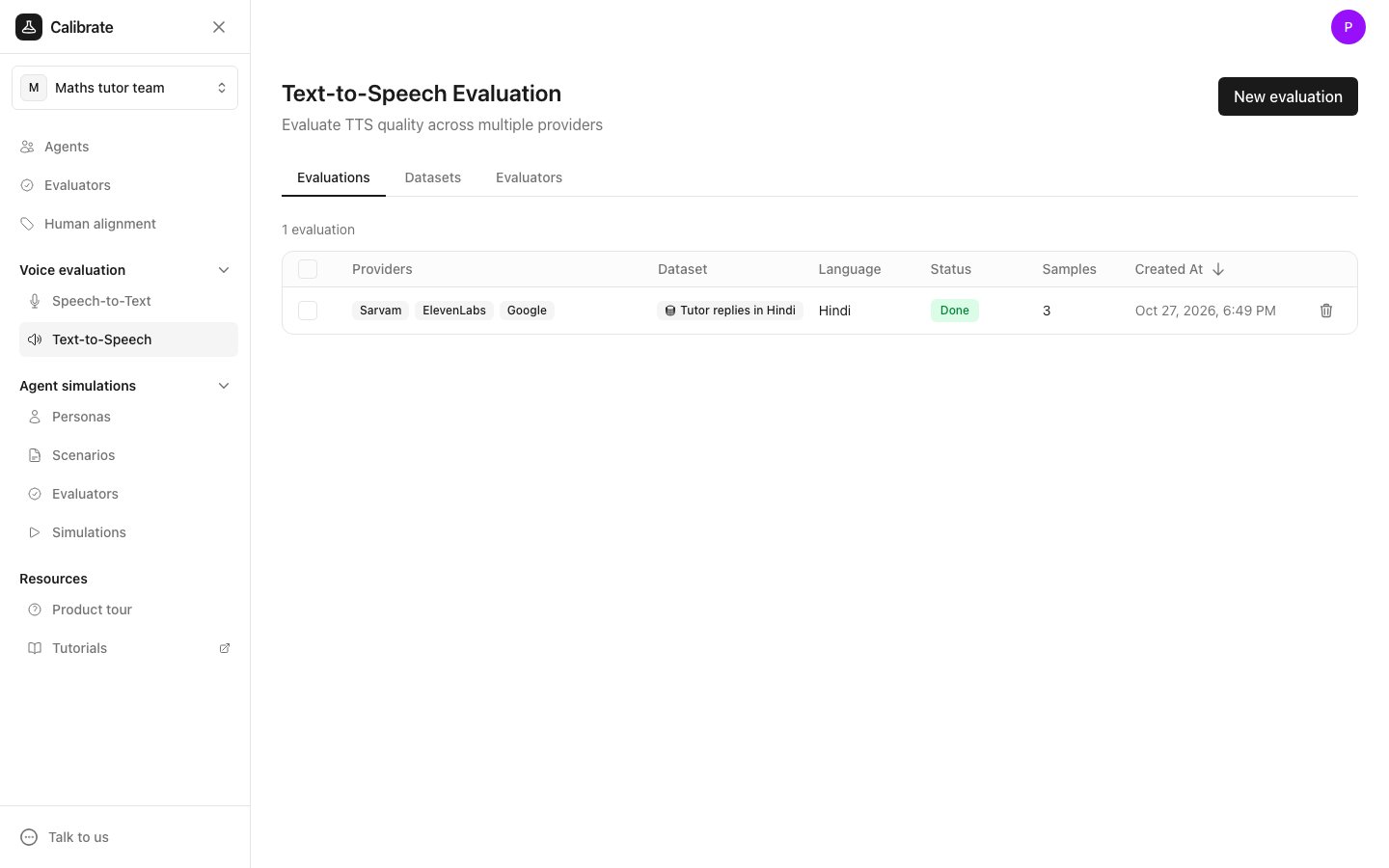
Add the text to read aloud
The Dataset tab opens first. Keep Enter manually selected.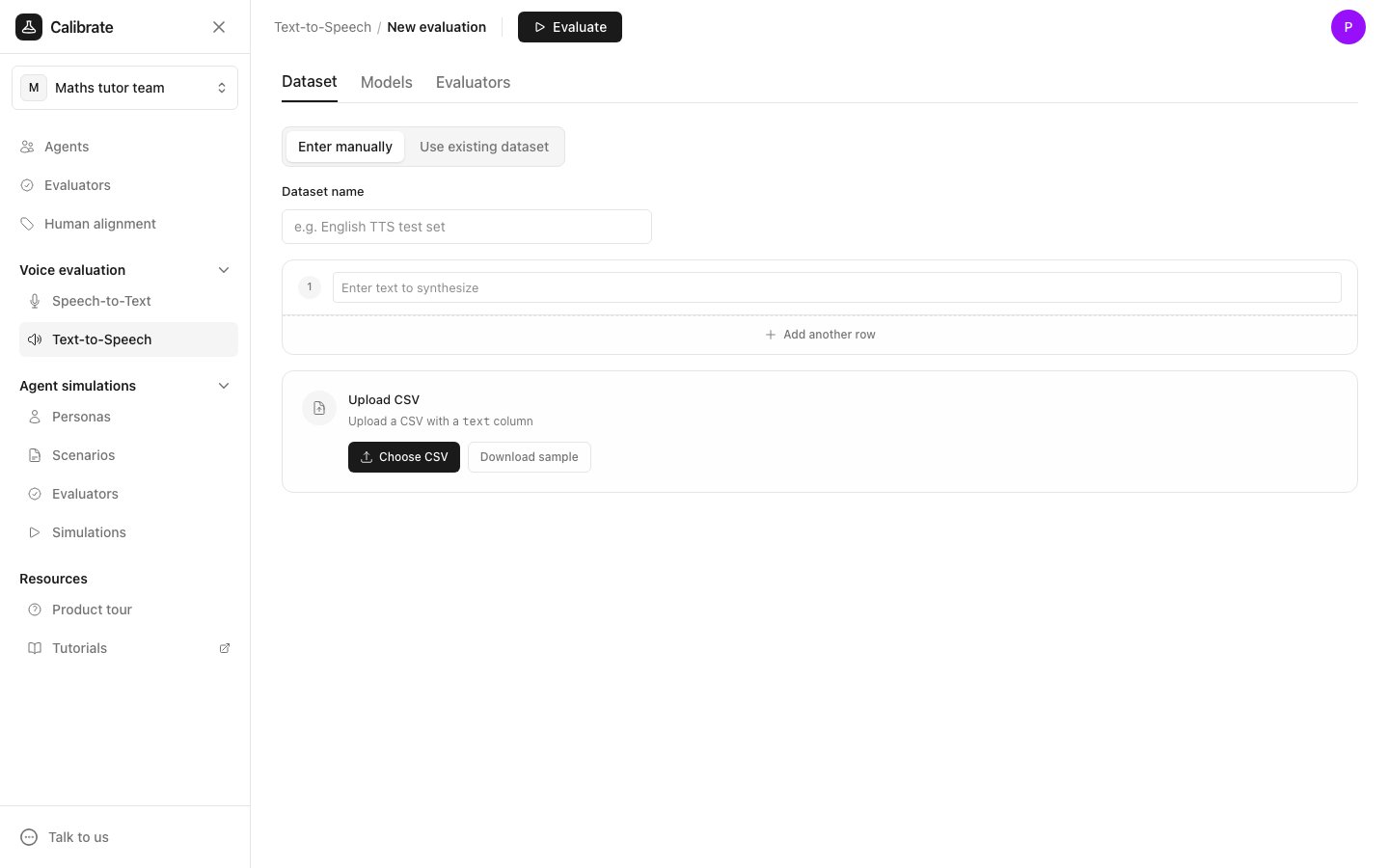
- Under Dataset name, type
Tutor replies in Hindi. - In the first row, type a reply, for example
बहुत बढ़िया! तुमने सही जवाब दिया। - Click Add another row for each other reply. This example has three:
The second reply has fractions written as numbers. It checks whether each model reads “1/4” the way a Hindi speaker would.
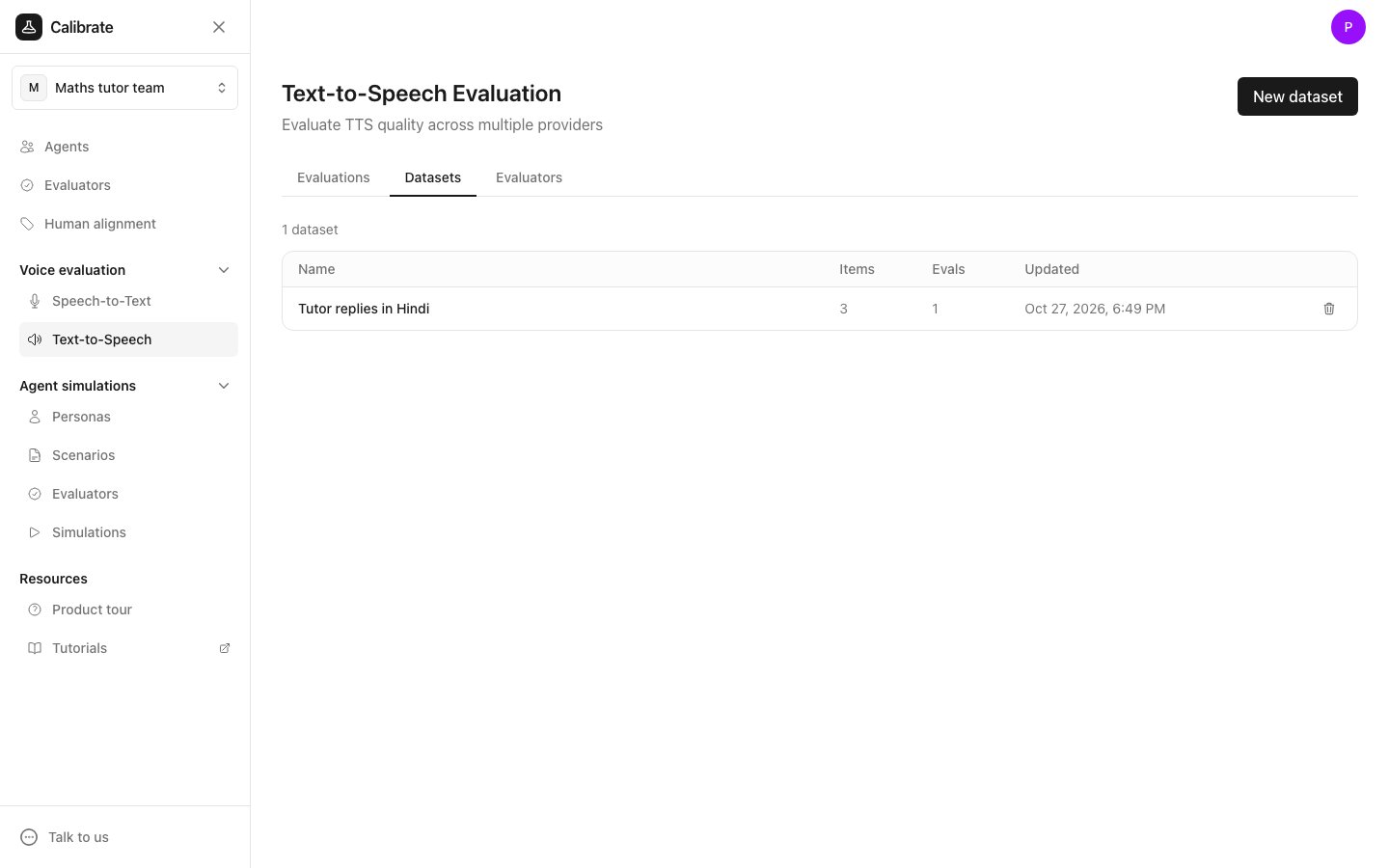
The text is saved as a dataset with this name, so you can use it again in later evaluations. Your datasets are listed on the Datasets tab of the Text-to-Speech page.
Upload many lines at once
Upload many lines at once
In the Upload CSV box, click Choose CSV. The CSV file has one column named Click Download sample to get a CSV file in the right shape.
text, with one line per row:Choose the models
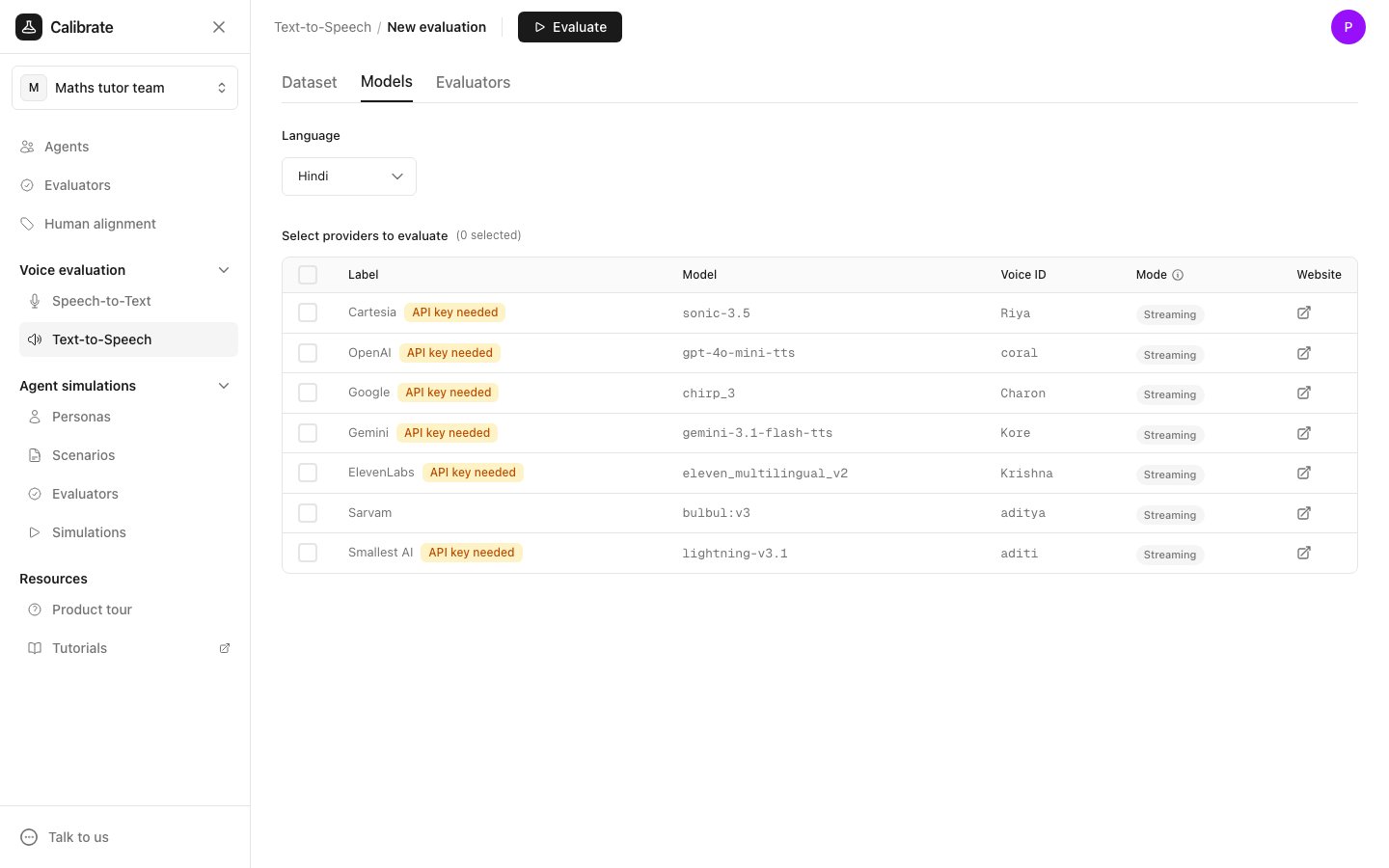
- Click the Models tab.
- Under Language, pick Hindi. The list shows only models that support Hindi.
- Under Select providers to evaluate, tick Sarvam, ElevenLabs and Google. Each row shows the exact model and its voice.
Choose how the speech is scored
Click the Evaluators tab. An evaluator listens to each recording and judges it against the text.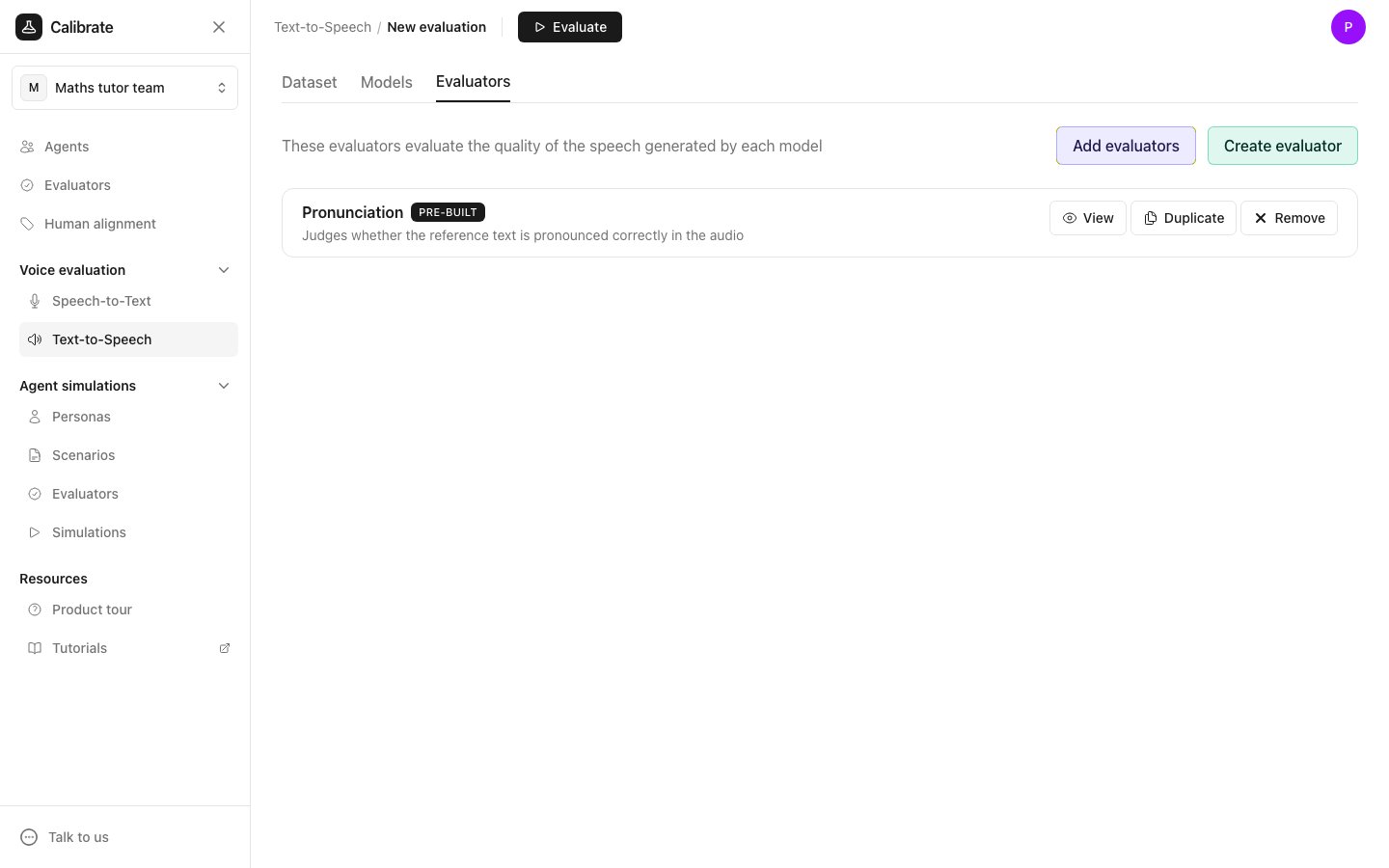
Run the evaluation
Click Evaluate at the top of the page. The results page opens and fills in as each model finishes.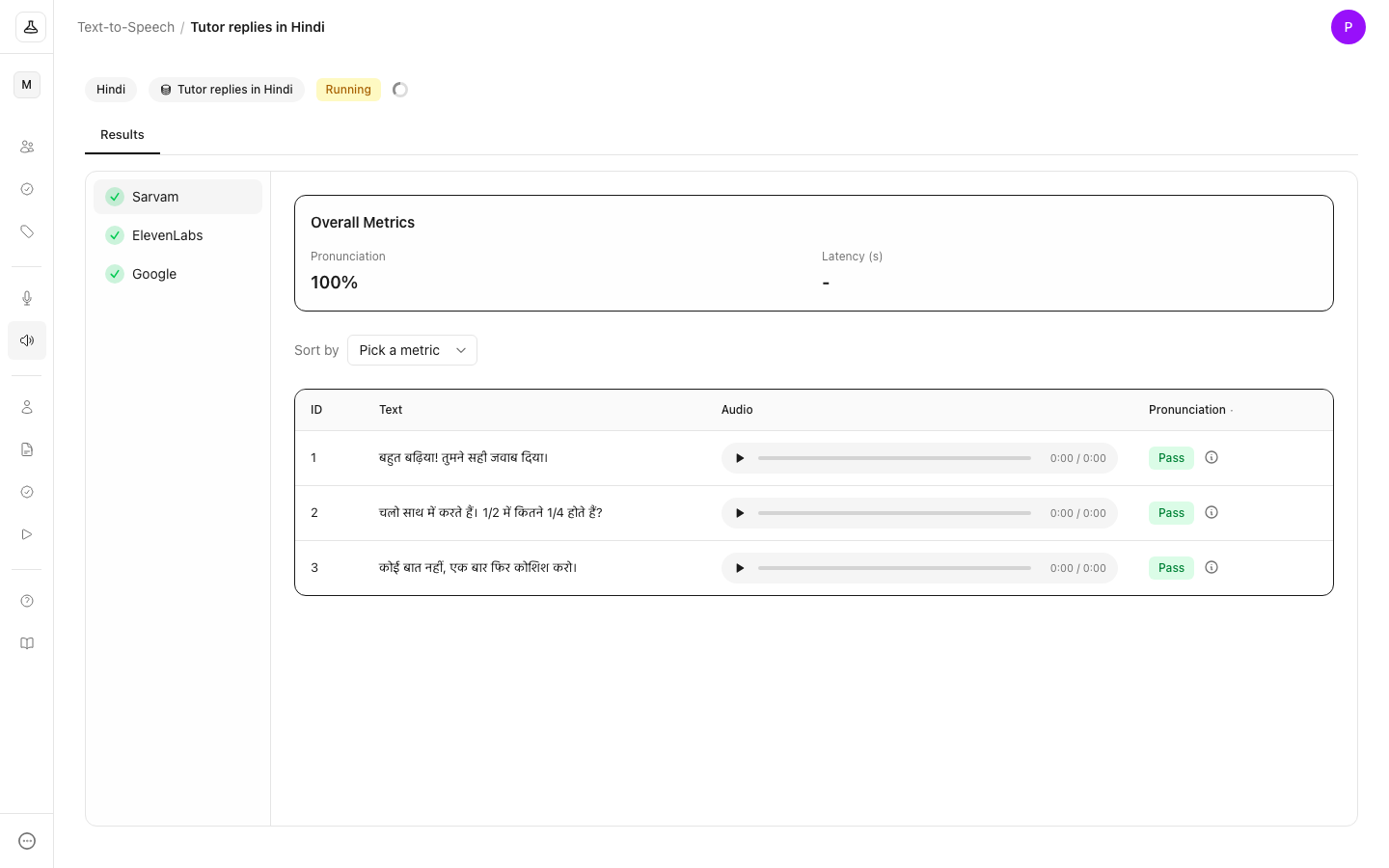
Read the results
The Leaderboard tab puts the models side by side, with a column and a chart for each evaluator and for Latency (s). Latency is how long a model takes to start sending audio. Lower is better.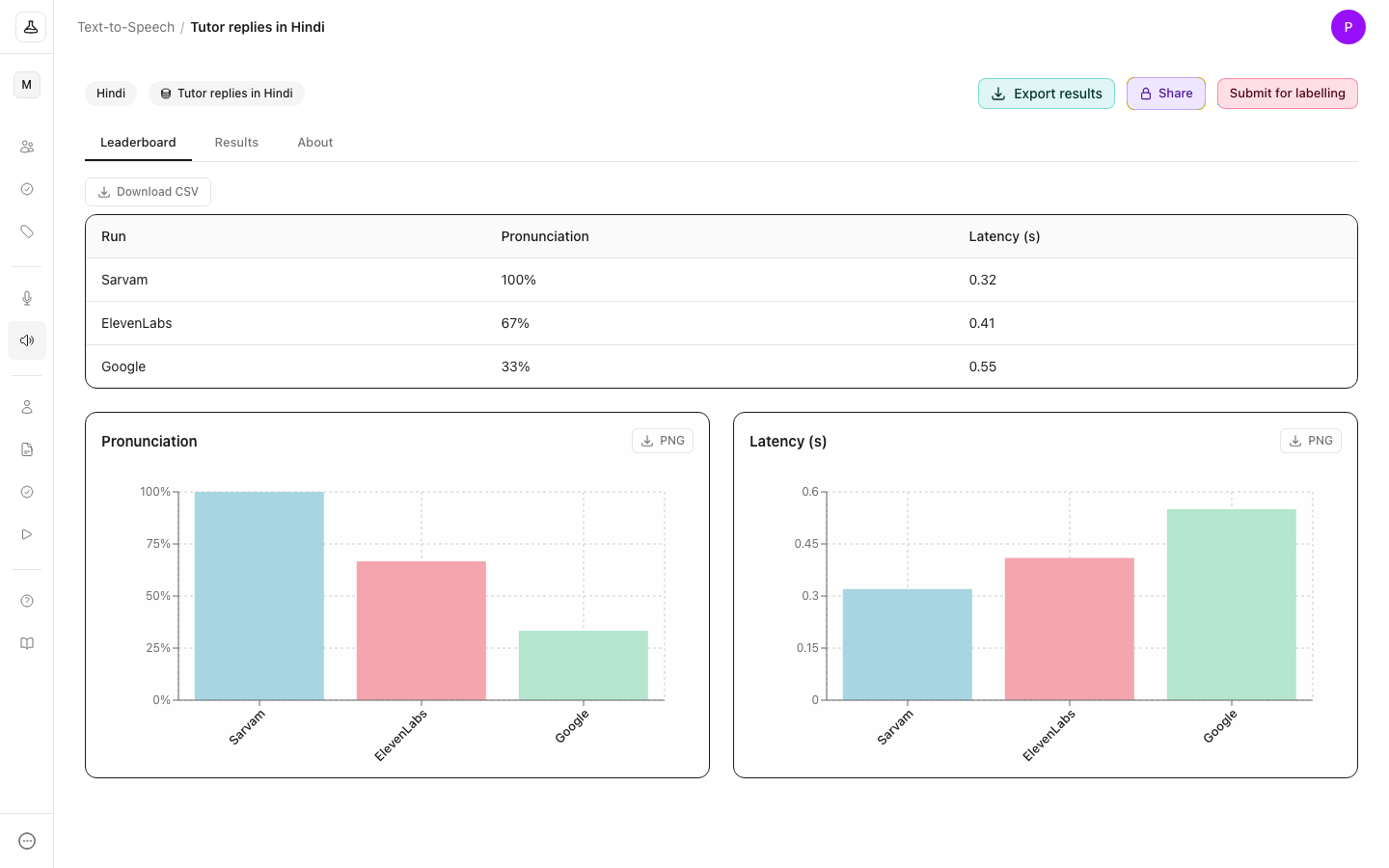
Export and share the results
- Export results downloads a ZIP file. It holds a CSV file with every model’s scores for each line, and an
audiosfolder with the recording each model made. - Download CSV on the Leaderboard tab downloads the leaderboard table.
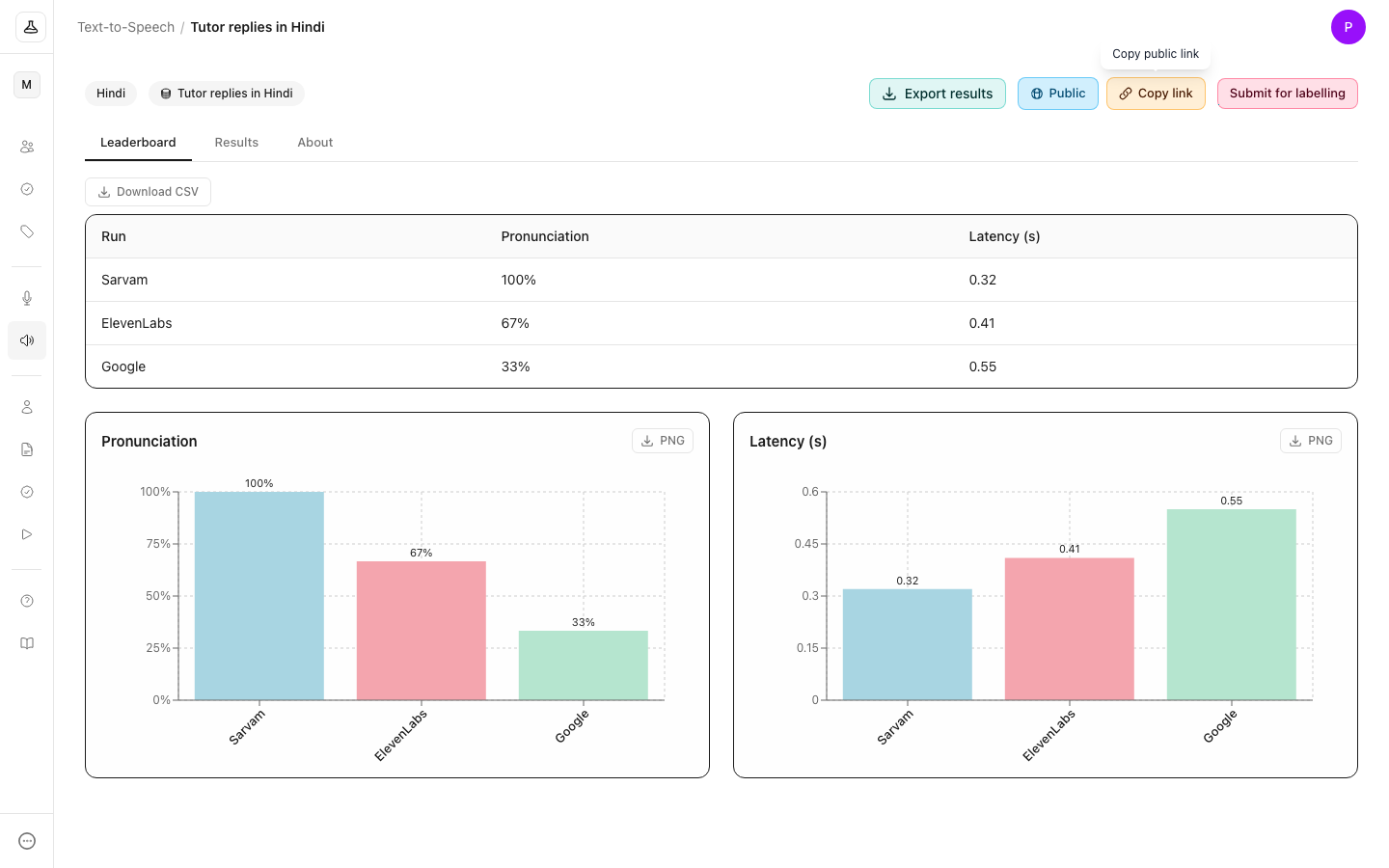
- Share makes the results page public. Click Copy link to copy the link. Anyone with the link can see the results without a Calibrate account. Click Public to make the page private again.
- Submit for labelling sends rows you ticked on the Results tab to a labelling task, so people can listen and check them. See Create a labelling task.
Next steps
Text-to-speech metrics
What the evaluators and latency measure
Benchmark speech-to-text models
Compare the models that turn what students say into text