

Open your agents
From the sidebar, click Agents. The list shows every agent in your workspace.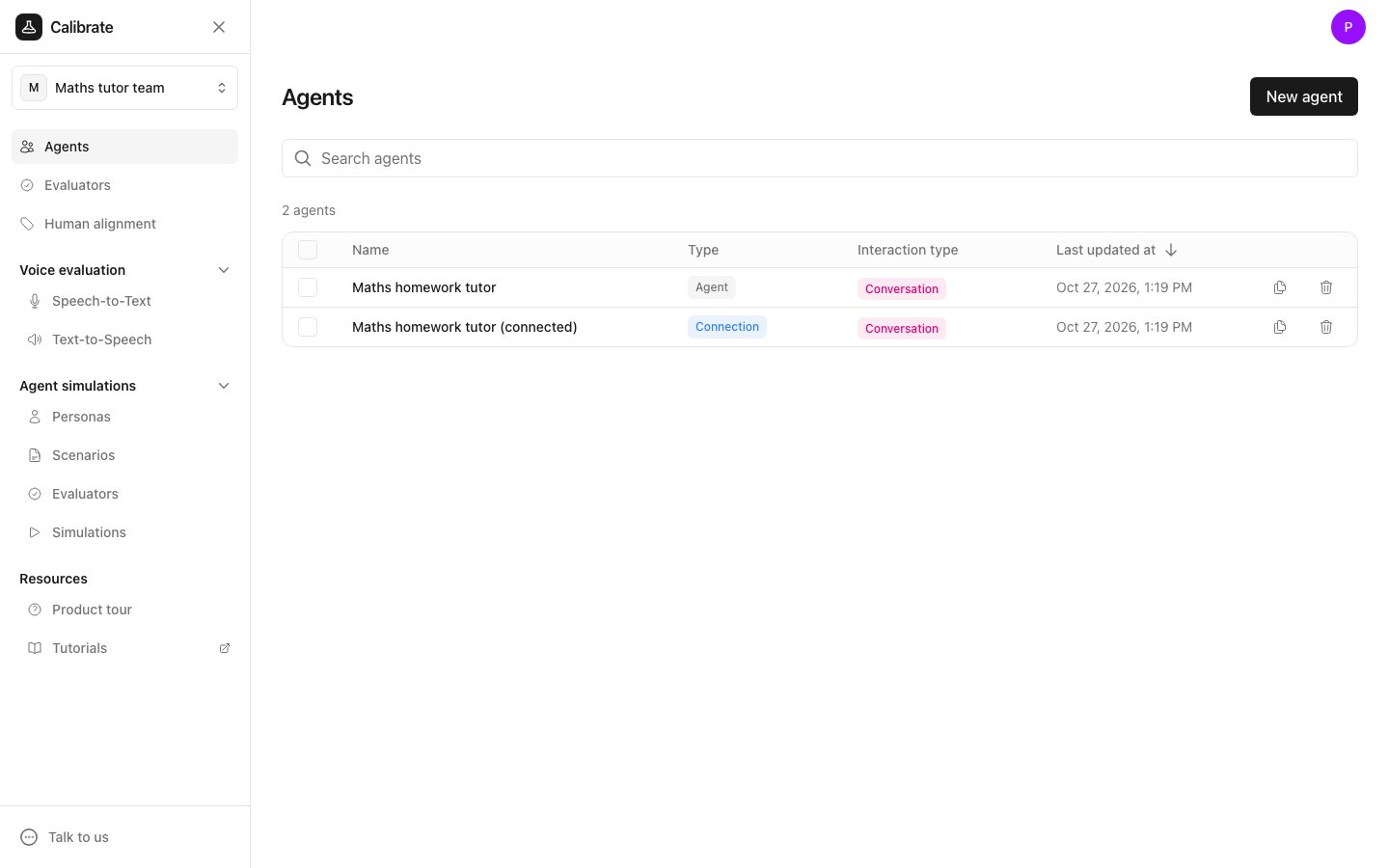
Two ways to set up an agent
Click New agent. Give the agent a name, then pick one of the two options under Setup.Build your agent in Calibrate
Build your agent in Calibrate
You write the instructions, pick the LLM, speech-to-text and text-to-speech models, and add tools. All of it lives in Calibrate.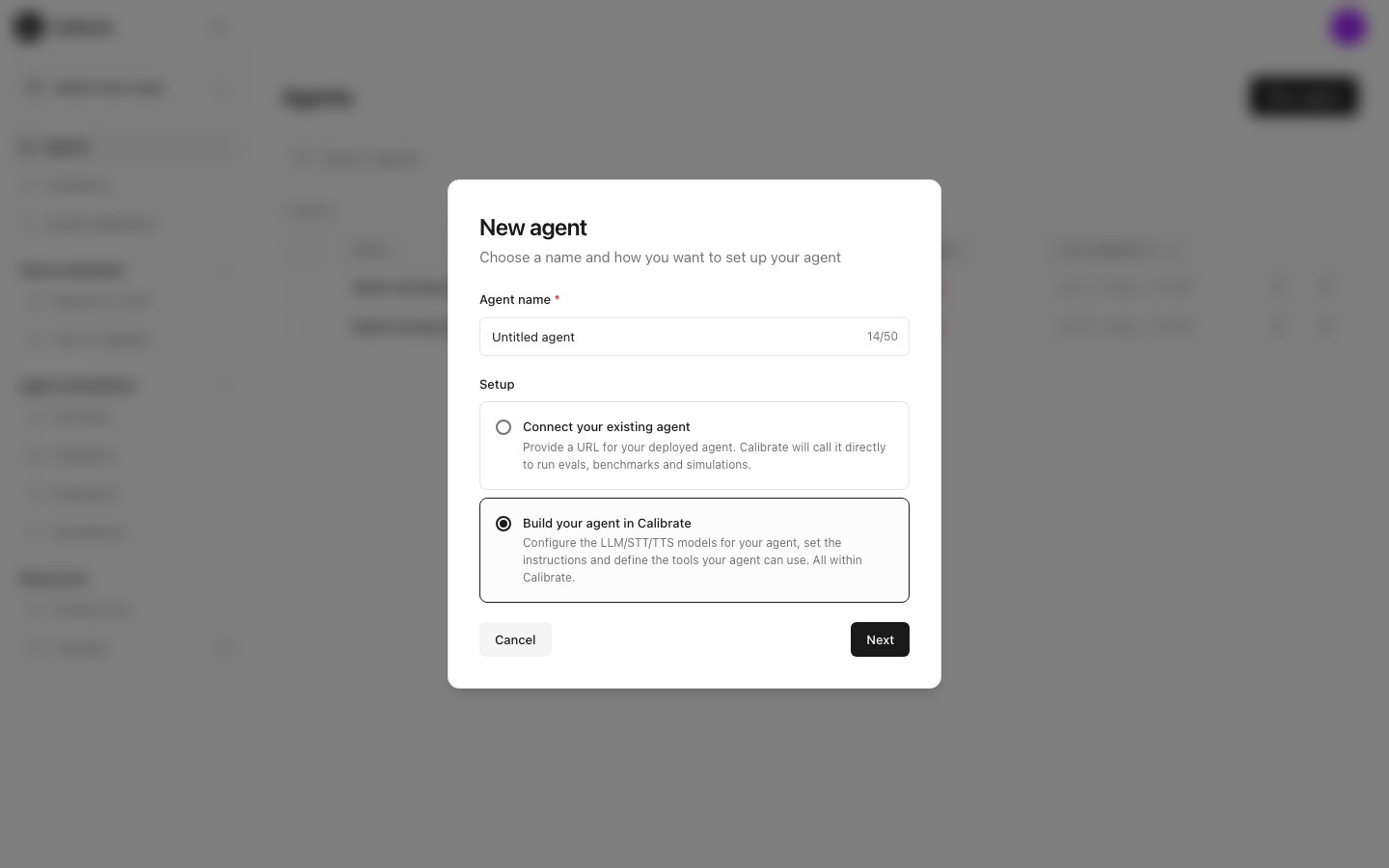
Connect your existing agent
Connect your existing agent
Your agent already runs somewhere else. You give Calibrate its URL, and Calibrate sends it messages to run tests, model comparisons and simulations.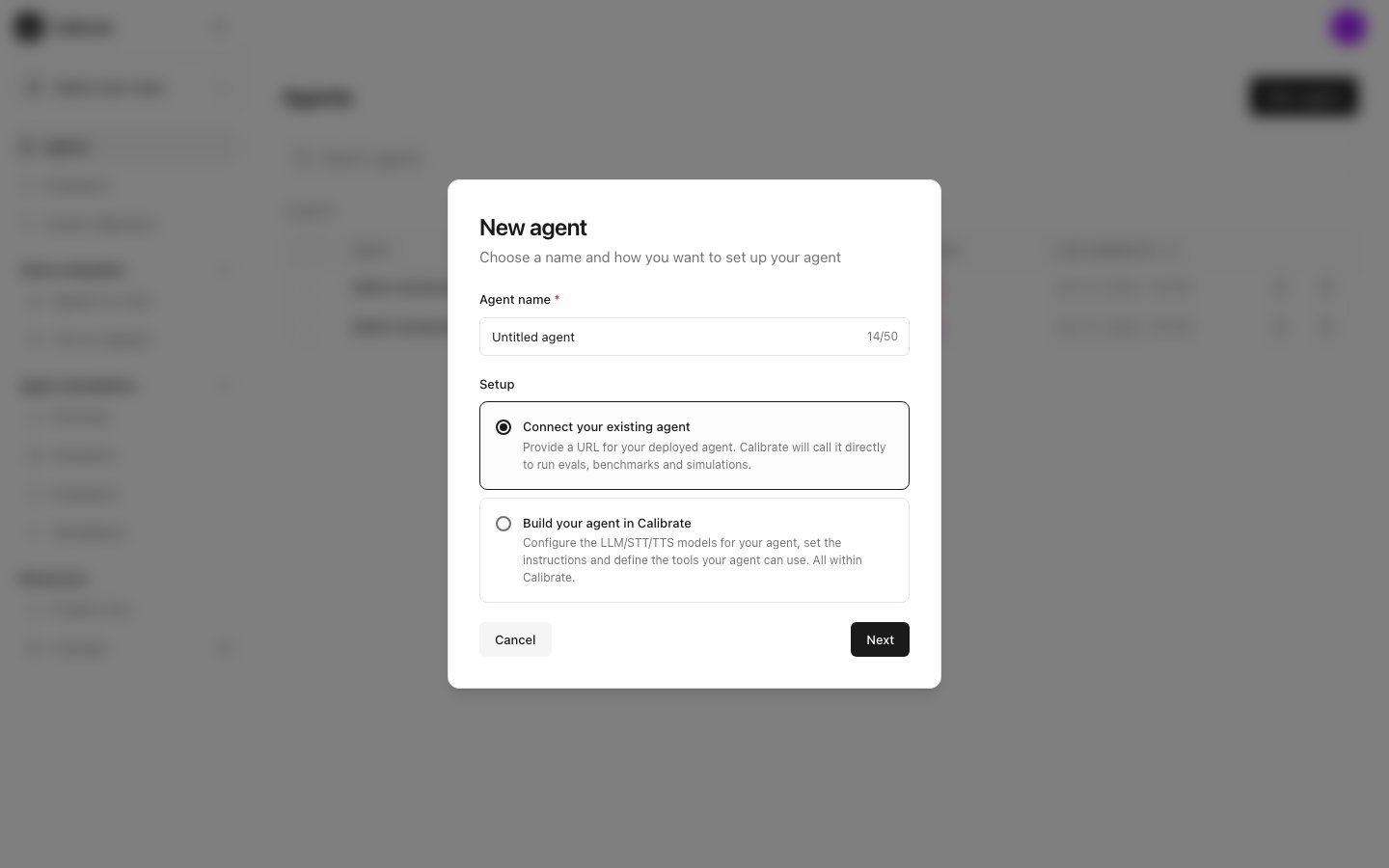
- Conversation: your agent has a conversation with a user. The maths tutor is this kind.
- Basic: the agent takes an input and gives back an output.
Tabs on an agent page
Each agent page has a row of tabs. Which tabs you see depends on how the agent was set up.
Click Save at the top right of the agent page to keep your changes.
Next steps
Build an agent in Calibrate
Write the prompt and pick the models
Connect your own agent
Point Calibrate at your agent’s URL