

Sign up
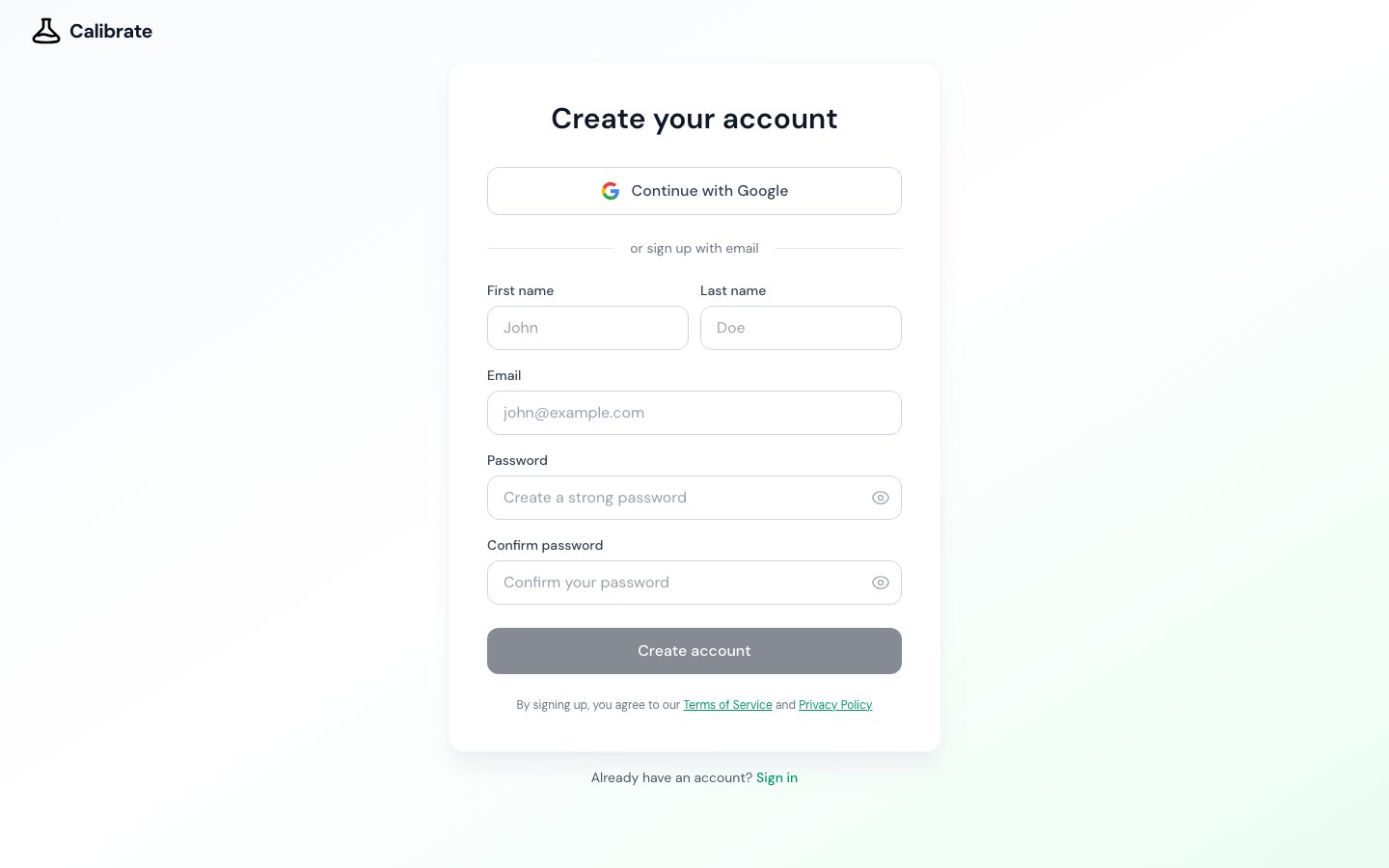
- Open calibrate.artpark.ai/signup.
- To use your Google account, click Continue with Google and pick your account. You are signed in straight away and can skip the next section.
- To use your email, fill in First name, Last name and Email.
- Type a password in Password. The bar under the box shows how strong it is.
- Type the same password again in Confirm password.
- Click Create account.
Confirm your email
After you click Create account, the page says Check your email. Calibrate has sent a link to the address you typed.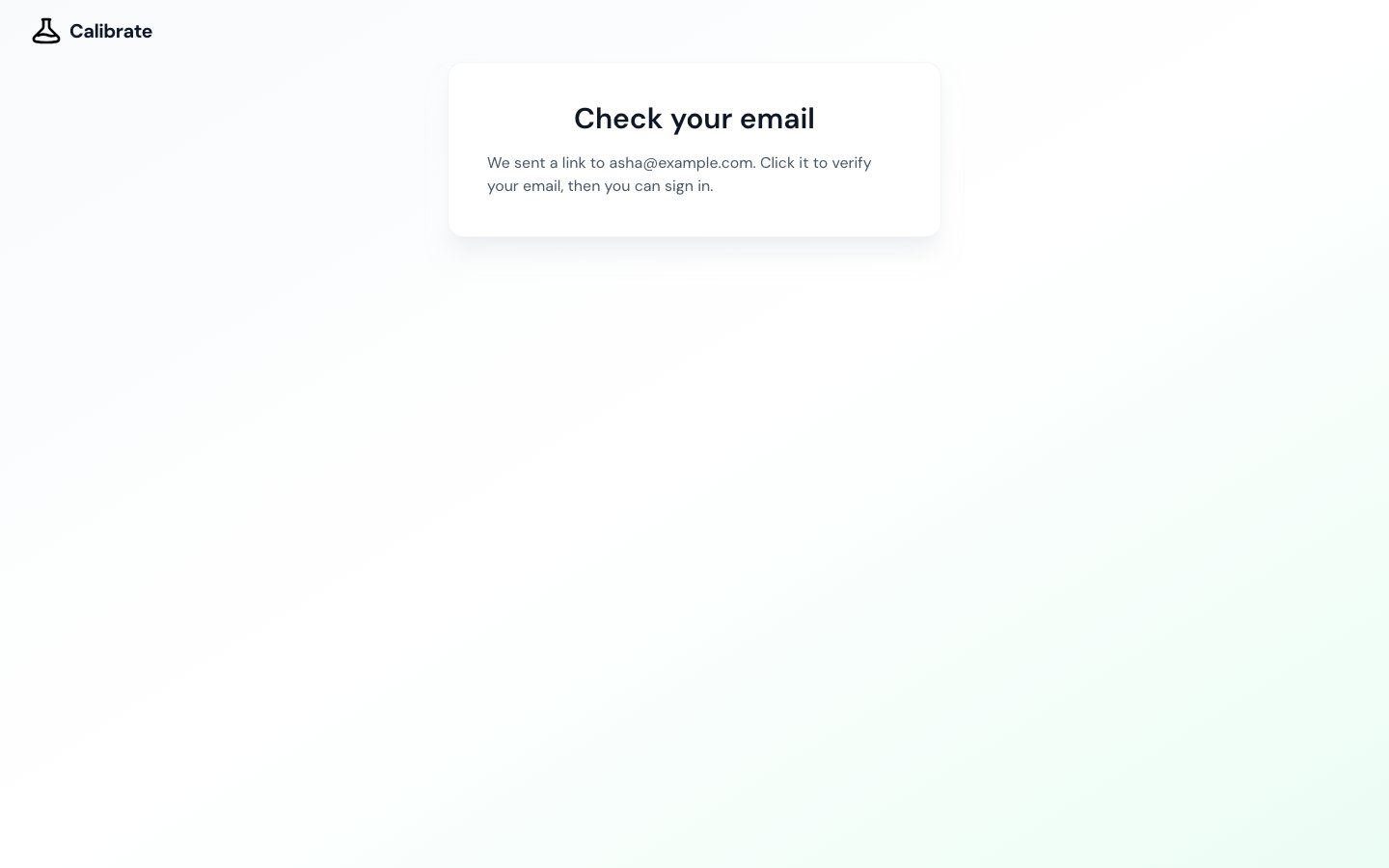
- Open the email from Calibrate.
- Click the link in it. Calibrate opens and signs you in.
Sign in
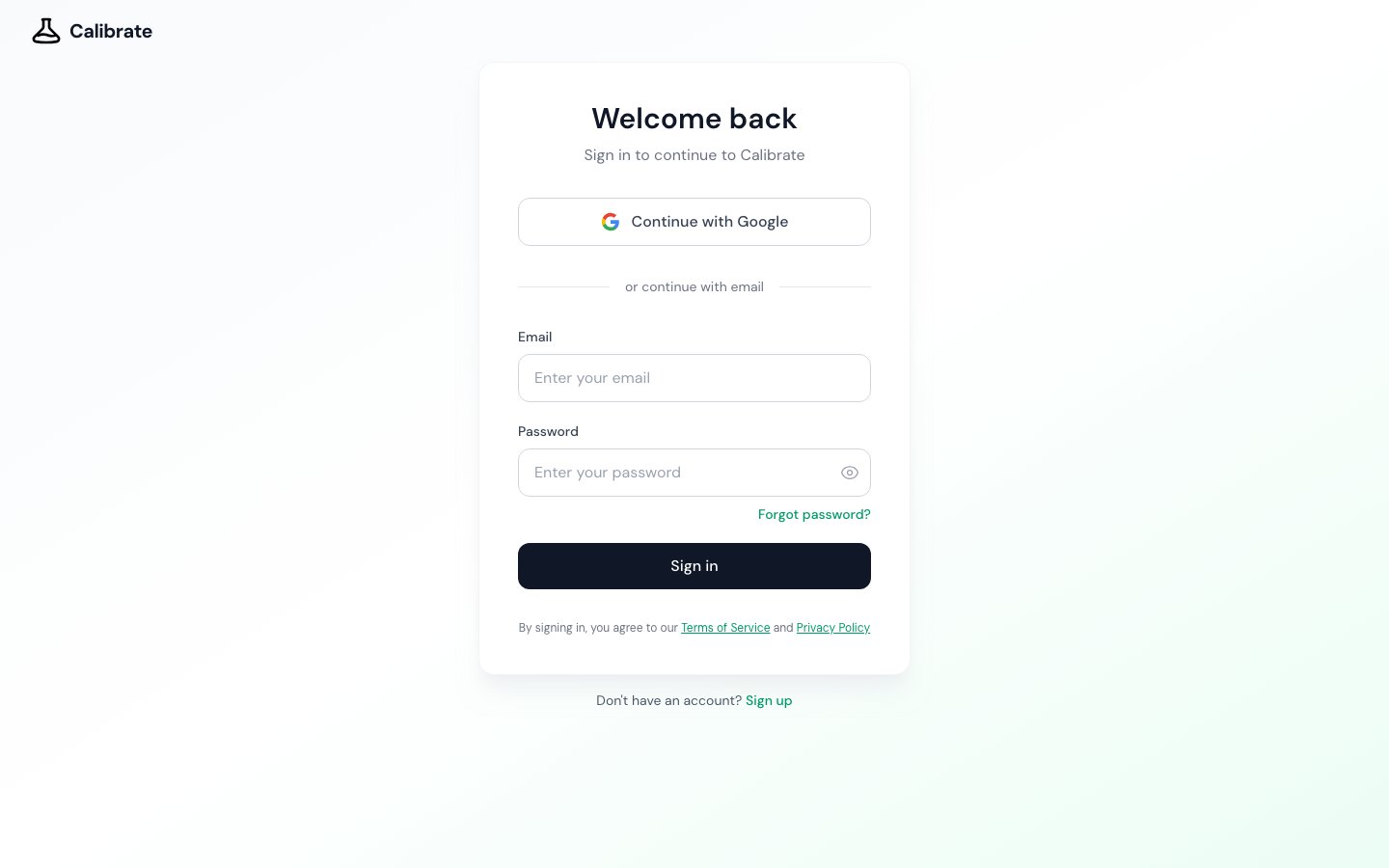
- Open calibrate.artpark.ai/login.
- Click Continue with Google, or type your Email and Password and click Sign in.
Reset a forgotten password
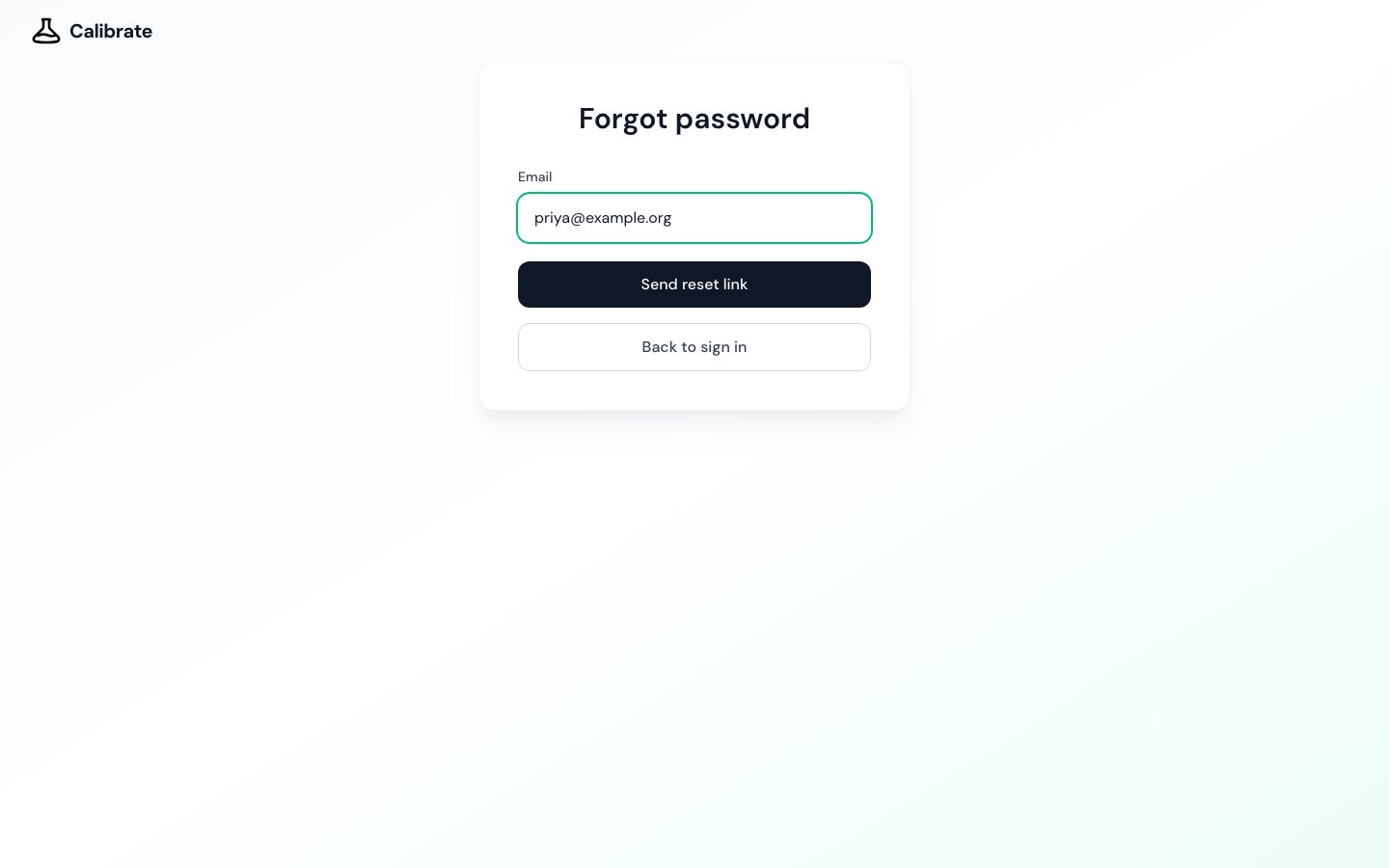
- On the sign-in page, click Forgot password?.
- Type your Email and click Send reset link.
- Open the email from Calibrate and click the link in it.
- On the Reset password page, type your new password twice.
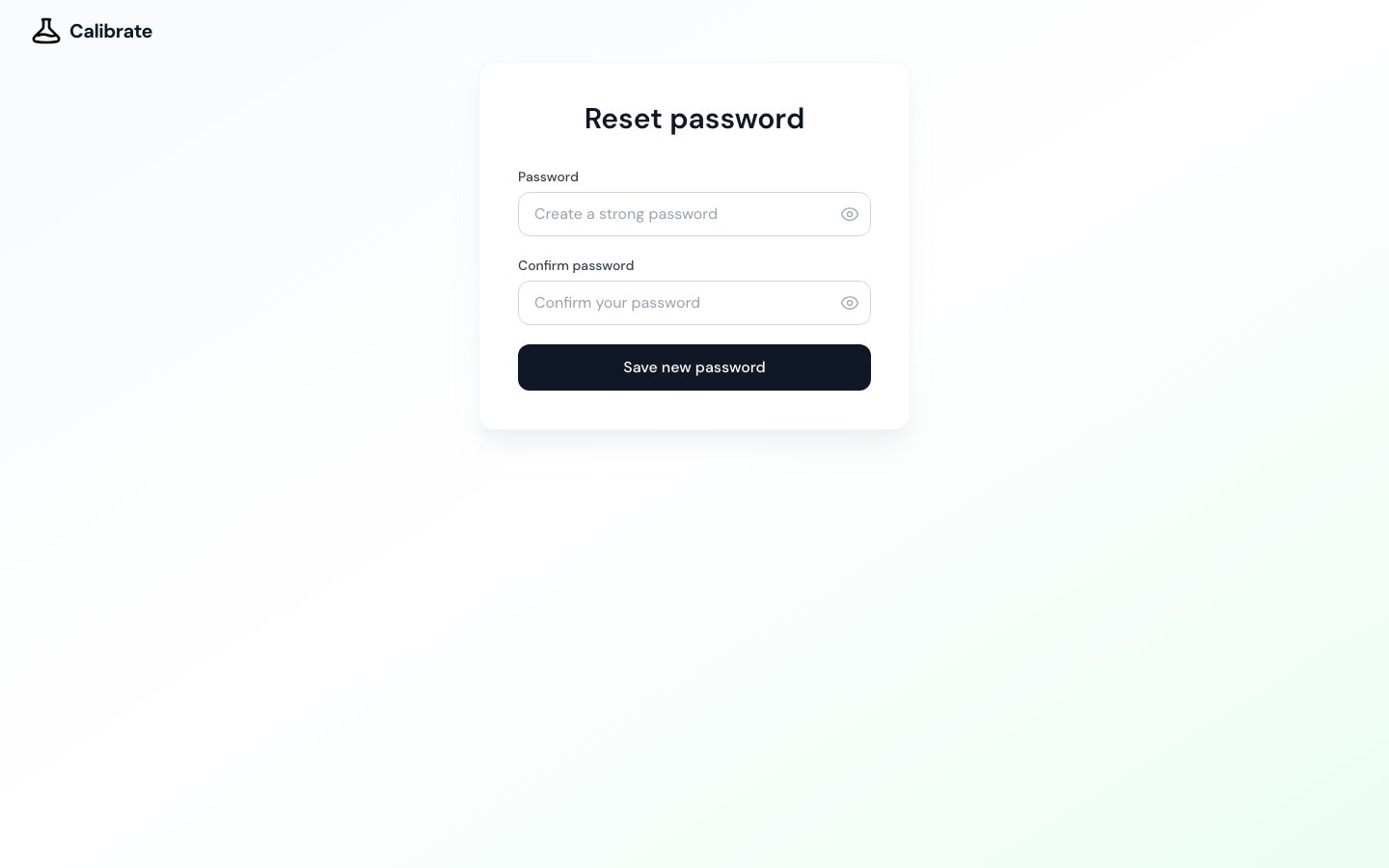
- Click Save new password.
Join a workspace from an invite
A workspace is where your team’s agents, tests and results live. When someone on your team invites you, they send you an invite link.- Open the invite link. The page says You have been invited to join followed by the workspace name.
- If you are signed in, click Join.
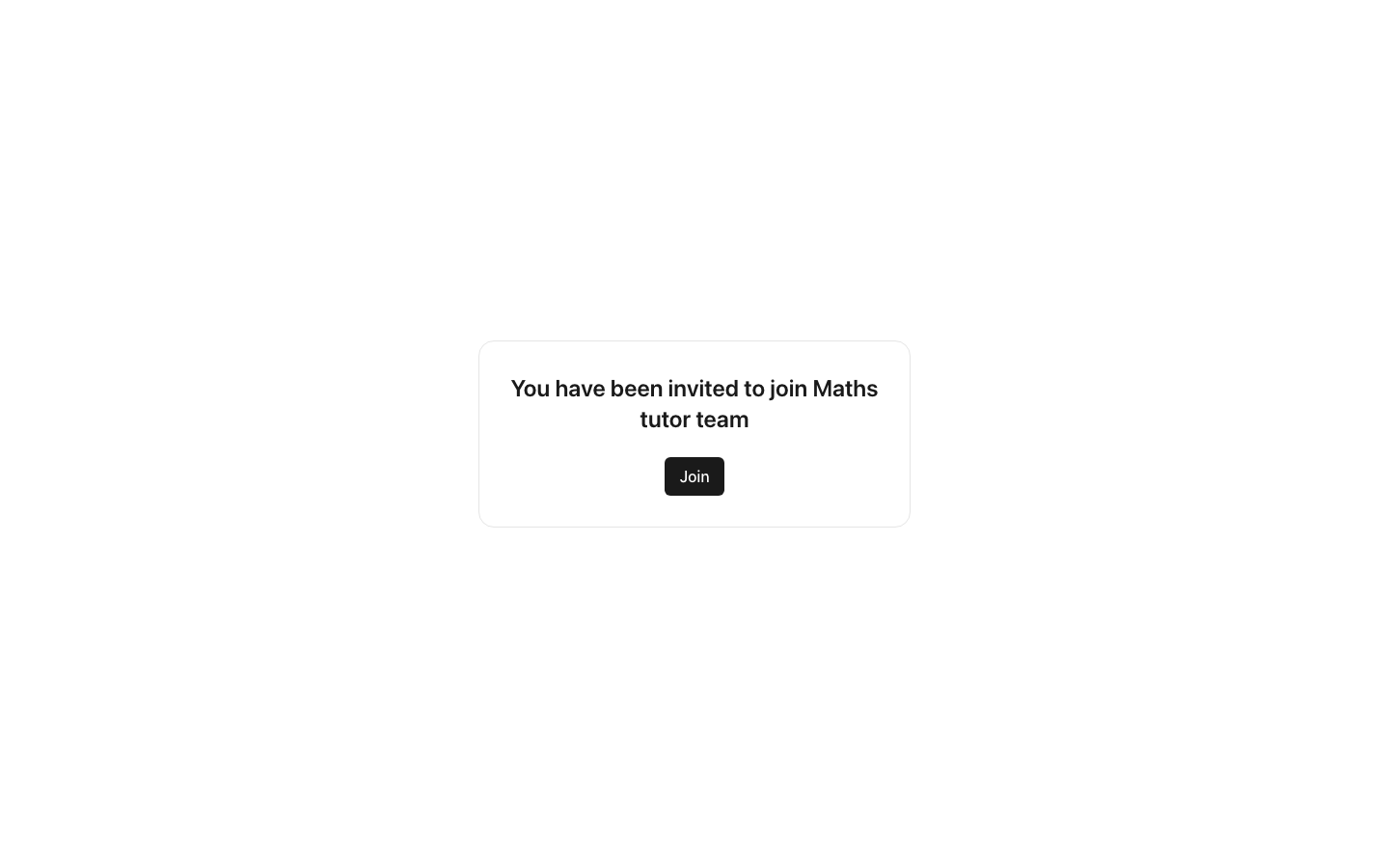
- If you are not signed in, click Sign in to your account or Create a new account. After you sign in or sign up, you come back to the invite page. Click Join.
Next steps
Product tour
Let the app walk you through your first test
Quickstart
Create an agent, add one test and run it