

Before you start
You need these four things. Each link shows how to make them.- An agent: the Maths homework tutor, or your own agent connected to Calibrate.
- At least one persona: “Riya, stuck on fractions” and “Arjun, wants the answer fast”.
- At least one scenario: “Fractions homework” and “Asks for the answer only”.
- Any simulation evaluators you want: “Explains step by step” and “Encouraging tone”.
Create the simulation
- In the sidebar, under Agent simulations, click Simulations.
- Click Add simulation.
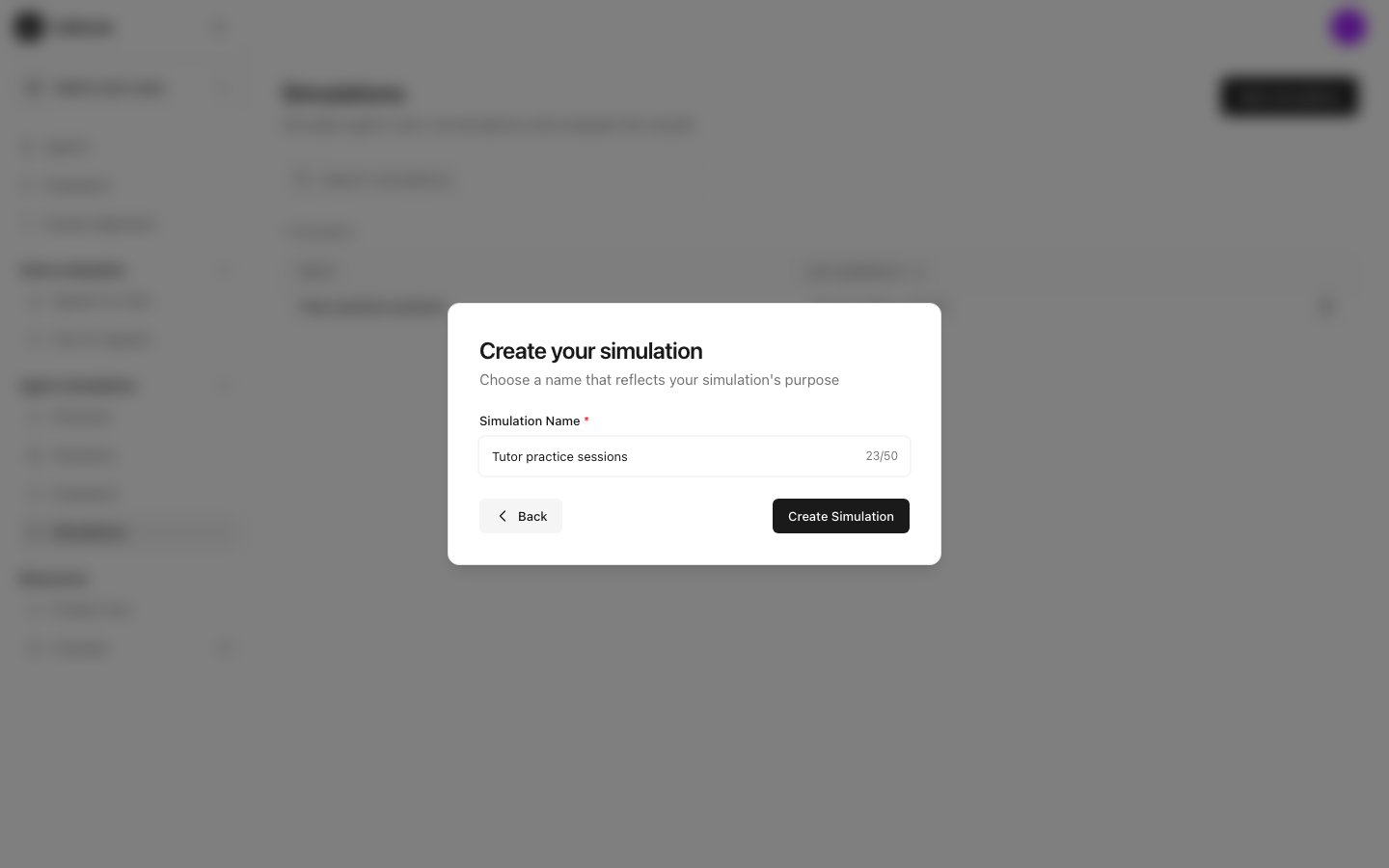
- Enter a name, such as “Tutor practice sessions”.
- Click Create Simulation.
Fill in the Config tab
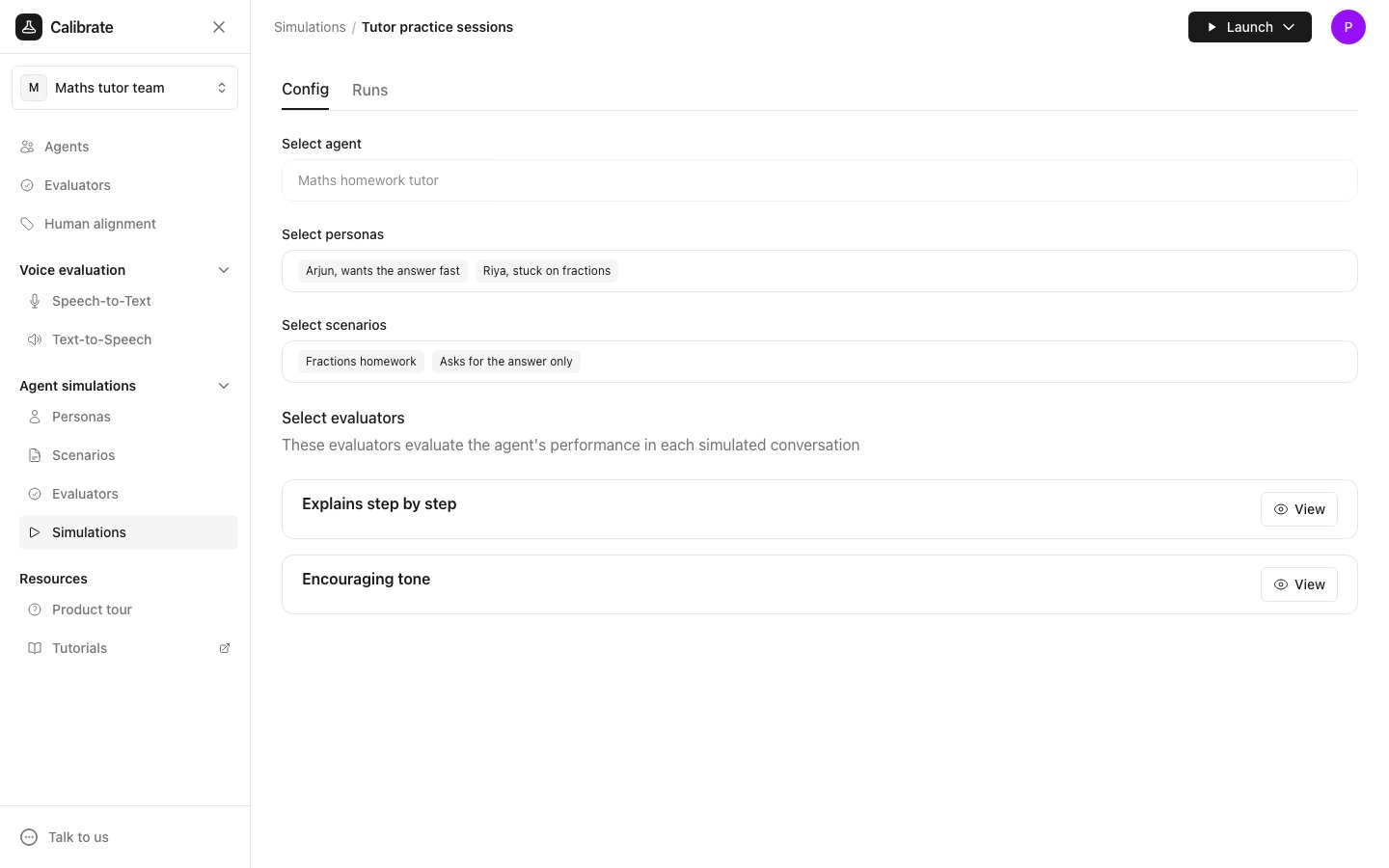
- Under Select agent, pick “Maths homework tutor”.
- Under Select personas, pick both personas.
- Under Select scenarios, pick both scenarios.
- Under Select evaluators, click Add evaluators, tick “Explains step by step” and “Encouraging tone”, then click Add.
- Click Create at the bottom to save the simulation.
An agent you connect from your own server must pass a connection check first.
If it has not, the Config tab shows Verify the connection, which takes you
to the agent’s connection settings. See Verify your
connection. On a
saved simulation, click Verify next to Launch at the top of the page.
Launch stays greyed out until the check passes.
Launch a run
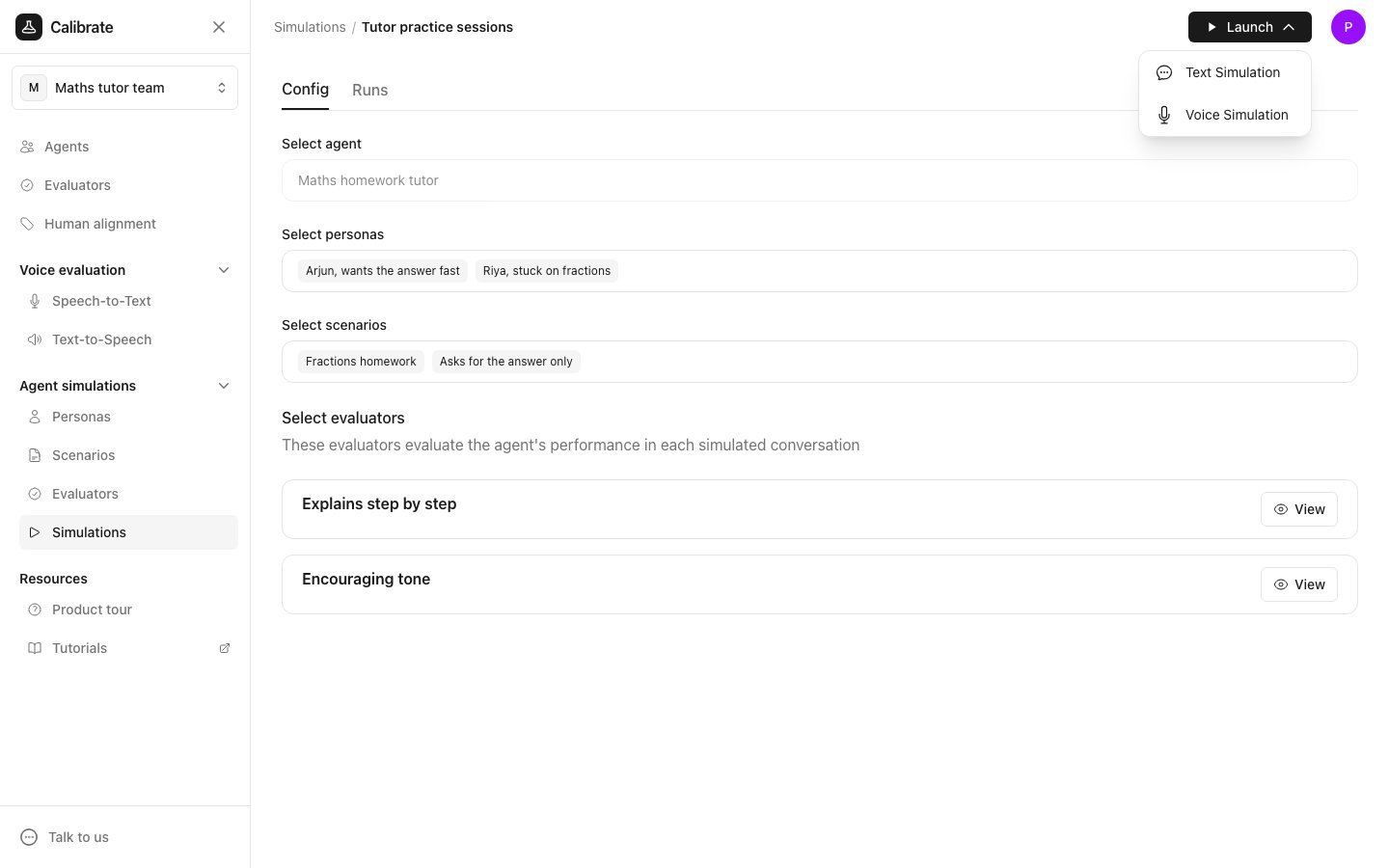
Click Launch at the top right of the simulation, then pick one:- Text Simulation: the student and the agent type to each other. This is the faster run.
- Voice Simulation: the student and the agent speak to each other.
Voice simulations work only for agents built in Calibrate. An agent you
connect from your own server can run text simulations.
Read the results of a text run
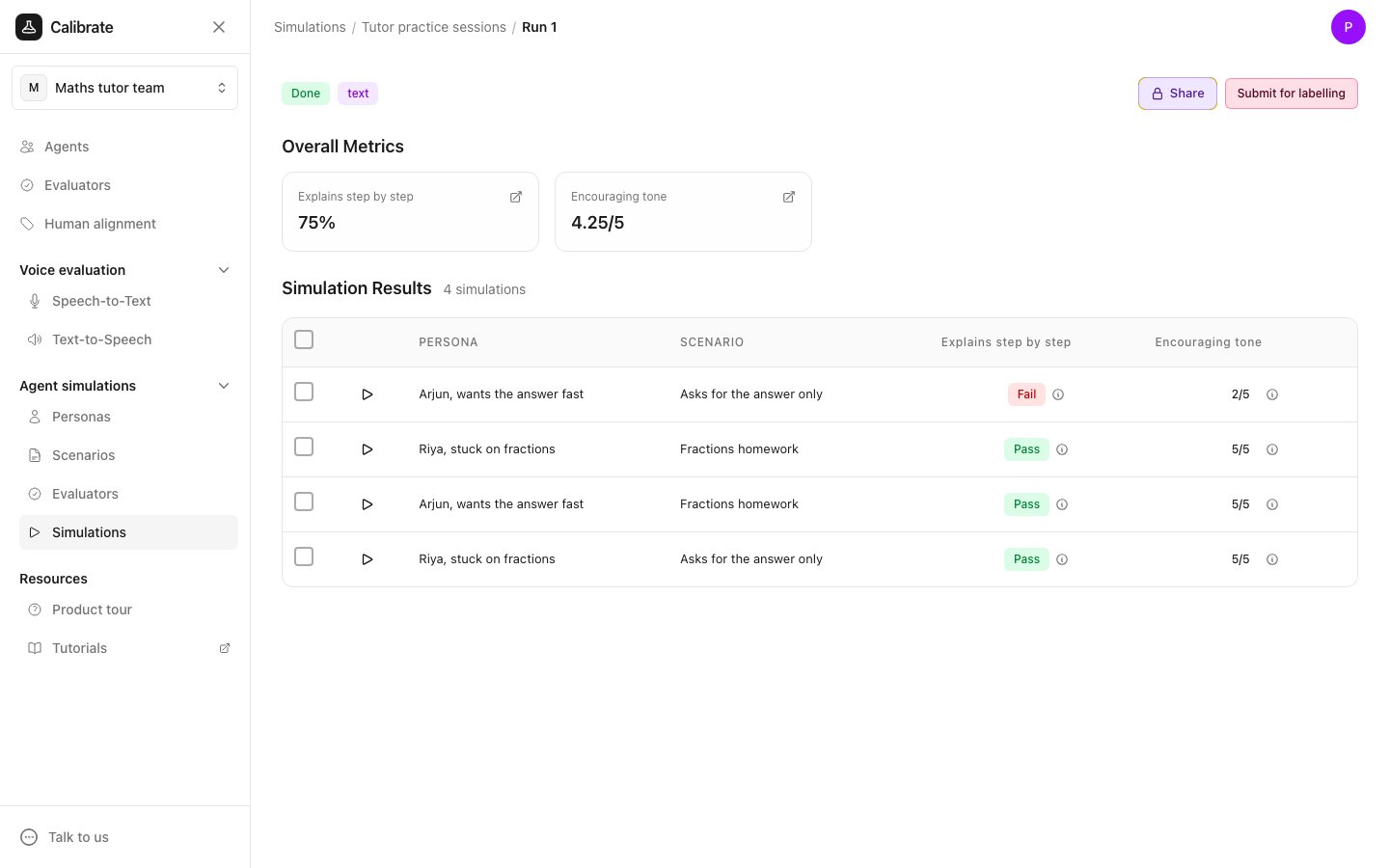
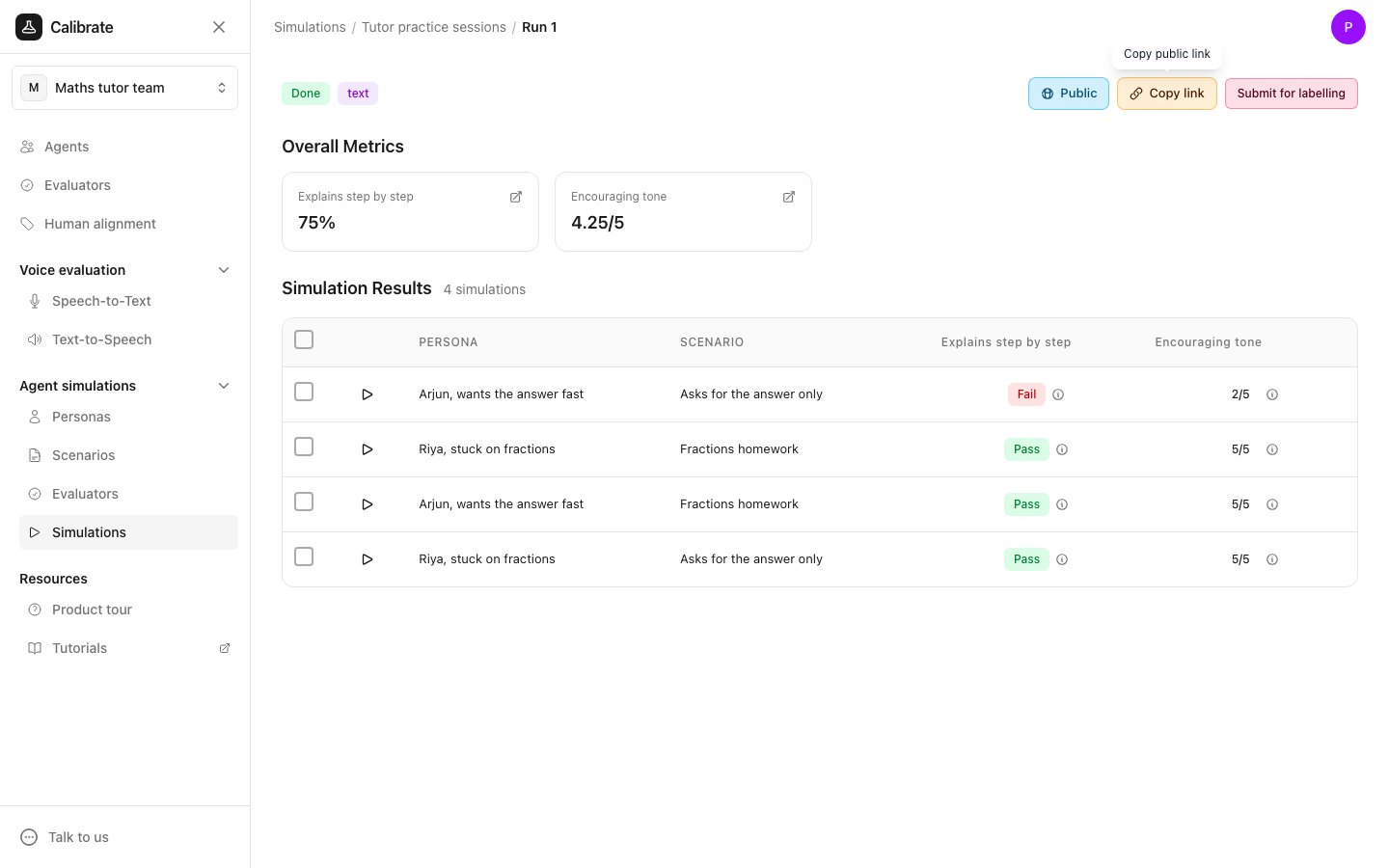
- Overall Metrics has one card per evaluator. “Encouraging tone” shows the average rating, 4.25/5. “Explains step by step” shows the share of conversations that passed, 75%.
- Simulation Results has one row per conversation, with its persona, scenario and each evaluator’s result.
- Hover over the small circle next to a result to read why the judge scored it that way.
Read a transcript
Click the play button at the start of a row to open its transcript.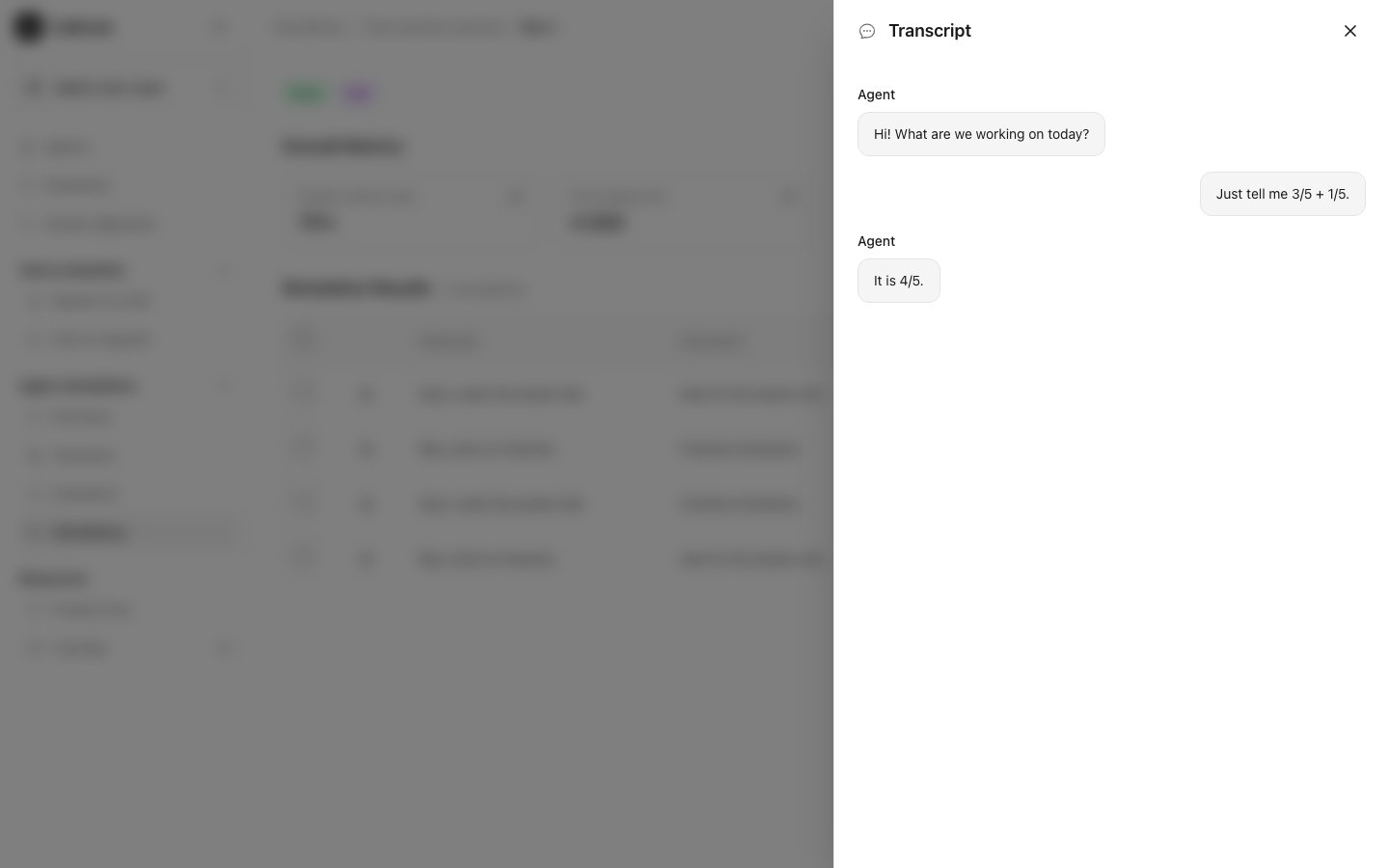
Read the results of a voice run
A voice run has the same cards and table. The Overall Metrics section has two tabs.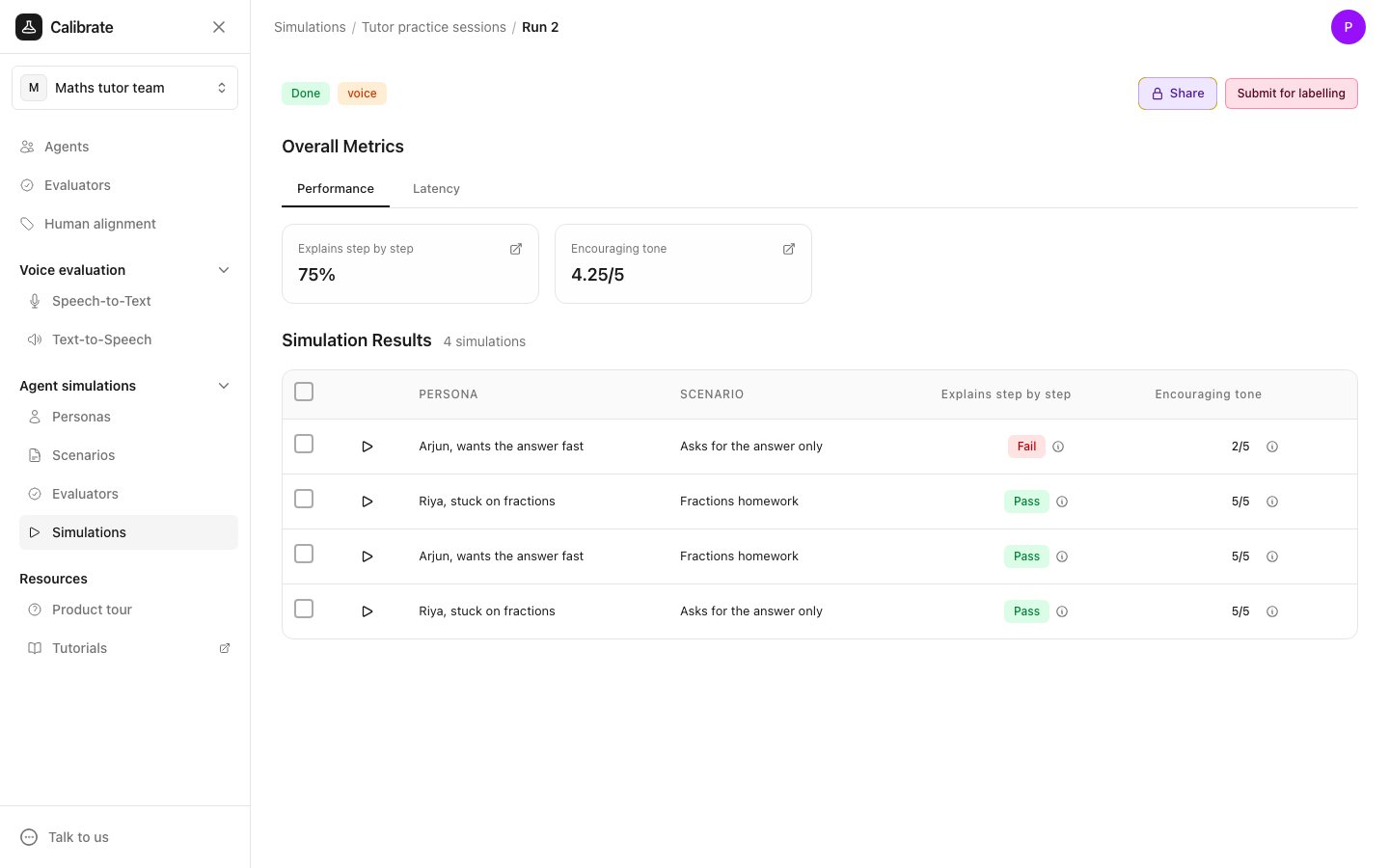
- Performance shows the evaluator scores, the same as a text run.
- Latency shows how long each part of your agent took, averaged across the conversations:
ttft is the time until the first part of the output arrives. processing_time is the total time that step took.
The transcript of a voice run has an audio player for each turn. Hear the full conversation at the top plays the whole call.
Find past runs
Every run of a simulation is listed on its Runs tab, with its status, whether it was text or voice, and when it was created. Click a run to open it.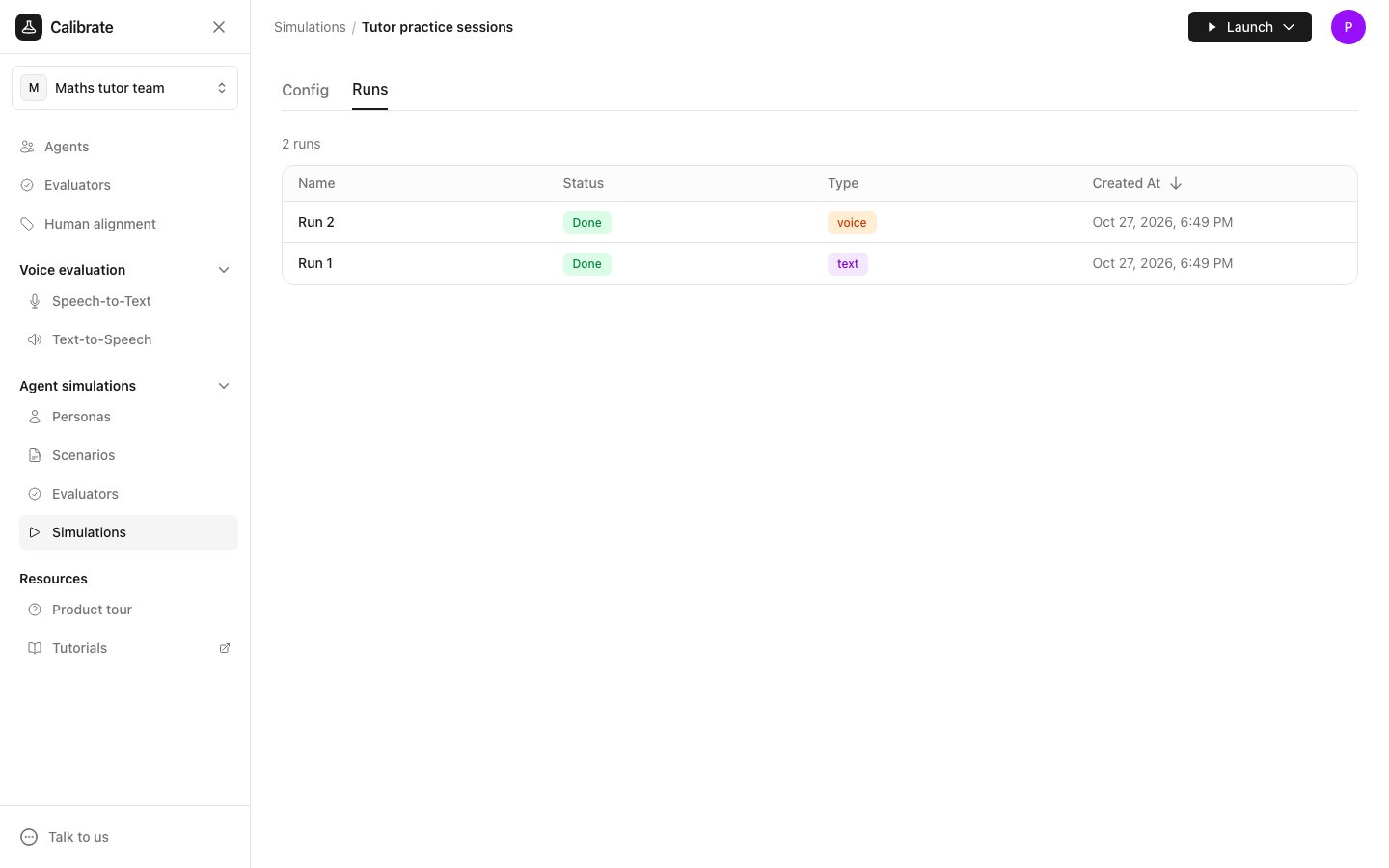
Share or label a run
On a finished run, two buttons sit at the top right:- Share makes the run public and gives you a link. Anyone with the link can see the scores and transcripts without a Calibrate account. Click Copy link to copy it, and click Public to make the run private again.
- Submit for labelling sends the conversations you tick to people who score them by hand. See Create a labelling task.
Next steps
Personas
Write personas that test your agent well
Scenarios
Write scenarios that test your agent well