

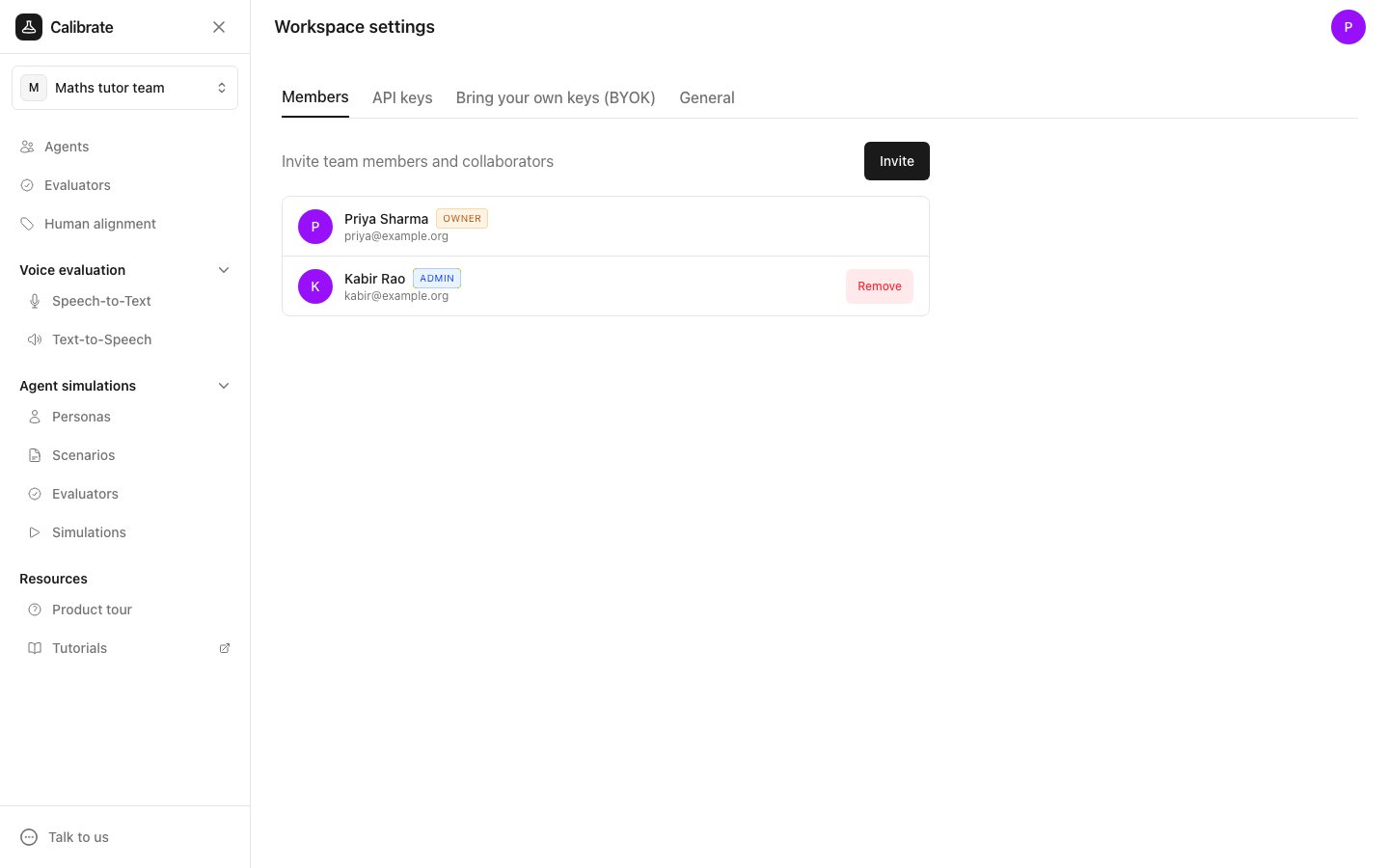
Invite people
- On the Members tab, click Invite.
- Choose how to invite:
-
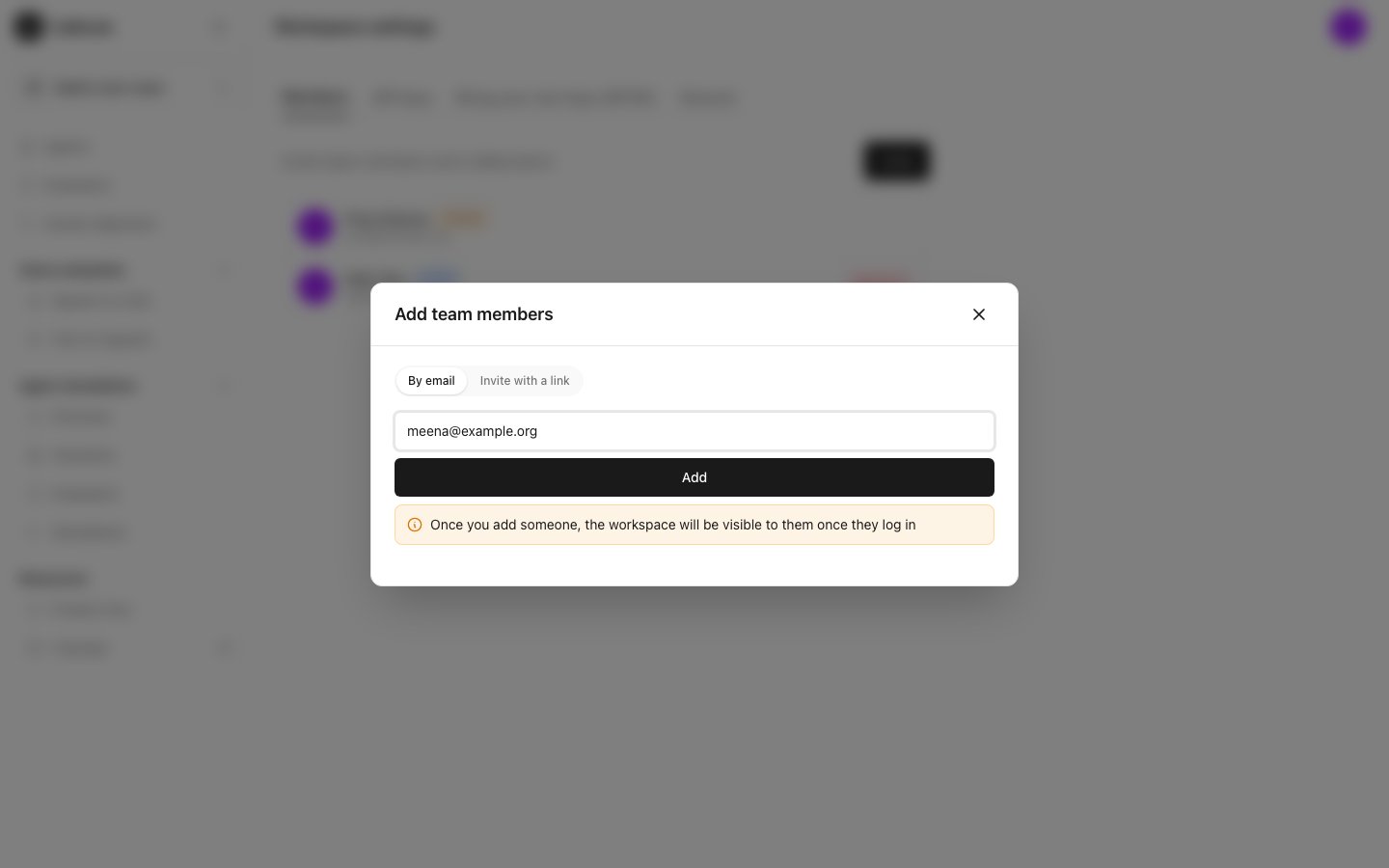
By email: type one or more email addresses and click Add. The workspace shows up for them the next time they log in.
-
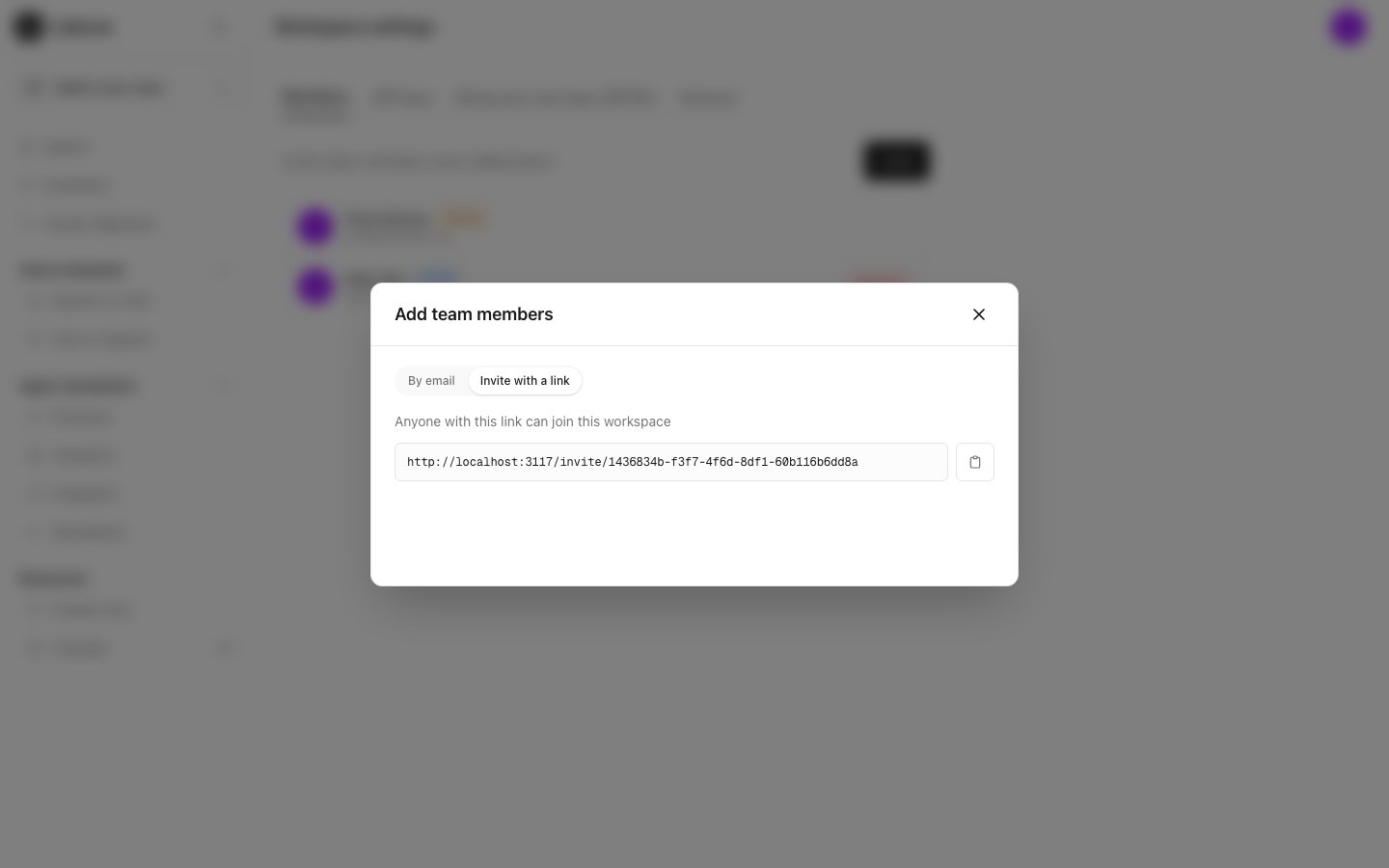
Invite with a link: if the workspace has no link yet, click Create an invite link. Copy the link with the button next to it and share it. Anyone with the link can join this workspace.
-
By email: type one or more email addresses and click Add. The workspace shows up for them the next time they log in.
Remove someone
Click Remove next to their name, then click Remove again in the box that opens. They lose access straight away. The owner cannot be removed.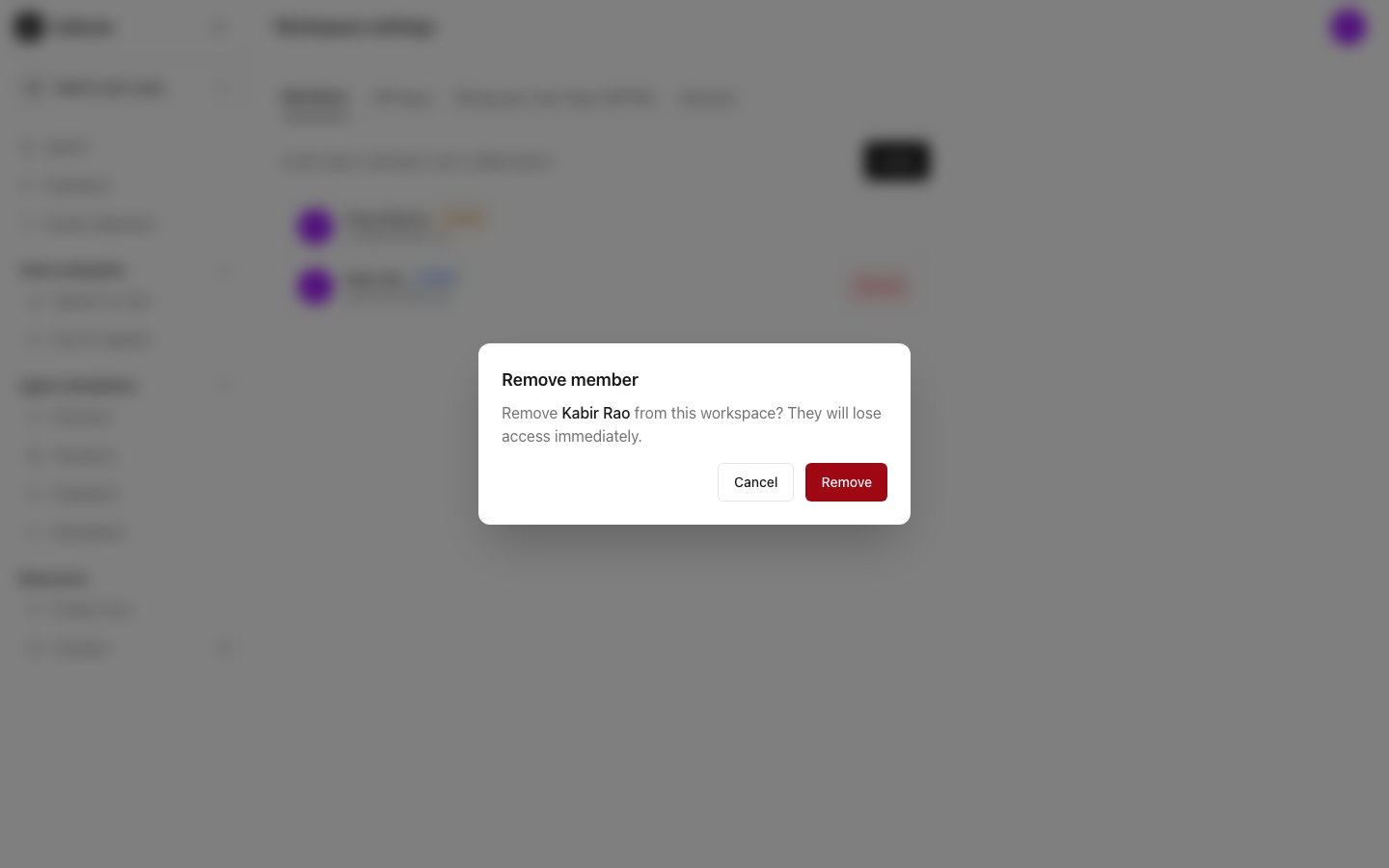
Next steps
Settings
Rename the workspace and choose how models are compared
API keys
Create a key to use Calibrate from other apps