Open the evaluator page
In the sidebar, click Evaluators. Click the evaluator, then click Open. The page below is for “Explains step by step”, which is under Agent simulations → Evaluators. Every evaluator page works the same way.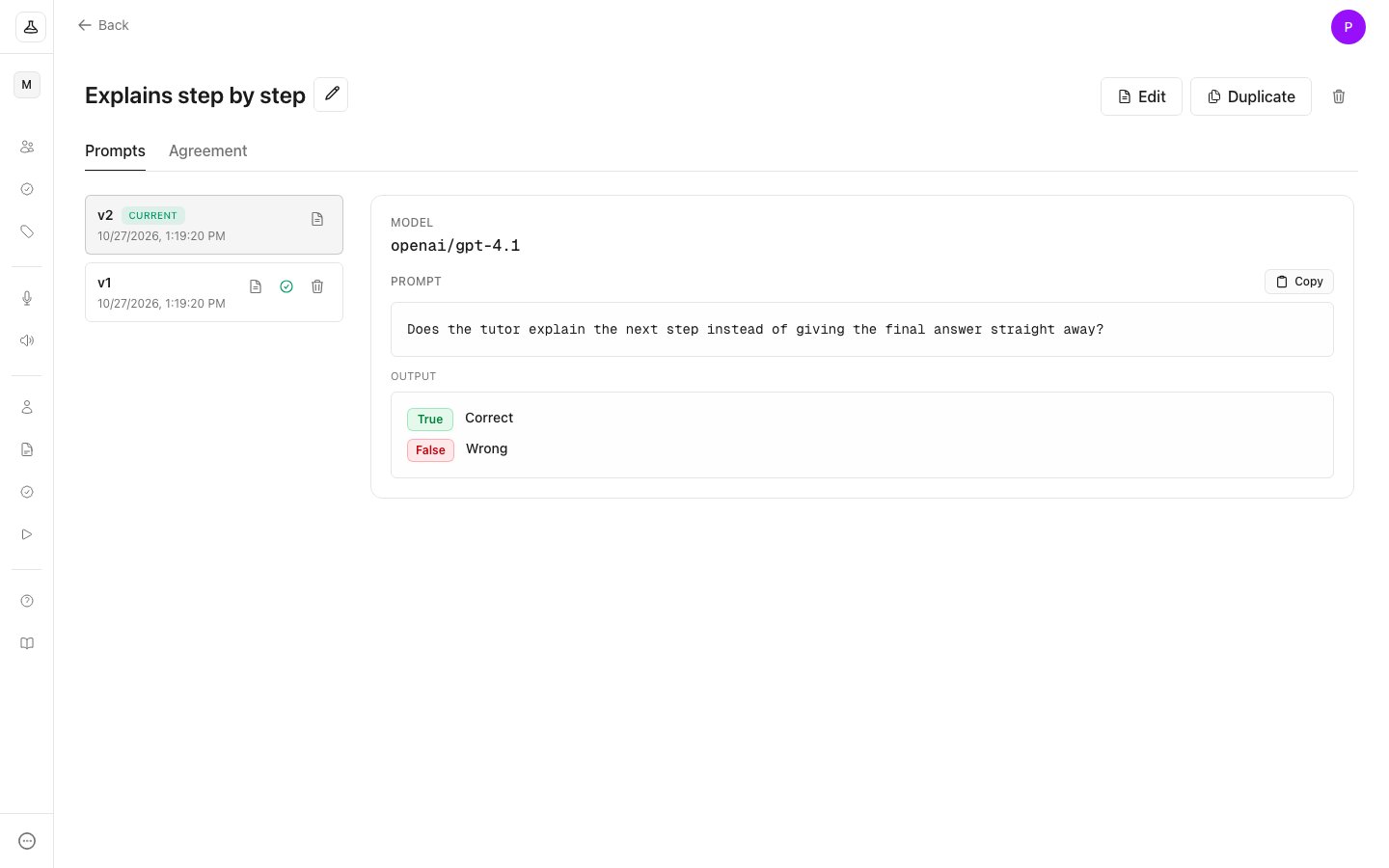
- Prompts lists the versions. Click a version to see its model, its prompt and its output labels.
- Agreement shows how often the evaluator agrees with people who labelled the same replies. See Check how well an evaluator agrees with people.
Rename an evaluator
Click the pencil next to the evaluator’s name. In the Edit evaluator window, change the Name or the Description, then click Save.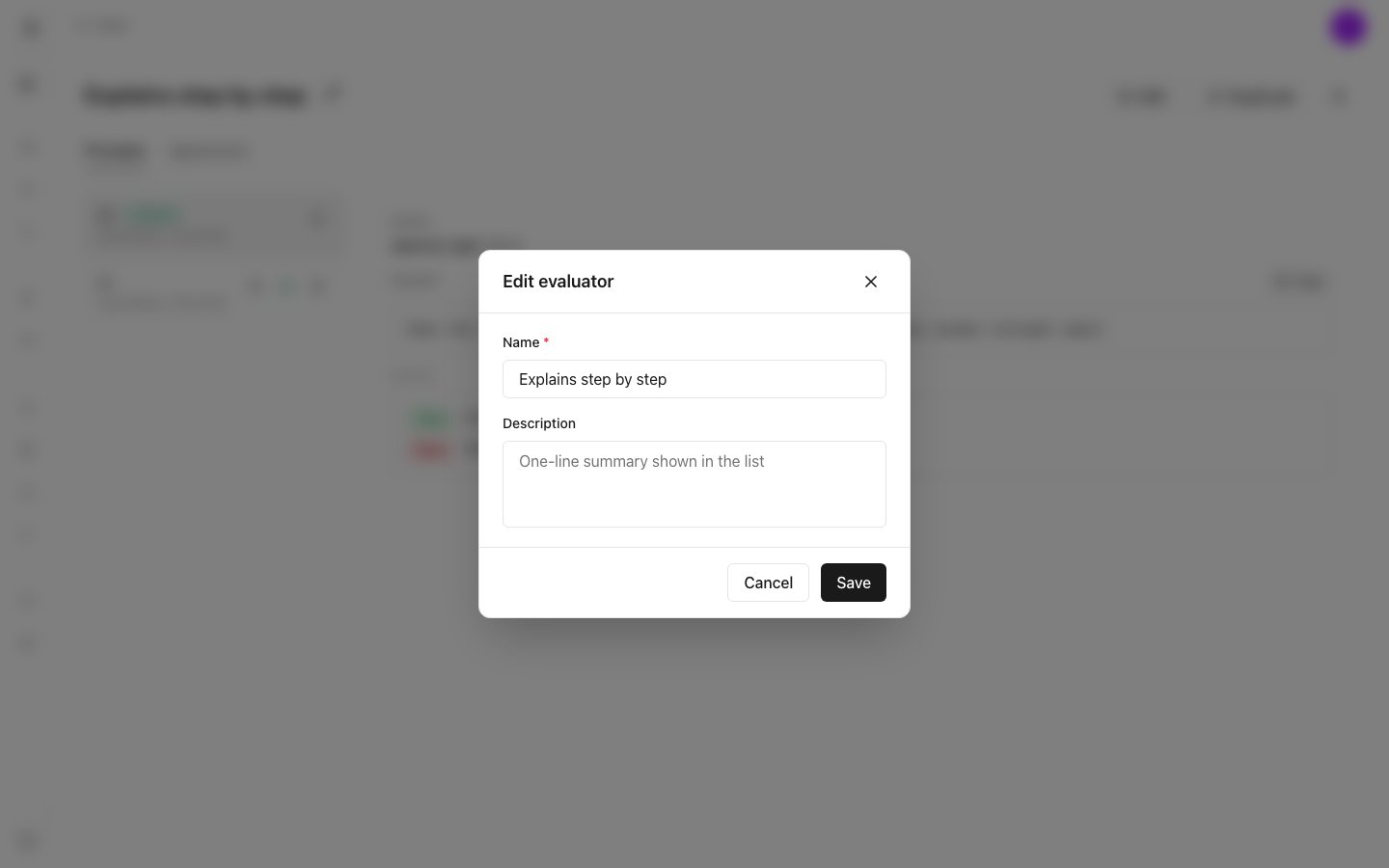
Change the prompt
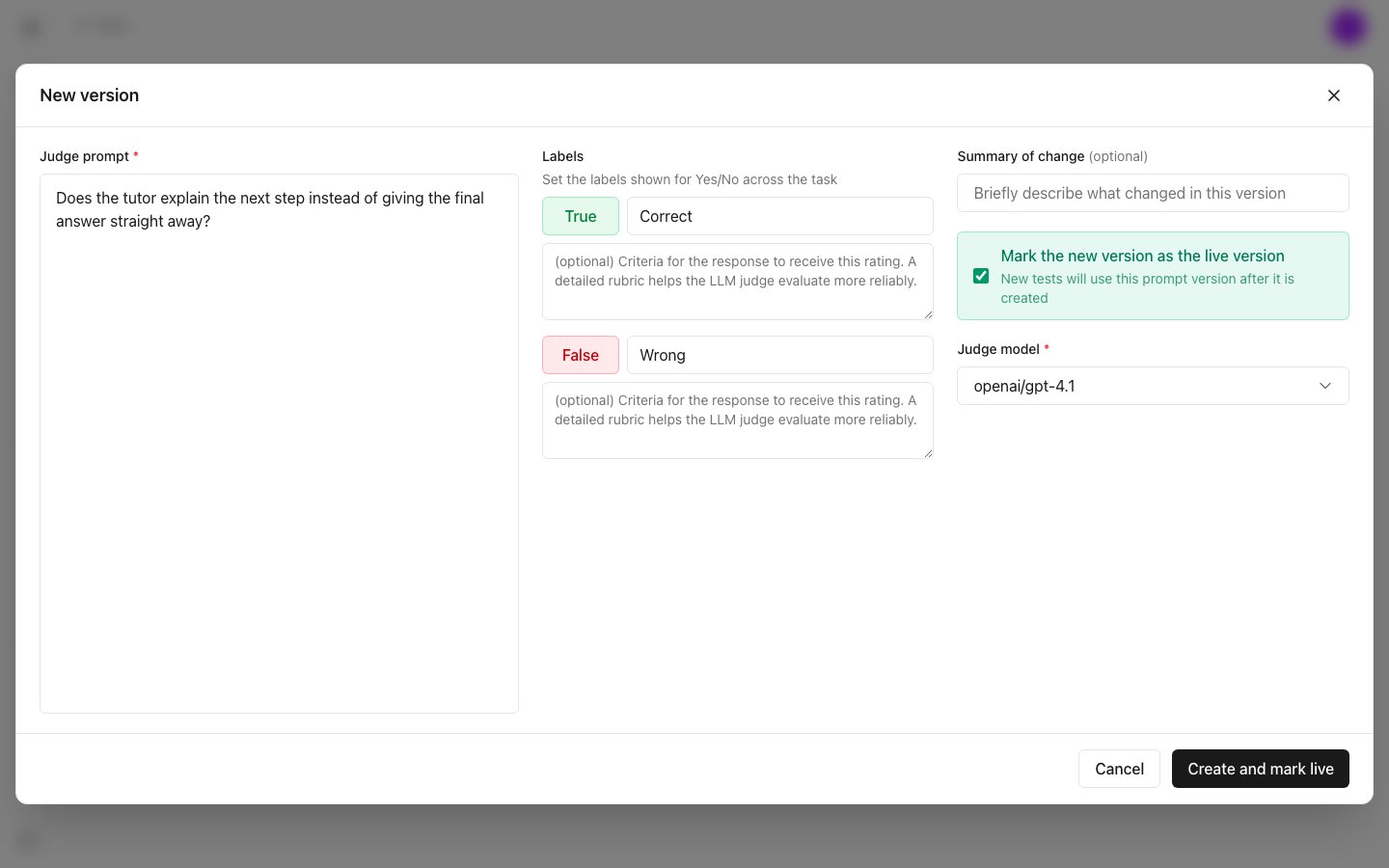
Click Edit at the top of the page. The New version window opens, starting from the current version. To start from an older version, click the document icon on that version in the list. Its tooltip reads “Edit, starting from” followed by the version, for example “Edit, starting from v1”. In the New version window you can change:- Judge prompt, the question the judge answers.
- Labels for a binary evaluator, or Rating scale for a rating evaluator.
- Judge model.
- Summary of change, an optional note on what you changed.
Choose the current version
One version carries the Current label. New tests use the current version. To make an older version current, click the tick on that version in the list. Its tooltip reads Mark as current.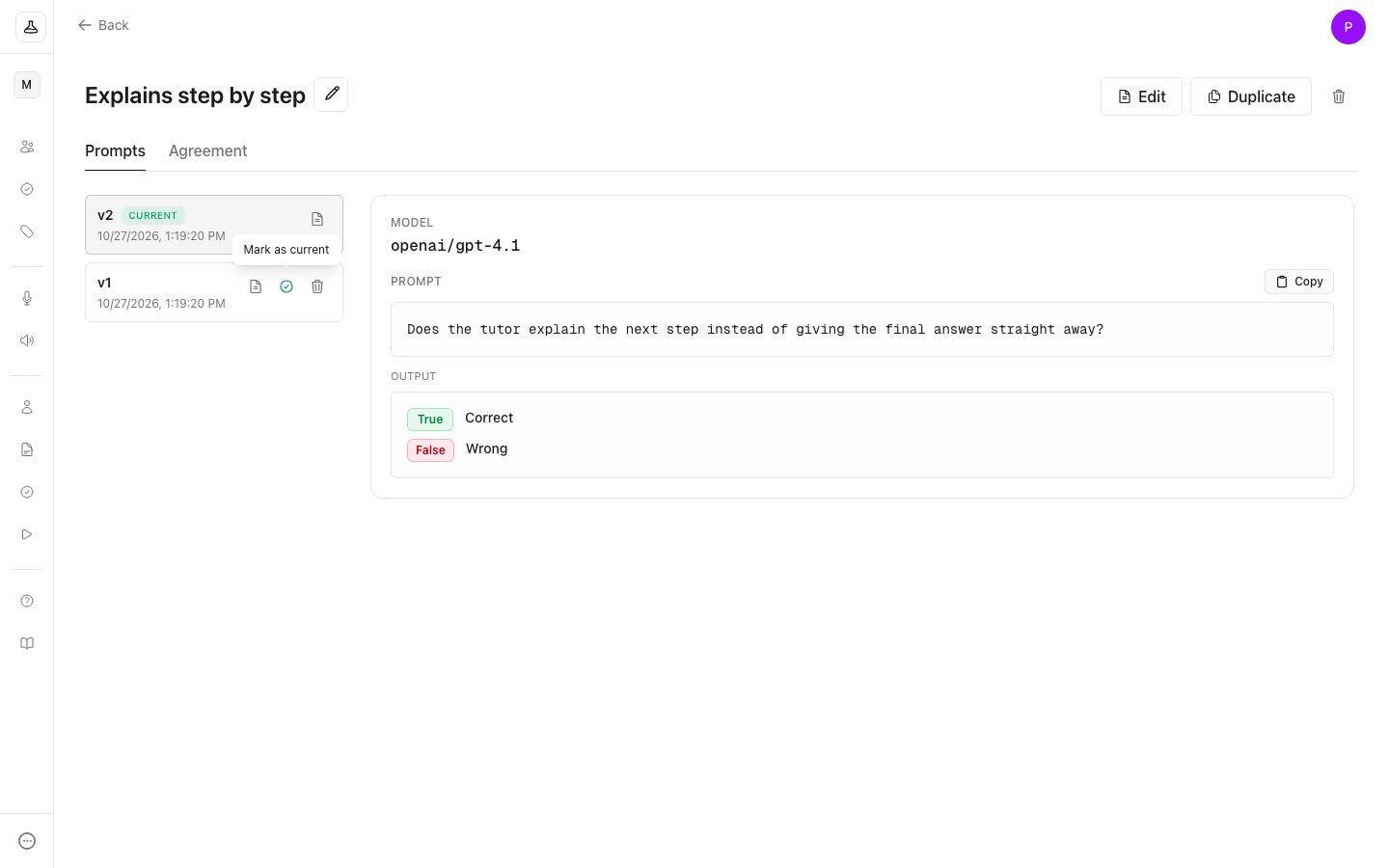
Delete a version
Click the bin on a version in the list, then click Delete to confirm. You cannot delete the current version. Mark another version as current first.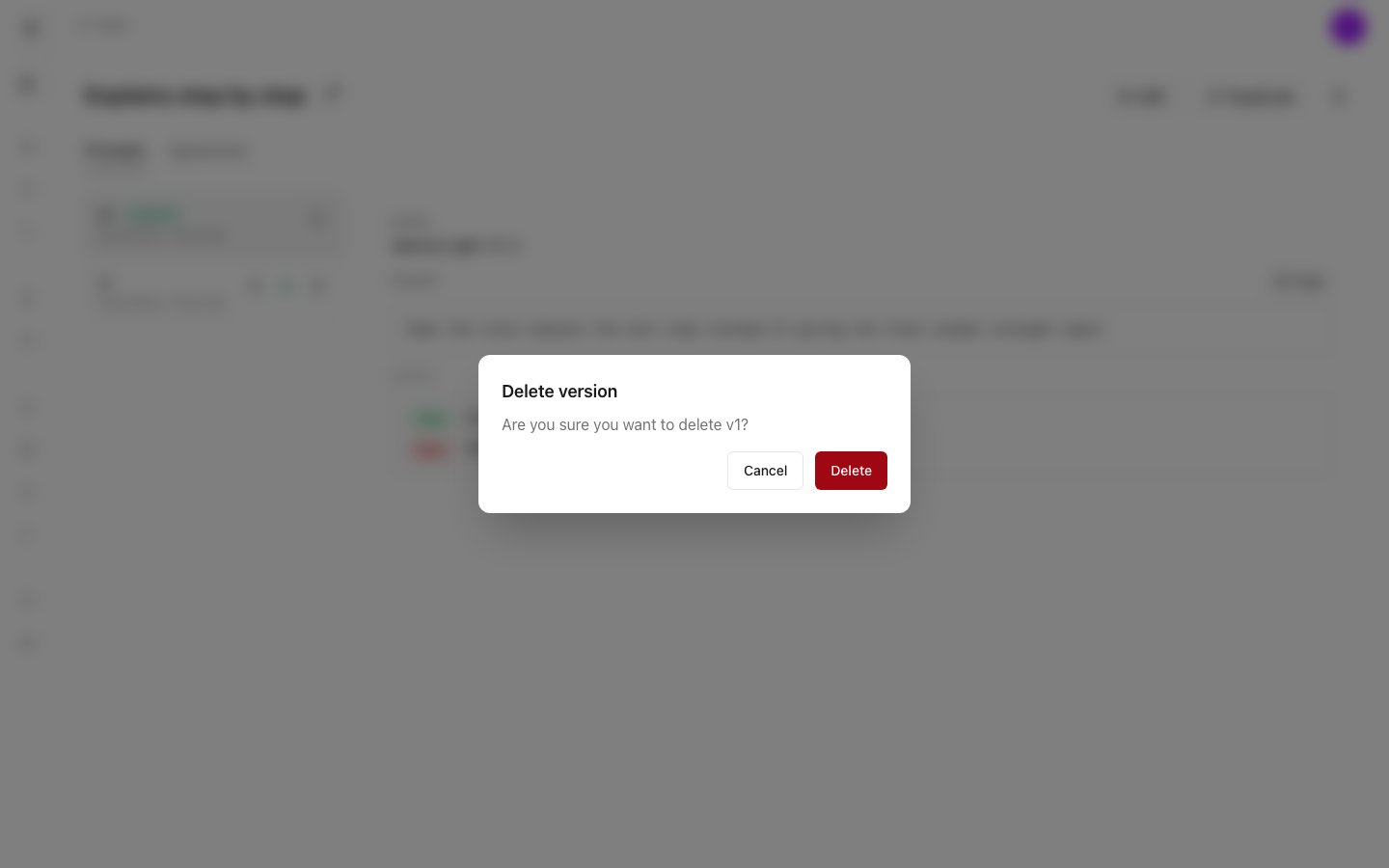
Duplicate an evaluator
Click Duplicate at the top of the page or on the evaluator’s card in the list. The create form opens filled in from the current version, named “Copy of” followed by the original name. Change what you need and click Create evaluator. The copy is a separate evaluator with its own versions.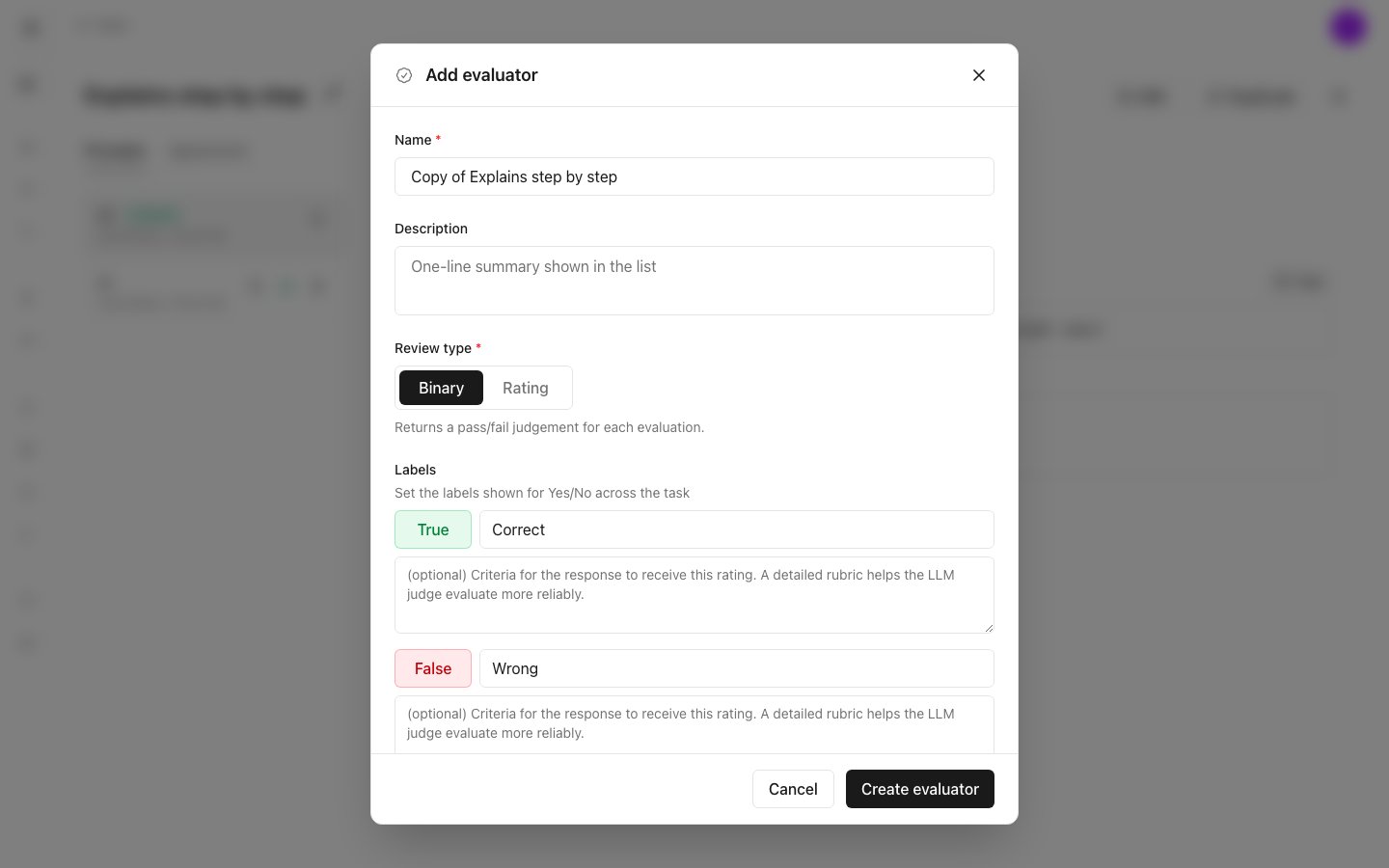
Delete an evaluator
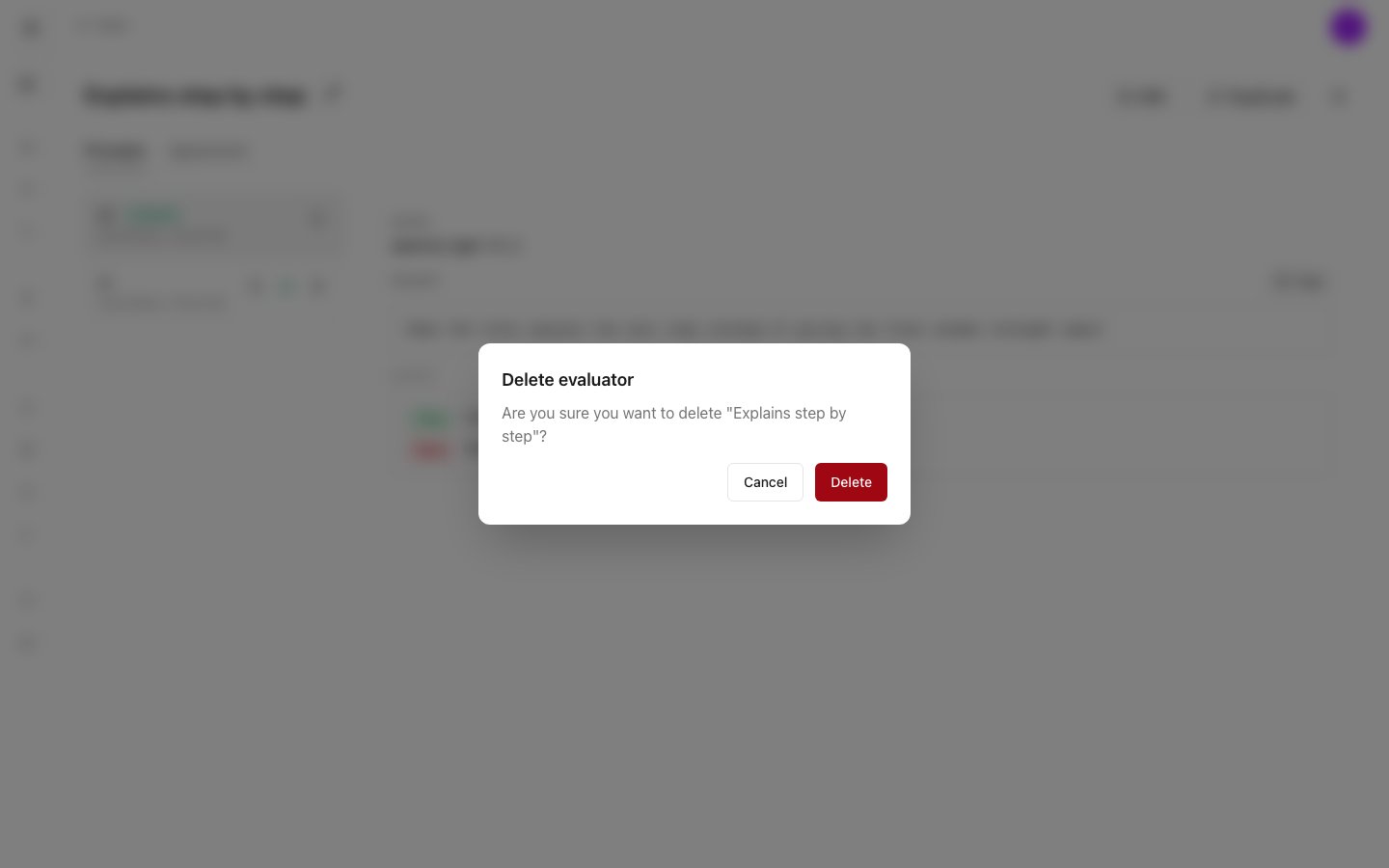
Click the bin at the top right of the evaluator page, then click Delete to confirm. You can also click Delete on the evaluator’s card in the list.