

See your datasets
In the sidebar, click Speech-to-Text, then click the Datasets tab. Each row shows how many recordings the dataset has (Items) and how many evaluations used it (Evals).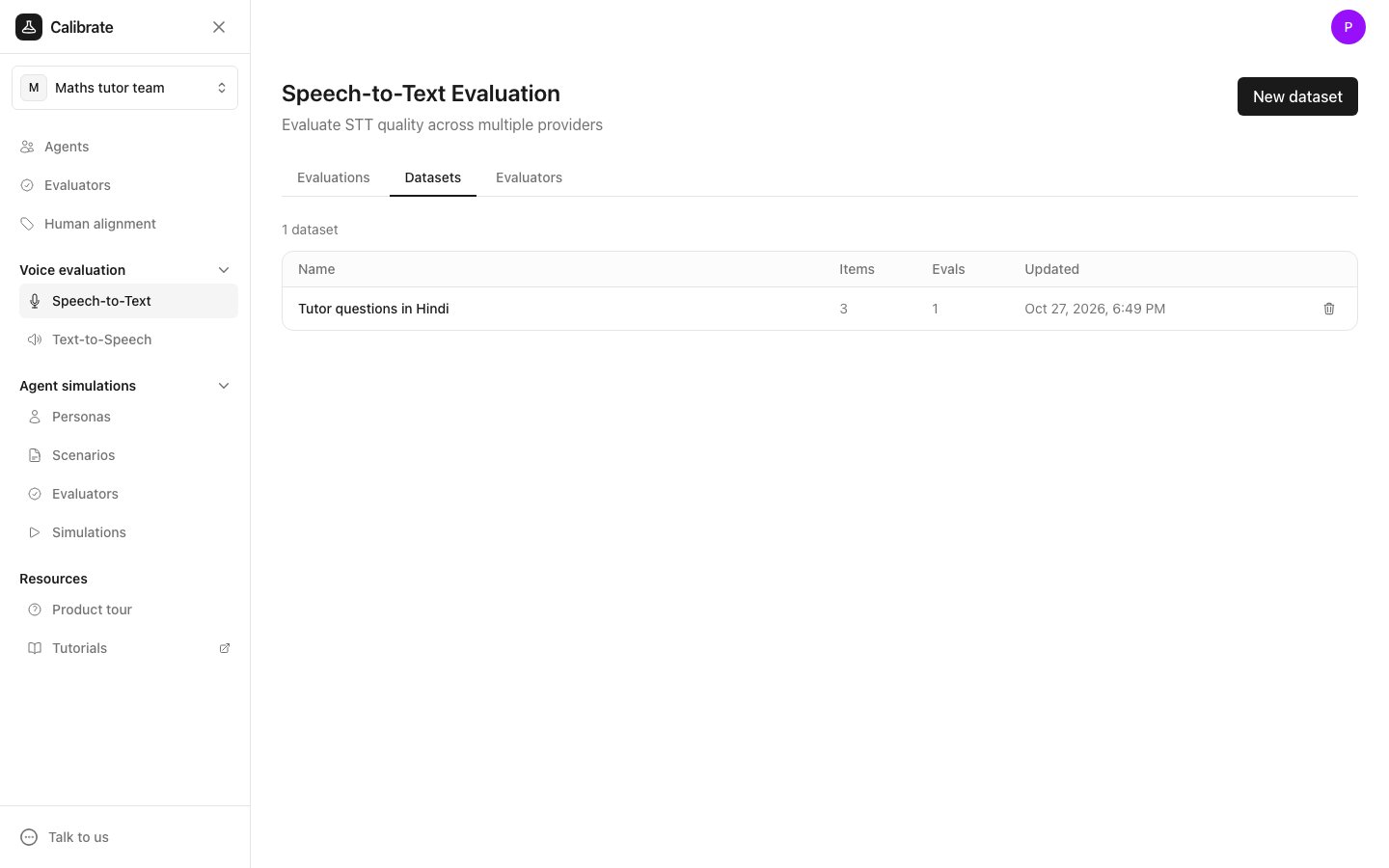
Create a dataset
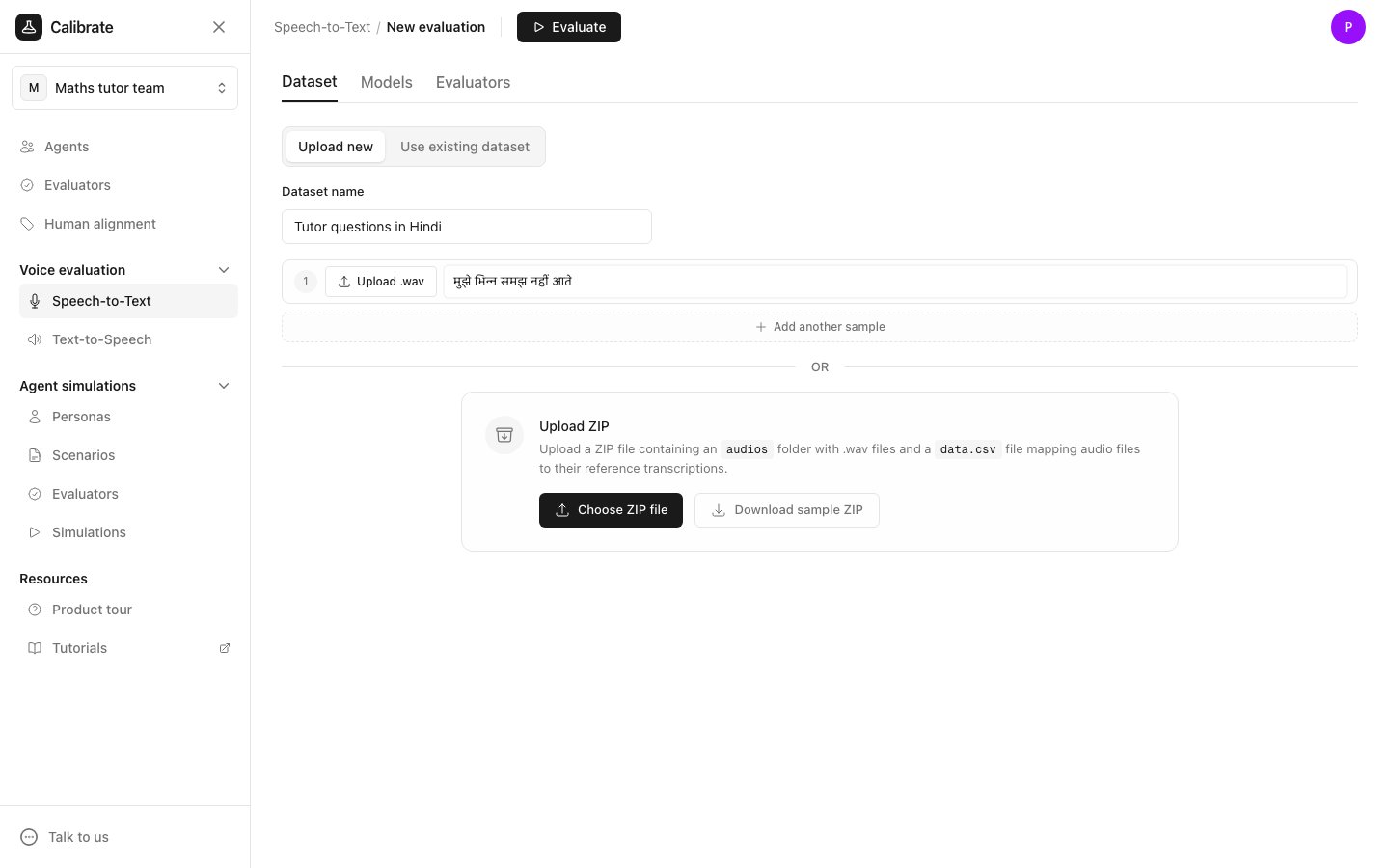
- On the Datasets tab, click New dataset.
- Under Dataset name, type a name, for example
Tutor questions in Hindi, and click Create. - On the dataset page, click Upload .wav and type the words spoken in the box next to it.
- Click Add another sample for each other recording. To add many at once, click Choose ZIP file in the Upload ZIP box.
- Click Save.
.wav file of under 60 seconds and under 5 MB.
A dataset is also created when you upload recordings on the Dataset tab of a new evaluation.
Change a dataset
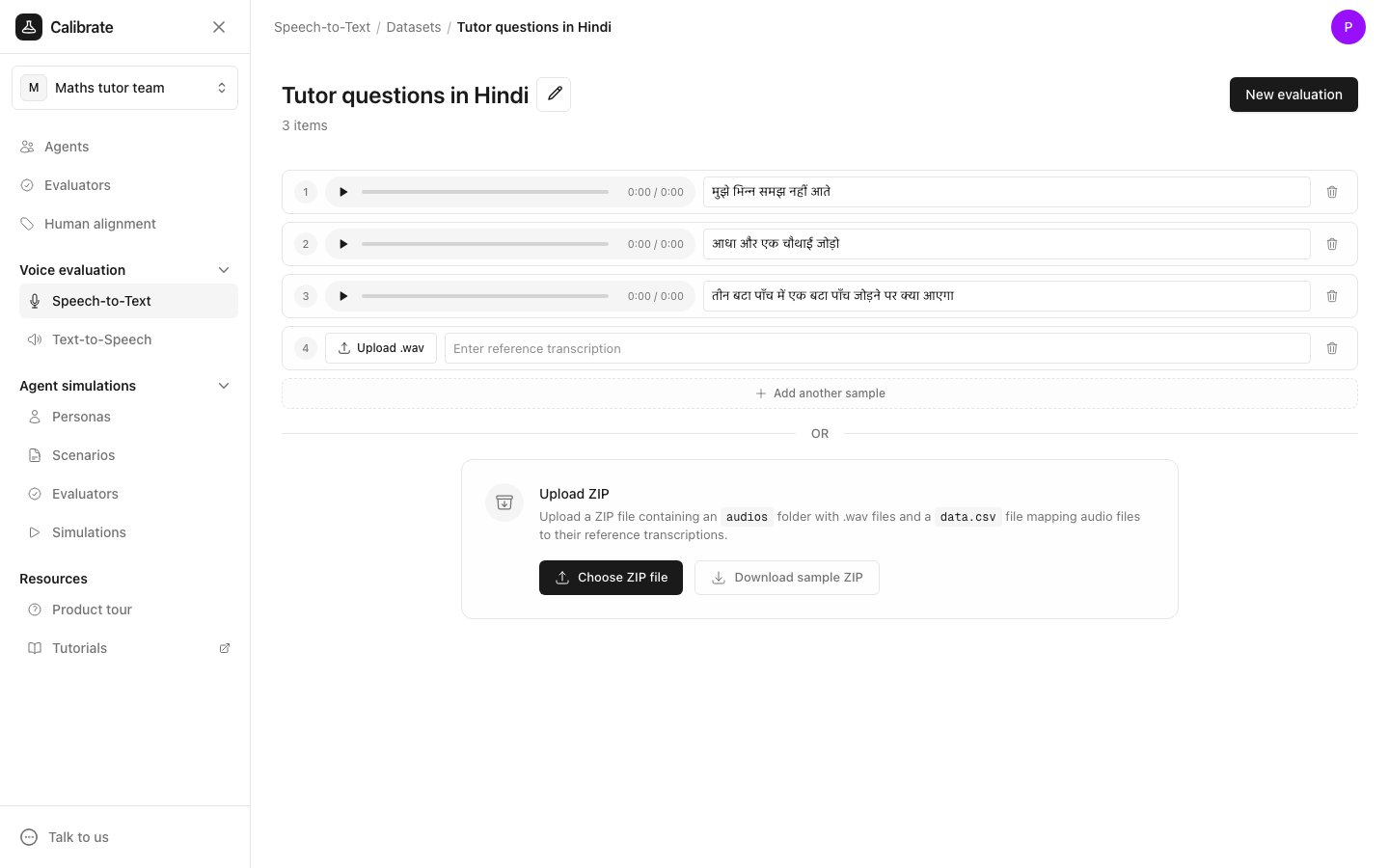
Click a dataset on the Datasets tab to open it. On the dataset page you can:- Add recordings with Add another sample or Choose ZIP file.
- Fix the words for a recording by typing in its box.
- Remove a recording with the bin button on its row. The button shows once your other changes are saved, and only while the dataset has more than one recording.
- Rename the dataset with the pencil button next to its name.
Run an evaluation on a dataset
On the dataset page, click New evaluation. The dataset is already chosen, so you only pick the language and models. Save any changes first.Delete a dataset
On the Datasets tab, click the bin button at the end of the dataset’s row, then click Remove. Evaluations that used it keep their results.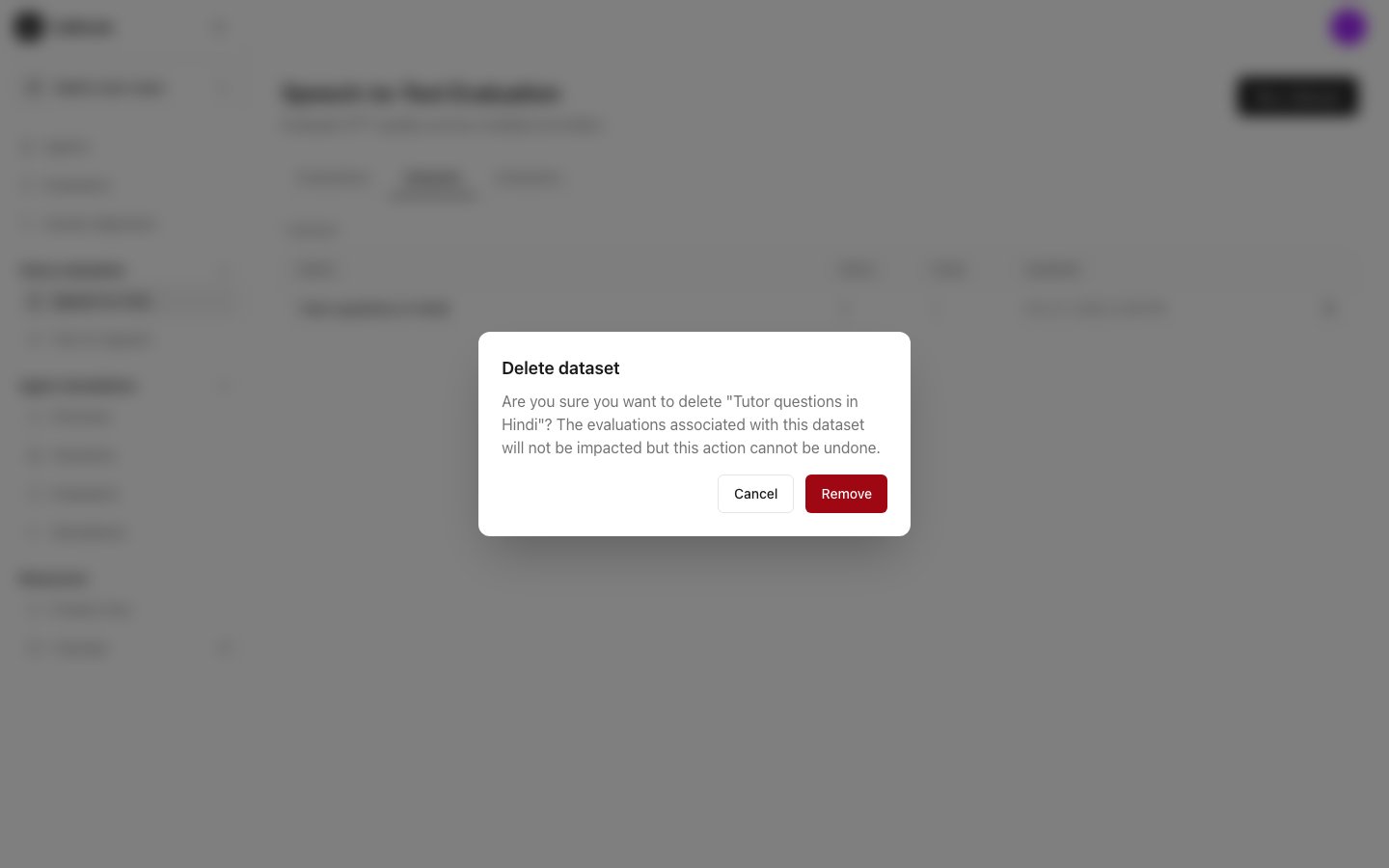
Next steps
Benchmark speech-to-text models
Run an evaluation on your recordings
Speech-to-text metrics
What each score means