

- Structured output tool: the agent pulls set details out of the conversation, in a format you define.
- Webhook tool: the agent calls an outside web address to do something or look something up.
save_progress, a structured output tool that saves which topic the student practised and whether they solved the question.get_practice_question, a webhook tool that fetches one practice question for a topic.
Open the Tools tab
On the agent page, click the Tools tab.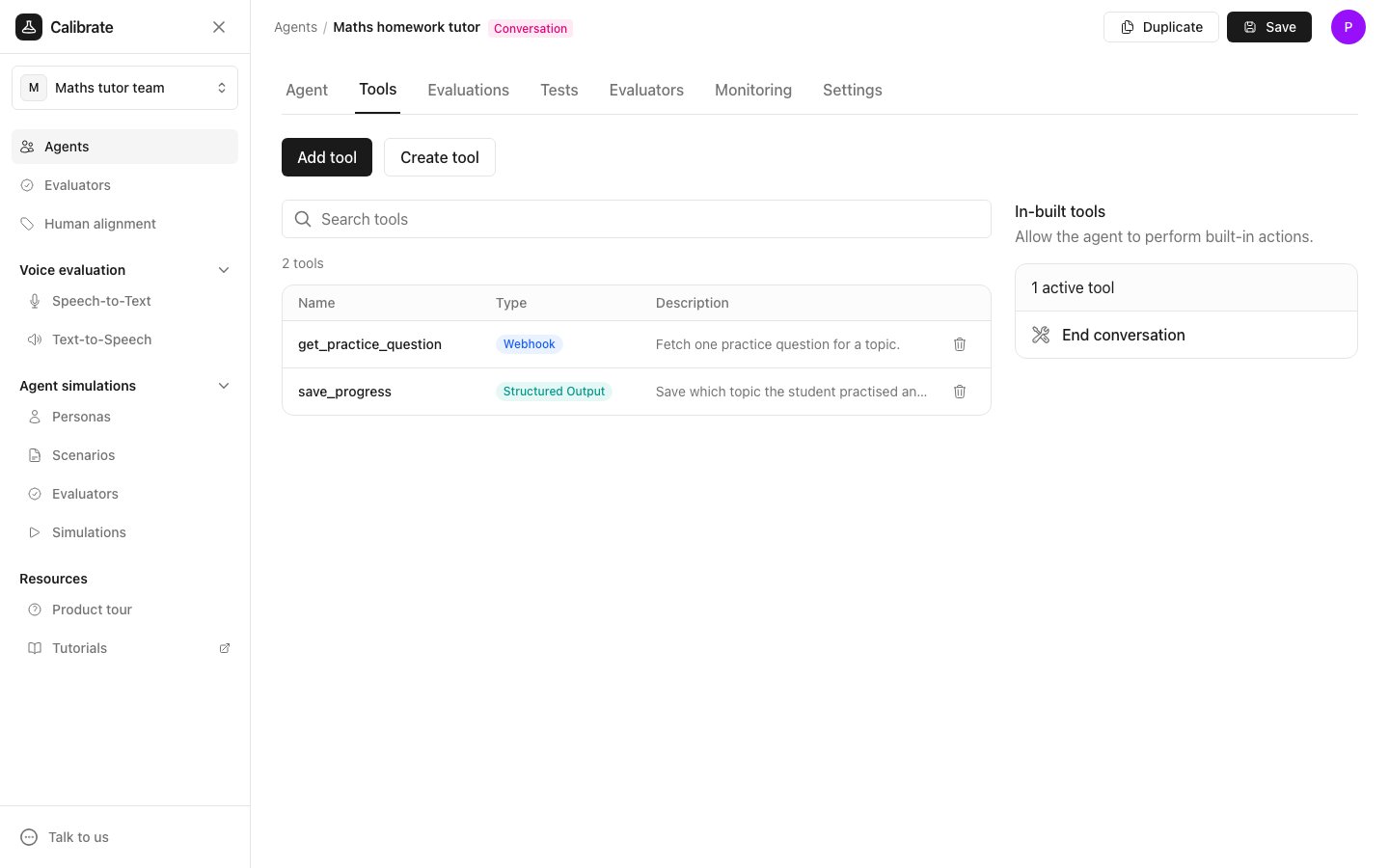
- Add tool adds a tool that already exists in your workspace.
- Create tool makes a new tool and adds it to this agent.
Structured output tools
A structured output tool lets the agent pull details out of the conversation in a fixed shape. The tutor usessave_progress to note the topic and whether the student got the answer.
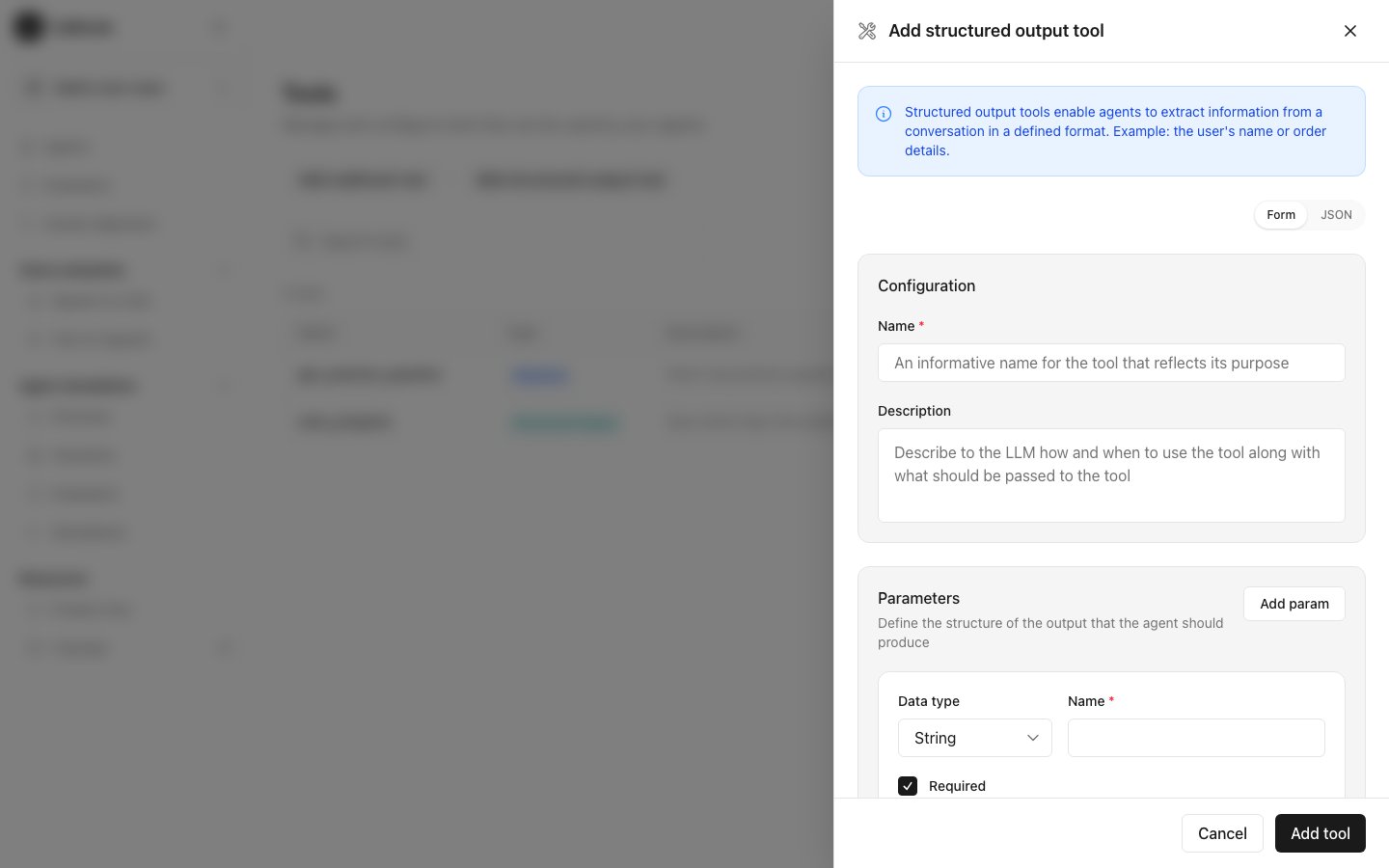
- Name:
save_progress - Description: tell the LLM when to call the tool and what to pass. For example:
Save which topic the student practised and whether they solved the question.
- Data type: String, Number, Integer, Boolean, Object or Array.
- Name: what the detail is called.
- Required: tick it if the agent must always fill it in.
- Description: tell the LLM what this detail means and how to fill it in.
Click Add tool.
Webhook tools
A webhook tool lets the agent call a web address on your side. The tutor usesget_practice_question to fetch a question for the topic the student is working on.
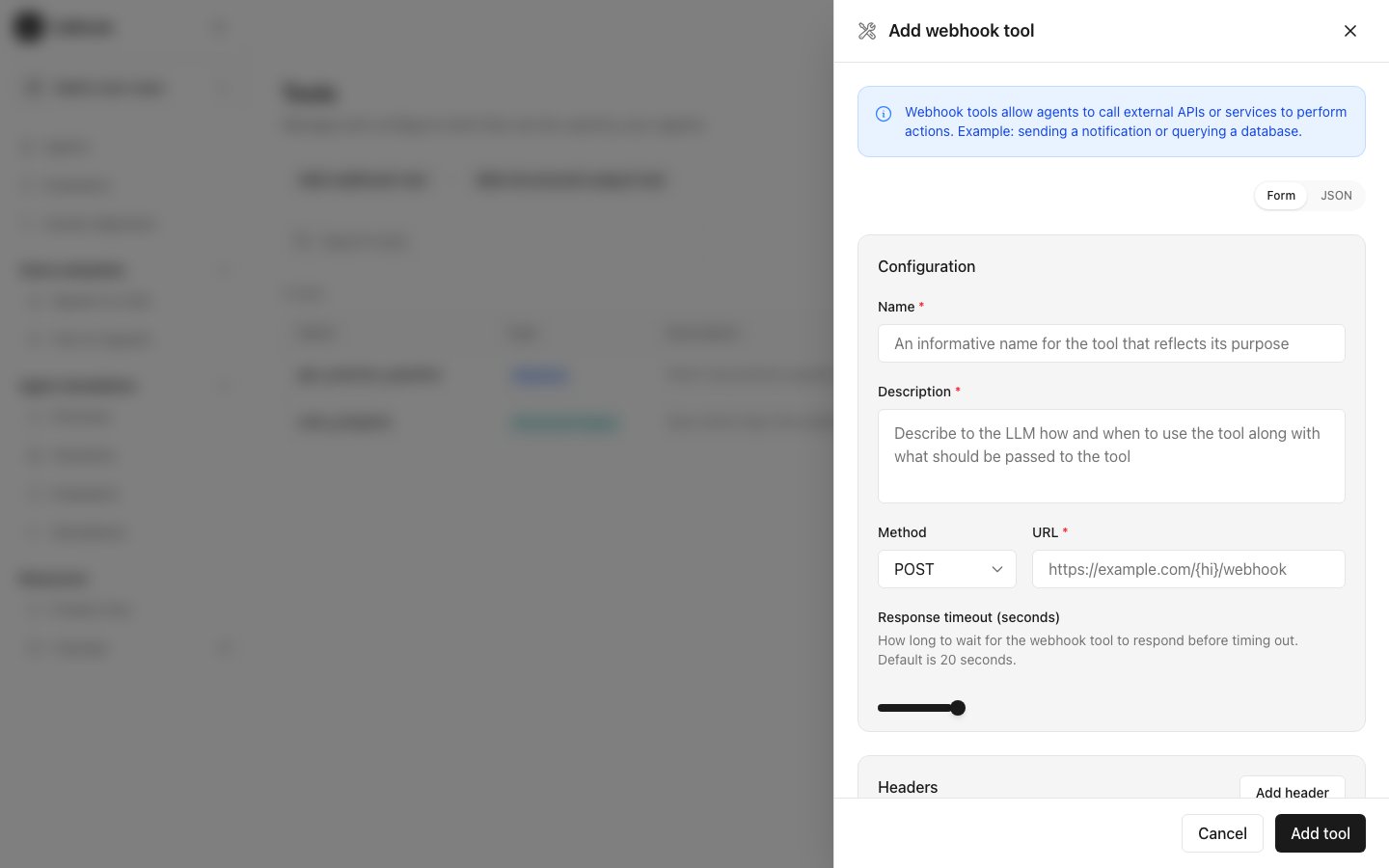
- Name:
get_practice_question - Description: tell the LLM when to call the tool and what to pass. For example:
Fetch one practice question for a topic. - Method: how the request is sent. Pick GET, POST, PUT, PATCH or DELETE. The tutor uses GET.
- URL: the web address to call. The tutor uses
https://example.org/tutor/practice-question. - Response timeout (seconds): how long to wait for an answer. The default is 20 seconds.
- Headers: values sent with every request, such as a key your service checks. Click Add header for each one.
- Query parameters: details the LLM fills in and adds to the URL. Click Add param for each one. The tutor has one,
topic, a String described as “The maths topic”. - Body parameters: details the LLM fills in and sends in the request body. This section appears only for POST, PUT and PATCH.
In-built tools
Every agent has these tools. They are listed under In-built tools on the Tools tab.Next steps
Build an agent in Calibrate
Write the prompt and pick the models
Evaluate your agent with unit tests
Check that the agent calls the right tool with the right details