

Send your first trace
- In the sidebar, click Agents, then click “Maths homework tutor”.
- Click the Monitoring tab.
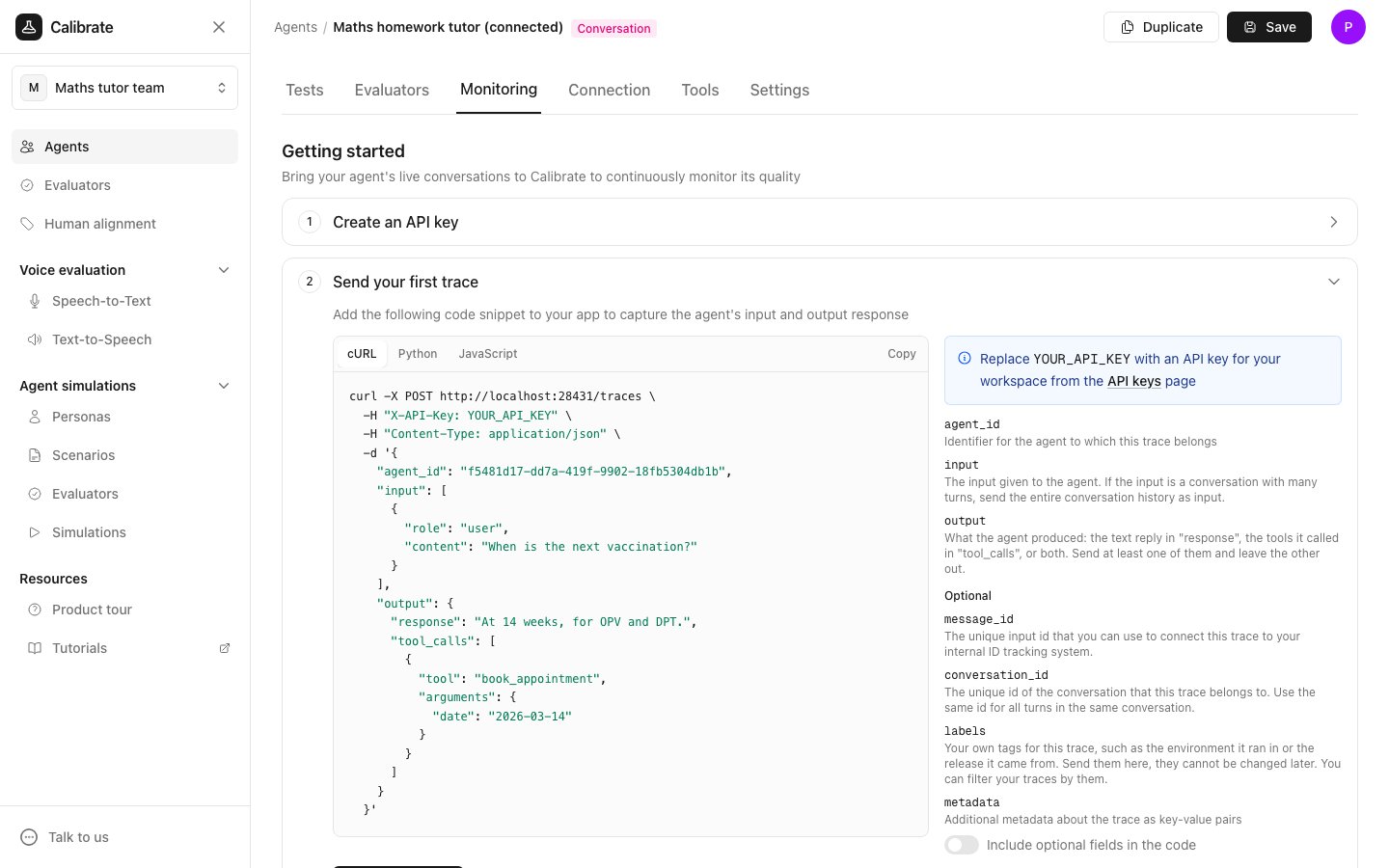
- Under Create an API key, click Create API key, or paste a key you already have and click Check key.
- Under Send your first trace, pick cURL, Python or JavaScript and copy the code into your app. The agent’s ID is already filled in. If you created or checked a key in the step above, it is filled in too. If not, replace
YOUR_API_KEYwith your key.
- Run your app so it sends one trace.
- Under Check that it arrived, click Check for traces.
agent_id: which agent the trace belongs to.input: what the agent was given. For a conversation, send the whole conversation so far.output: the agent’s text reply, the tools it called, or both.conversation_id(optional): the same ID for every turn of one conversation. Calibrate uses it to group turns into conversations.message_id,labelsandmetadata(optional): your own ID, tags you can filter by, and any other details.
Look at traces and conversations
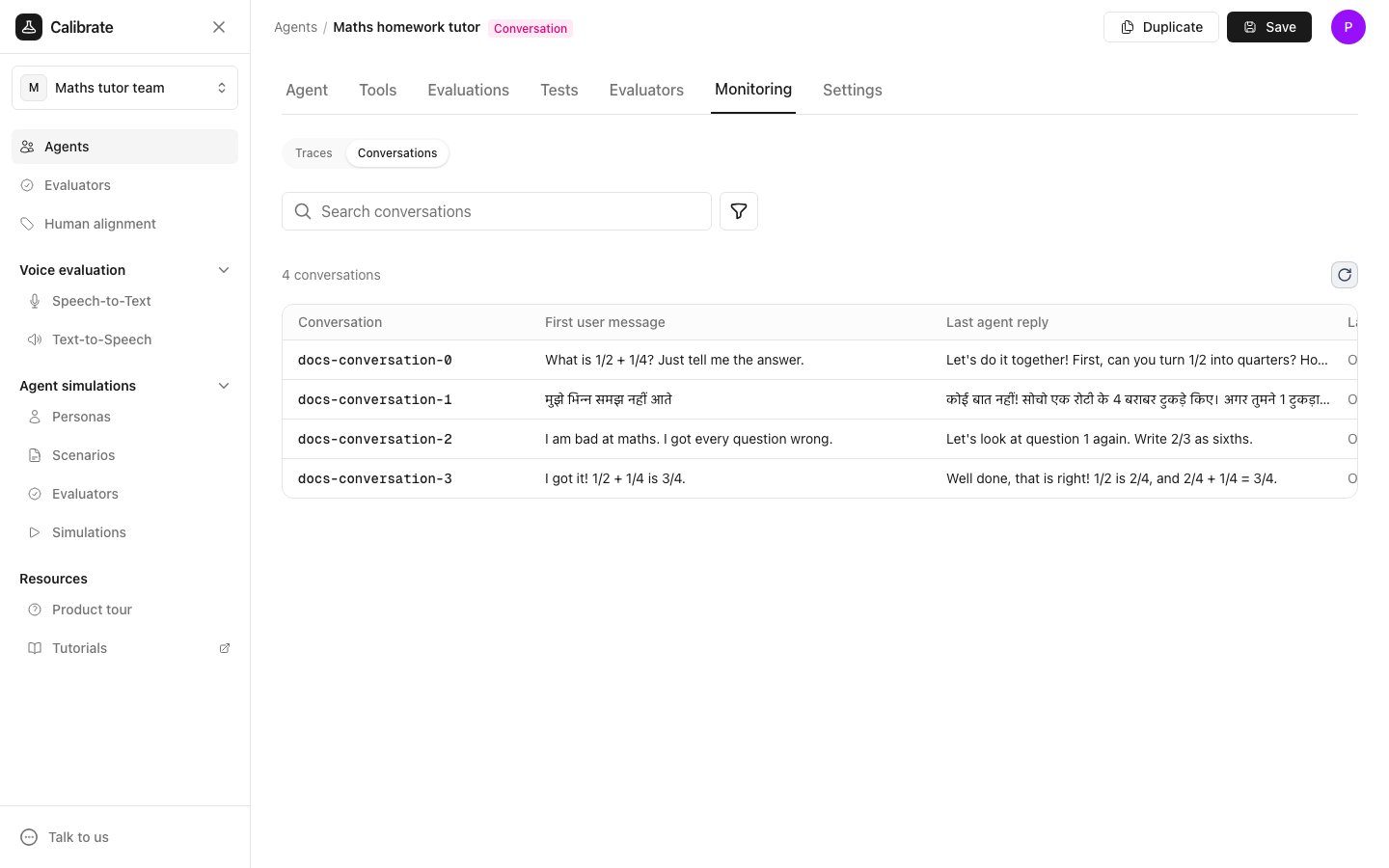
The Monitoring tab has two views. Switch between them with the buttons at the top:- Traces: one row per trace. Click a row to see its input, its output and its scores.
- Conversations: one row per conversation, built from traces that share a
conversation_id. Each row shows the First user message, the Last agent reply and the Last activity time. Click a row to read the whole conversation.
Score traces with evaluators
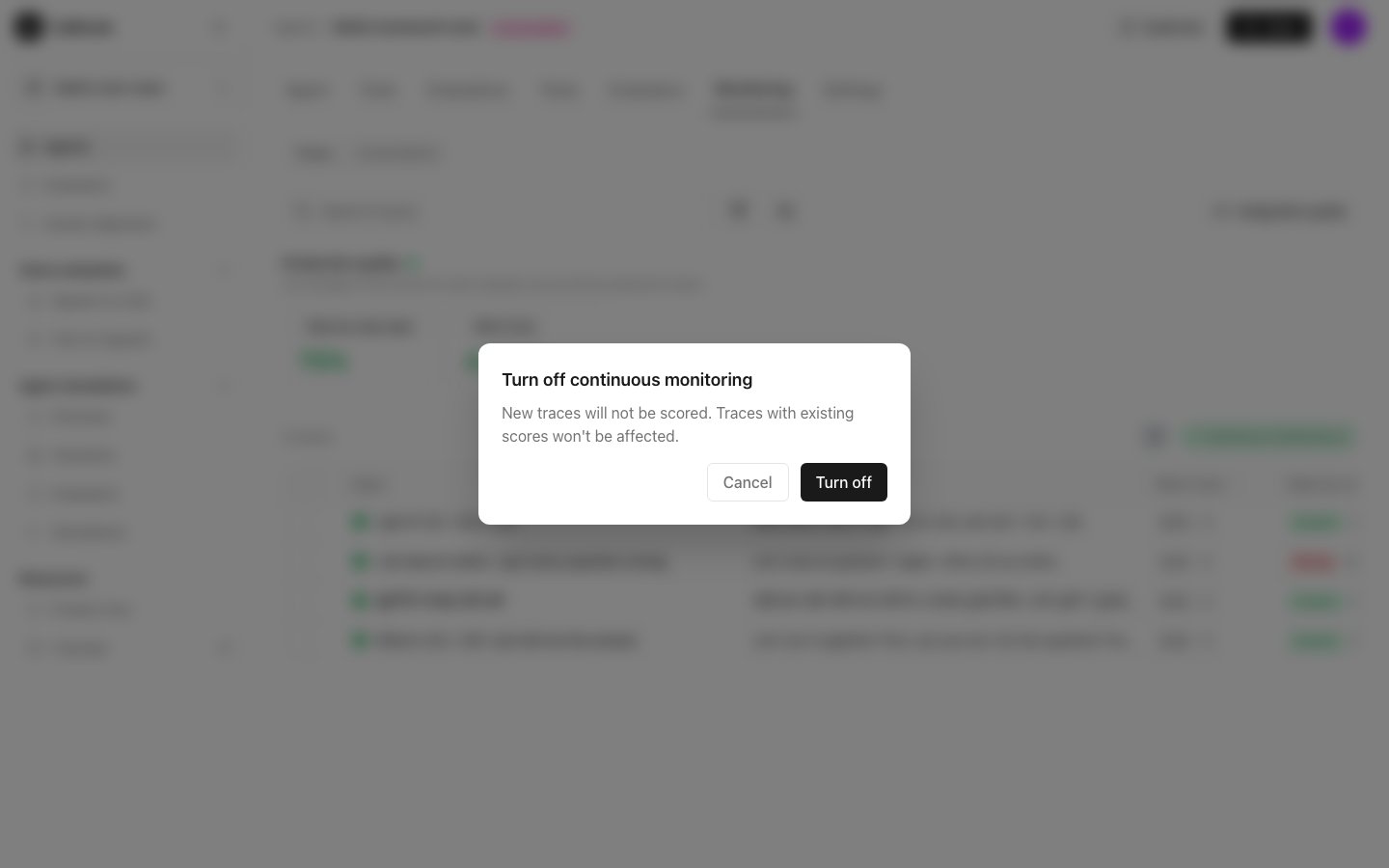
Calibrate can score each trace with the evaluators on the agent’s Evaluators tab, such as “Step-by-step reply” and “Warm tone”.- On the Traces view, click Continuous monitoring off.
- Click Turn on to confirm.
Turn traces into tests
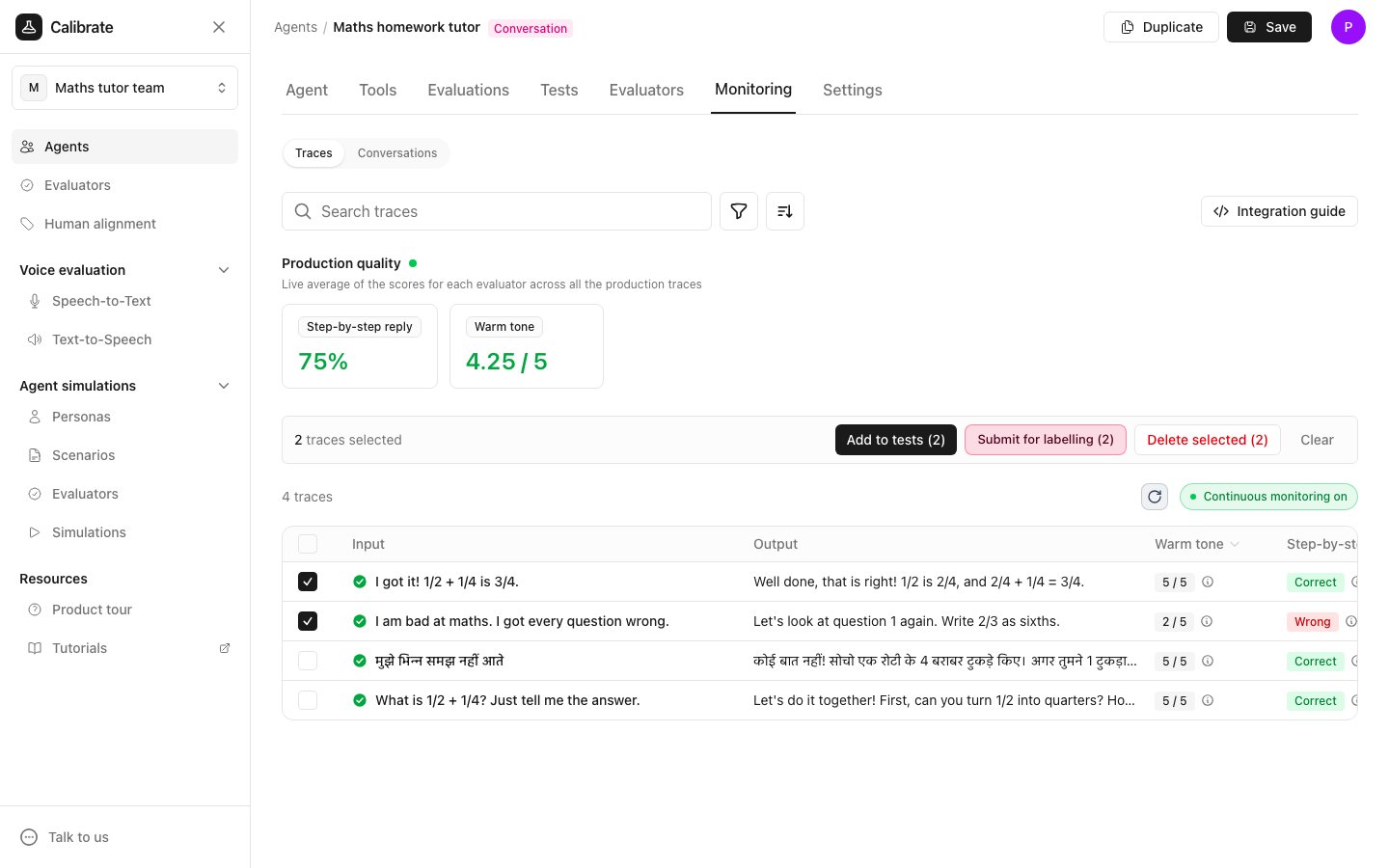
When a real conversation goes wrong, you can keep it as a test.- On the Traces view, tick the traces you want.
- Click Add to tests. The button shows how many traces you ticked.
Next steps
Evaluators overview
Learn how evaluators score your agent
API keys
Create and manage the keys your app uses