

Create the task
- Click Human alignment in the sidebar, then Create new labelling task.
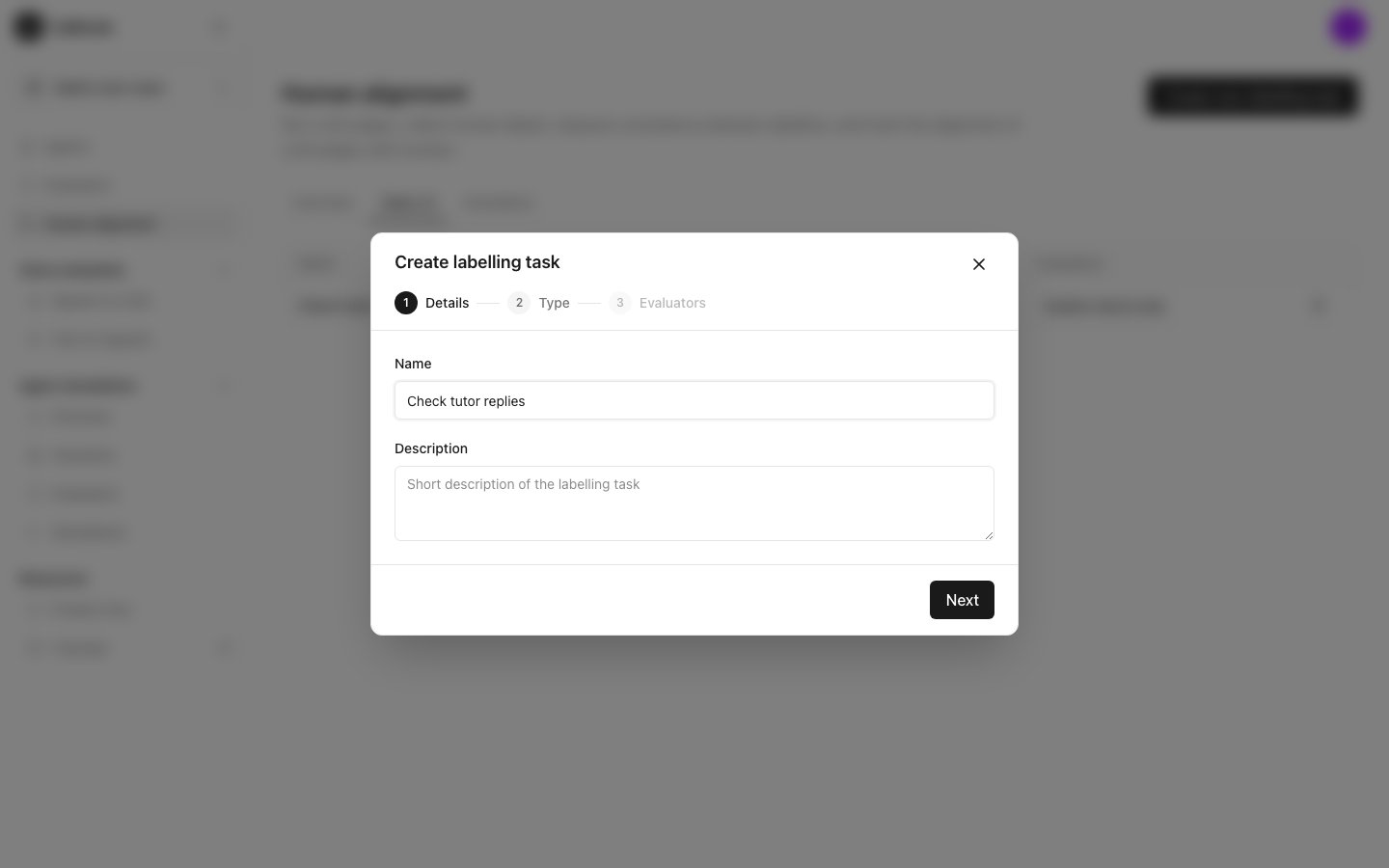
- In Details, enter the Name “Check tutor replies” and an optional Description. Click Next.
- In Type, answer What do you want to label? For the tutor, click Text, then Conversation, then The whole conversation. Click Next.
- In Evaluators, select “Explains step by step”. Only evaluators of the type you picked are listed. To make one here, click New evaluator.
- Click Create task.
Add items
Each item is one conversation for annotators to label. There are three ways to add items.Add one item by hand
Add one item by hand
Click Add item at the top of the task page. Give the item a name, such as “Fractions: asks for the next step”, and enter the conversation. Click Create.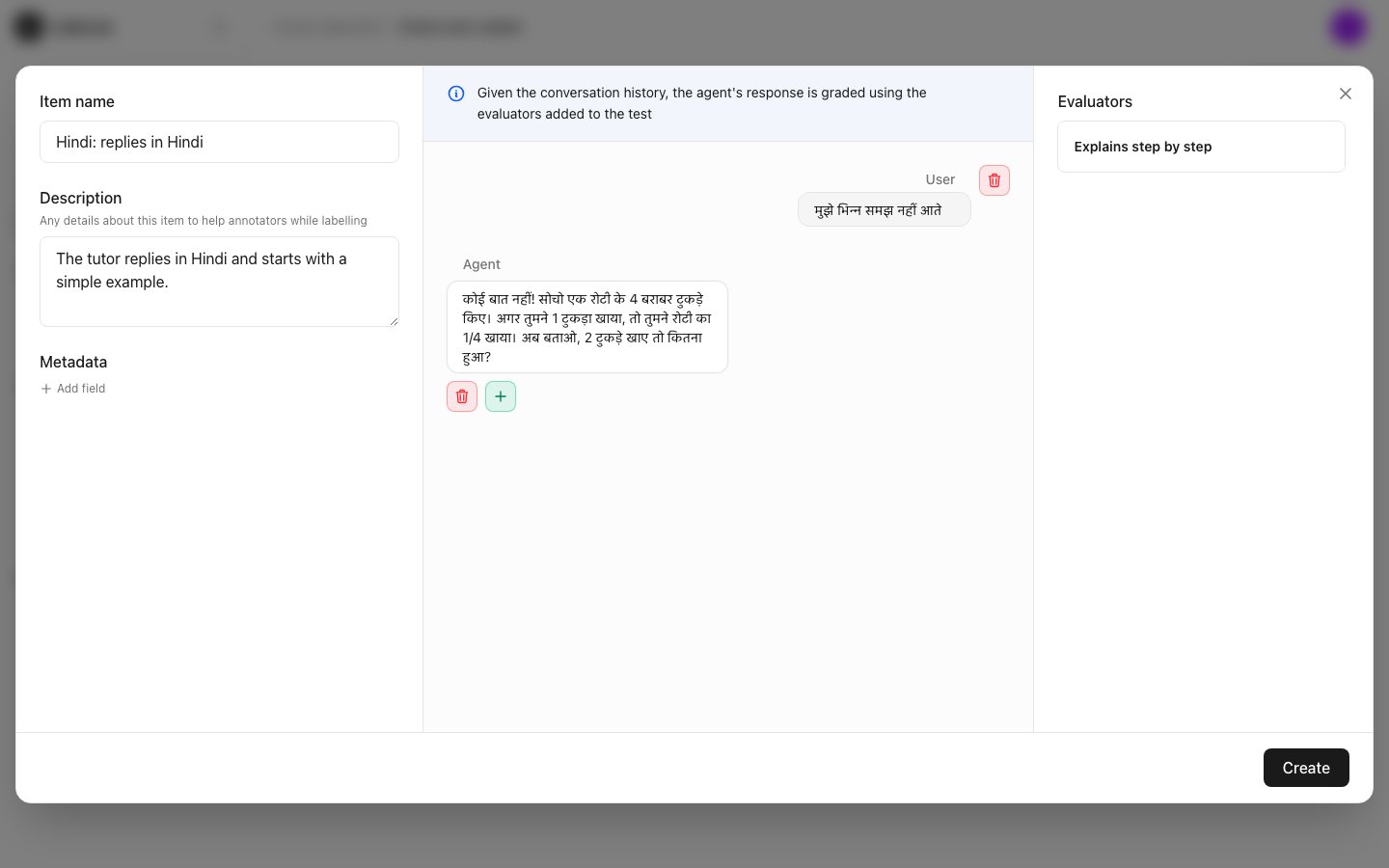
Upload many items from a CSV file
Upload many items from a CSV file
Click Bulk upload. Upload a CSV file with one row per item: a name, an optional description and the transcript. If people have already labelled these conversations, answer Yes to Do you want to upload existing human labels? and pick the annotator.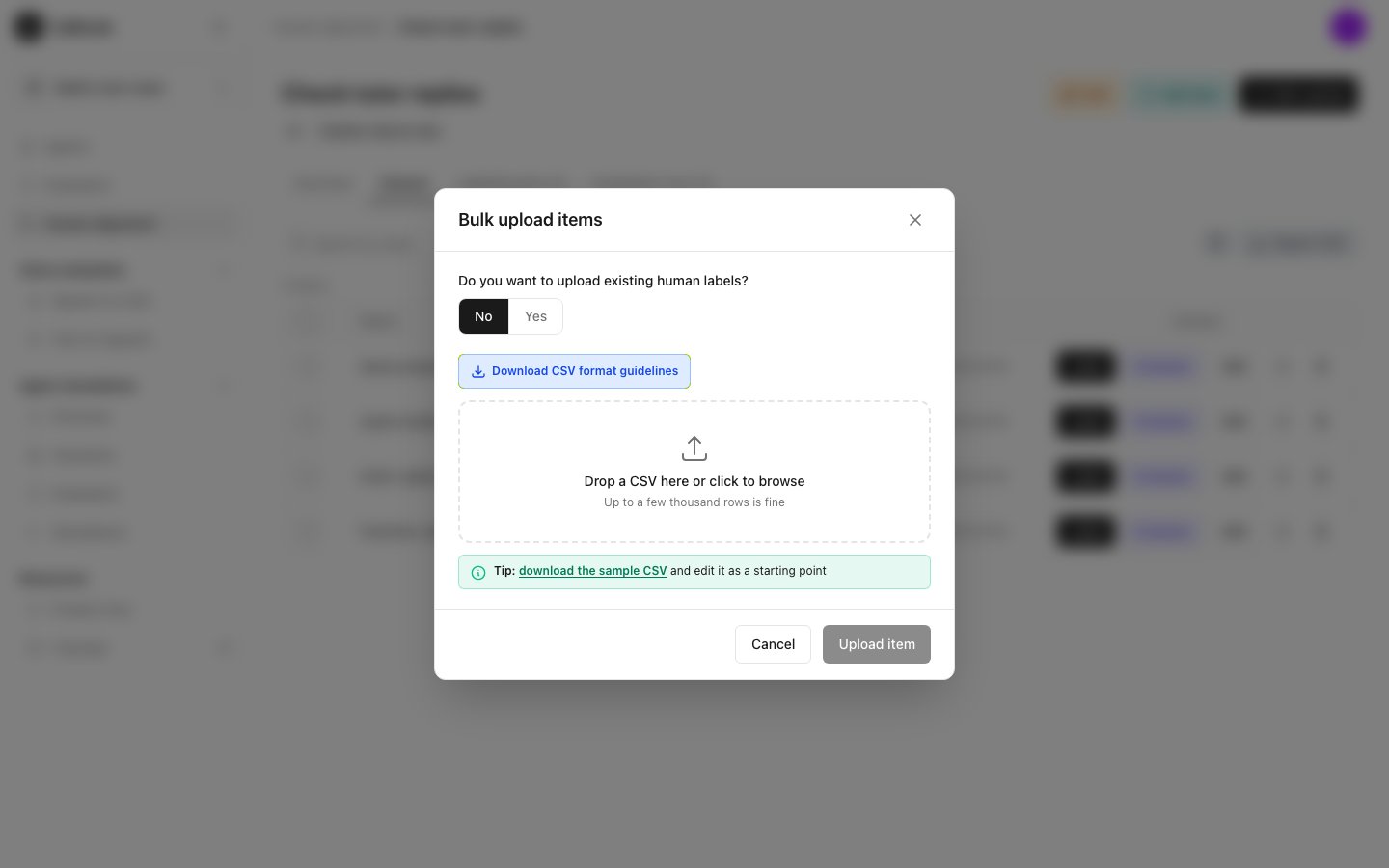
Send results from Calibrate
Send results from Calibrate
Test results, simulation runs and the Traces list on an agent’s Monitoring tab each have a Submit for labelling button. Select the rows you want, click Submit for labelling, then choose Use existing task and pick “Check tutor replies”, or choose Create new task.
The Dataset tab
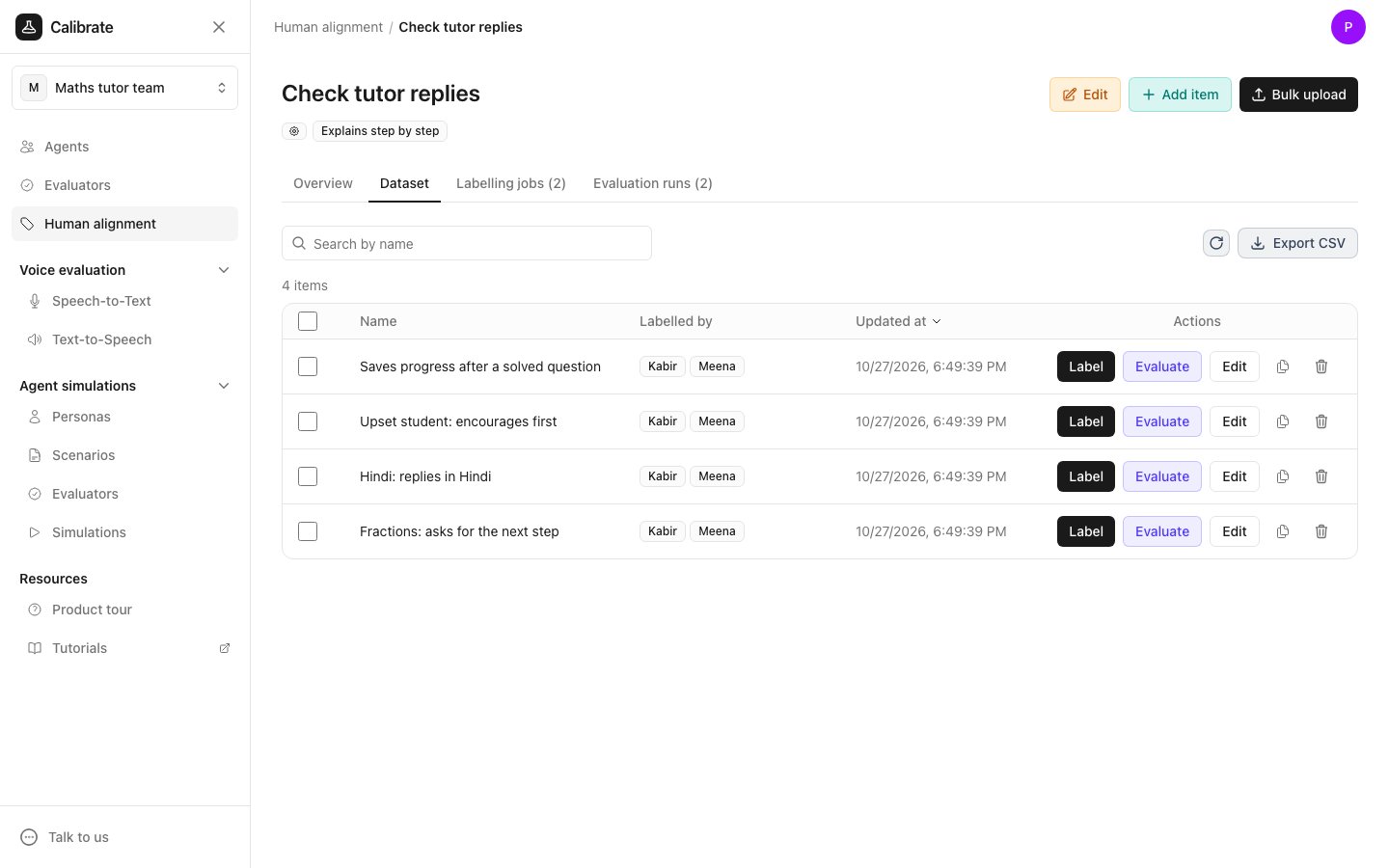
The Dataset tab lists every item in the task. Labelled by shows who has labelled each item. Each row has these buttons:- Label: send this item to annotators.
- Evaluate: run the task’s evaluators on this item.
- Edit: change the item.
Send items to annotators
A labelling job is one annotator’s set of items to label.- On the Dataset tab, tick the items to send. To send every item, tick the box in the header row.
- Click Label selected.
- In Assign annotators, select Meena and Kabir. To add another person, click Add annotator.
- Under Labels, pick the evaluators annotators should answer. This section only shows when the task has more than one label to choose from.
- Under Settings, choose Yes or No for Let annotators leave a comment on each item. Under Let annotators add reasoning, choose Optional, Required or Do not show for each label. To use one choice for all labels, click the copy button beside it.
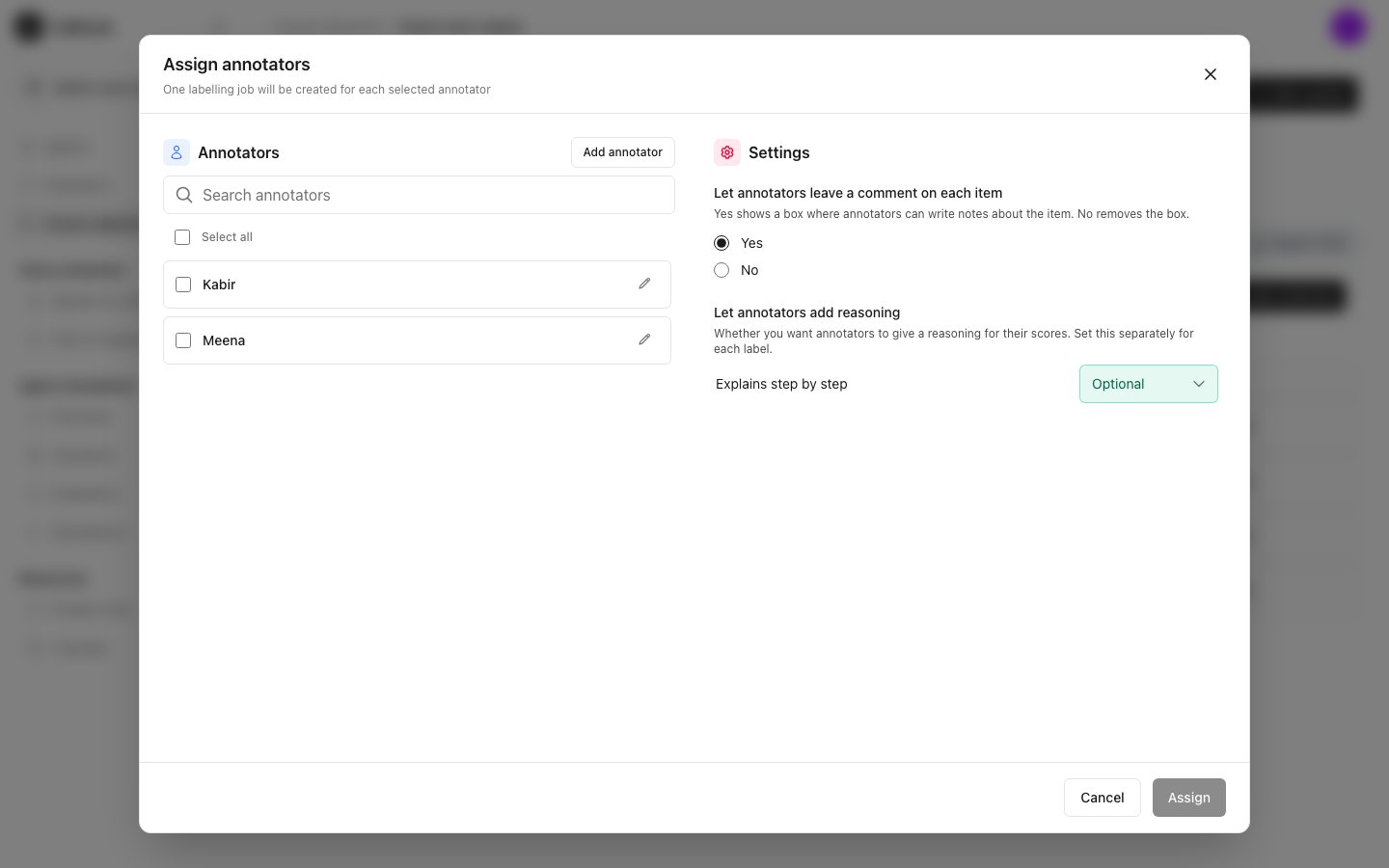
- Click Assign.
The Labelling jobs tab
The Labelling jobs tab lists every job, with its link, its status and how many items the annotator has finished. Click the copy button next to a link to copy it again.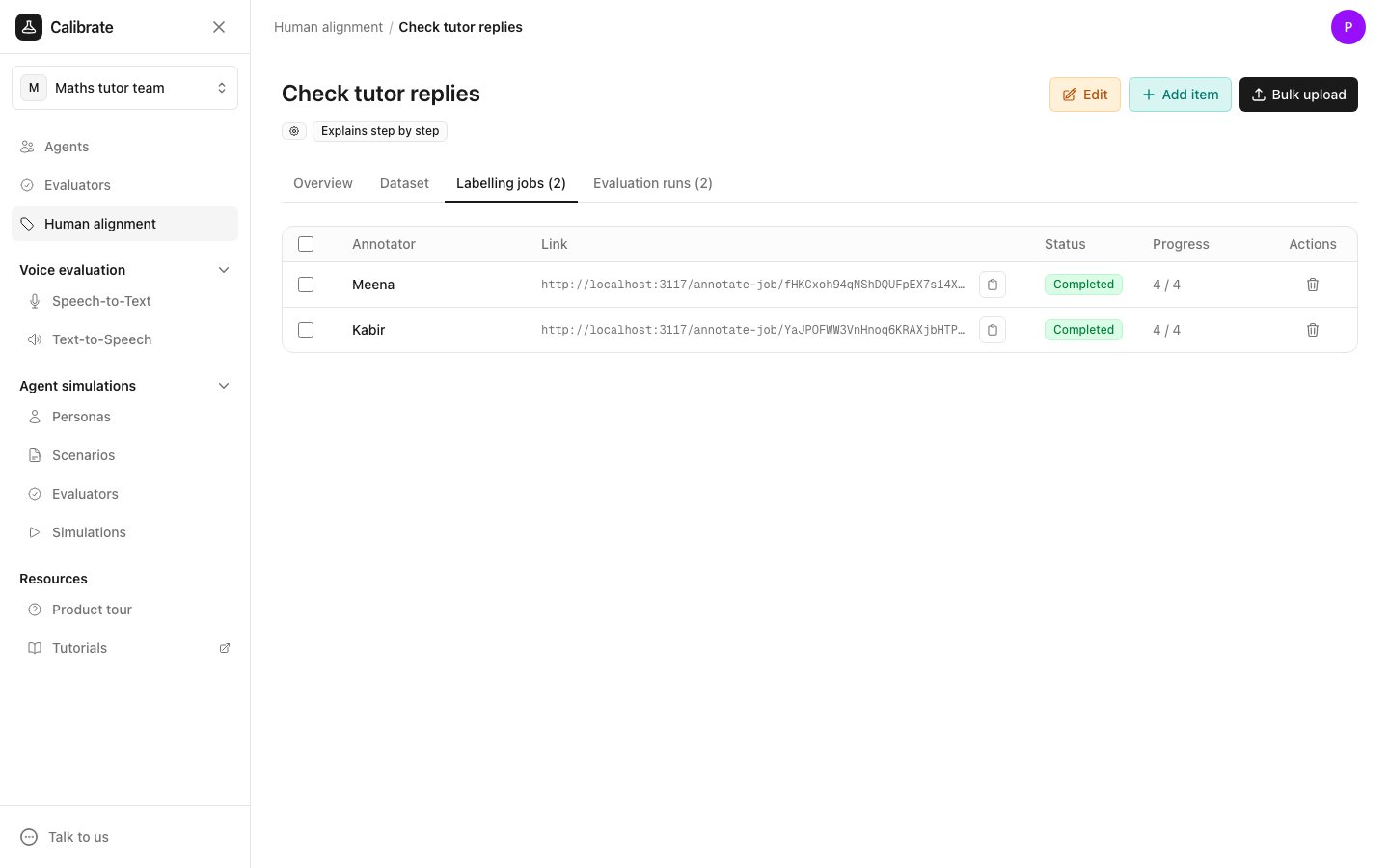
Next steps
Invite annotators
See what Meena and Kabir see when they open their link.
Check how well an evaluator agrees with people
Run the evaluator on the items and compare.