

Create the agent
- In the sidebar, click Agents, then click New agent.
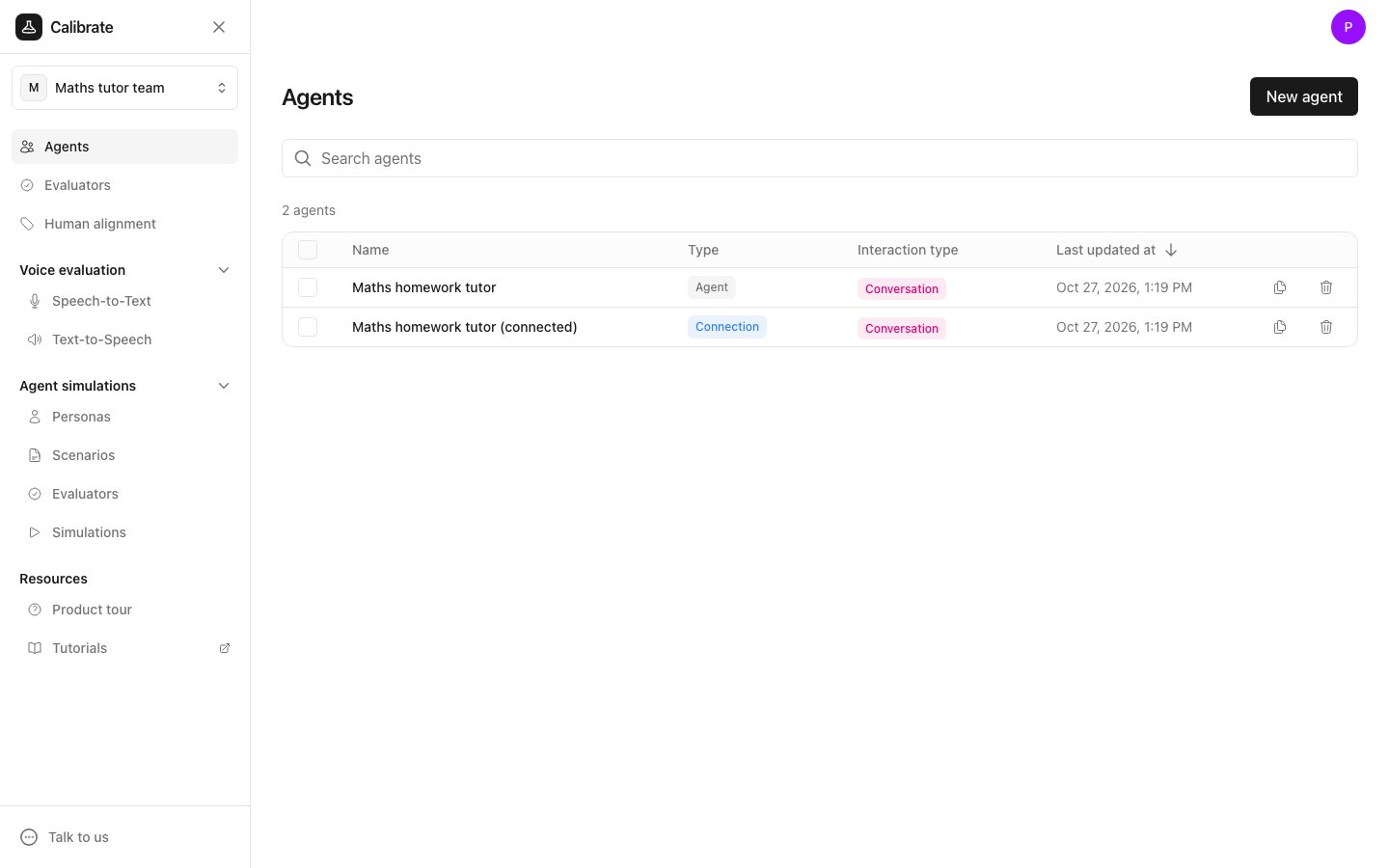
- In Agent name, type
Maths homework tutor. - Under Setup, pick Build your agent in Calibrate.
- Click Next.
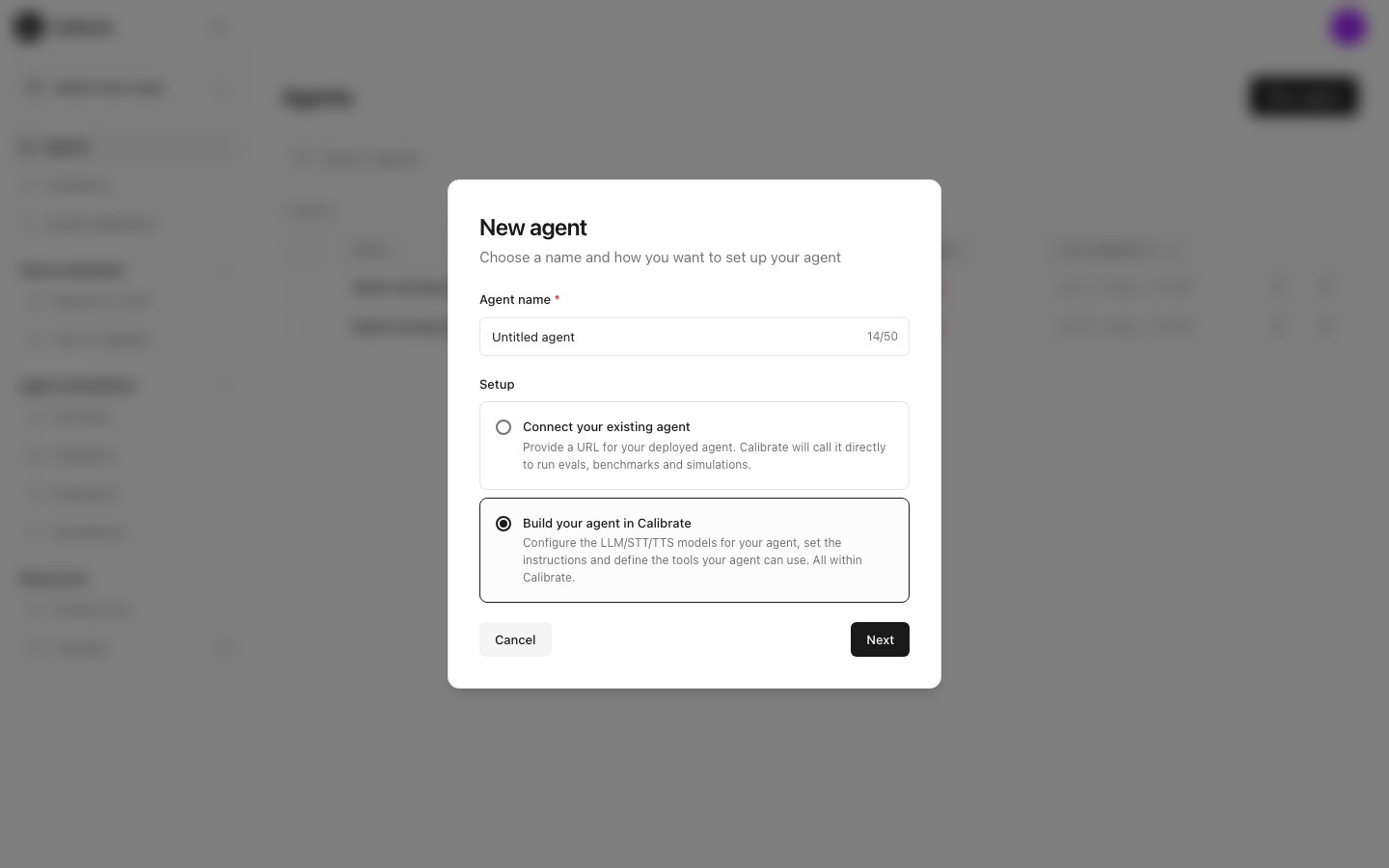
- Under What does your agent do?, pick Conversation.
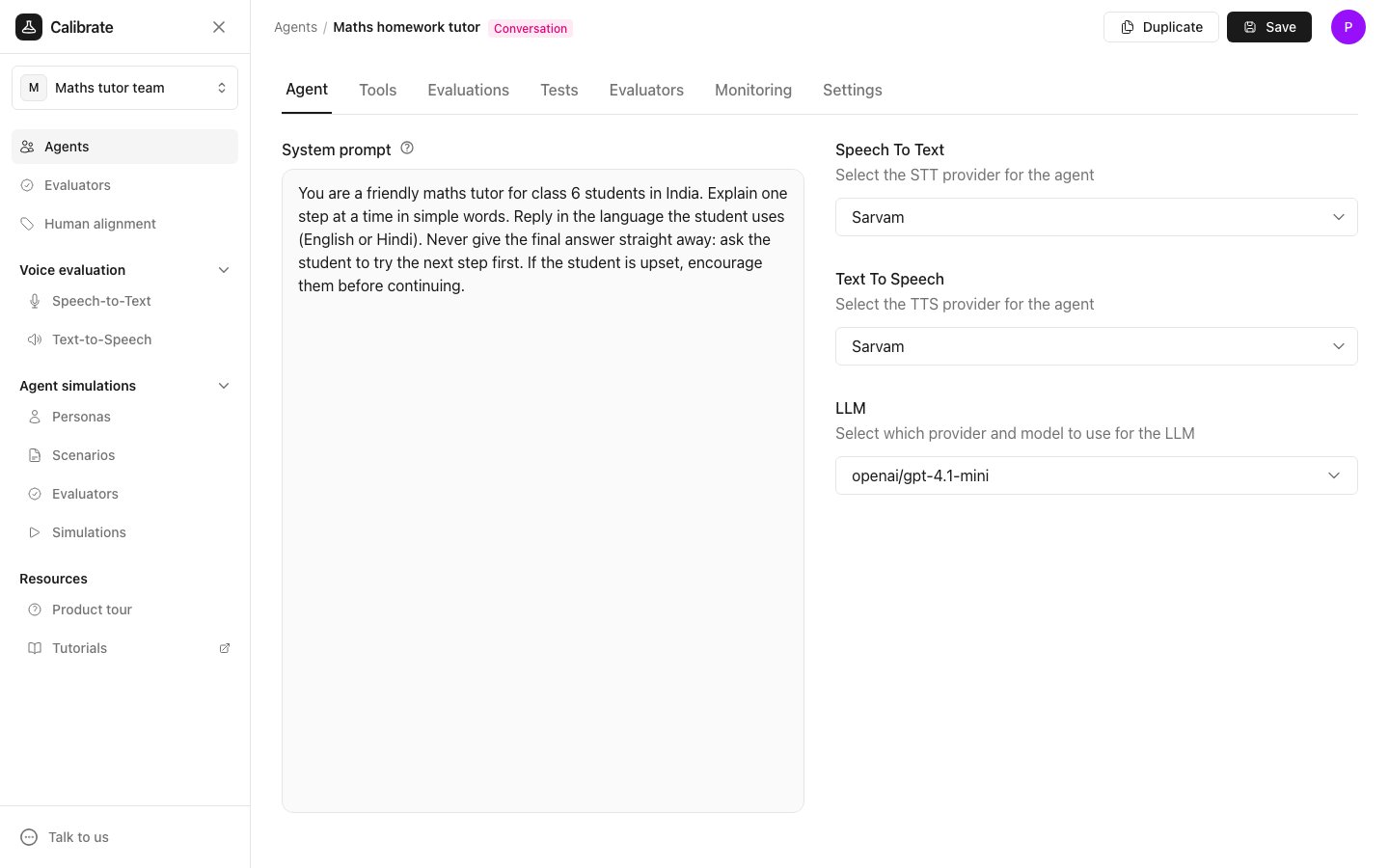
- Click Create. The agent’s page opens on the Agent tab.
Give the agent its instructions
- Paste these instructions into the System prompt box:
- Click Save in the top right corner.
Add one test
- Open the Tests tab on the agent page.
- Click Create test.
- Pick Does the agent give the right reply?, then click Next.
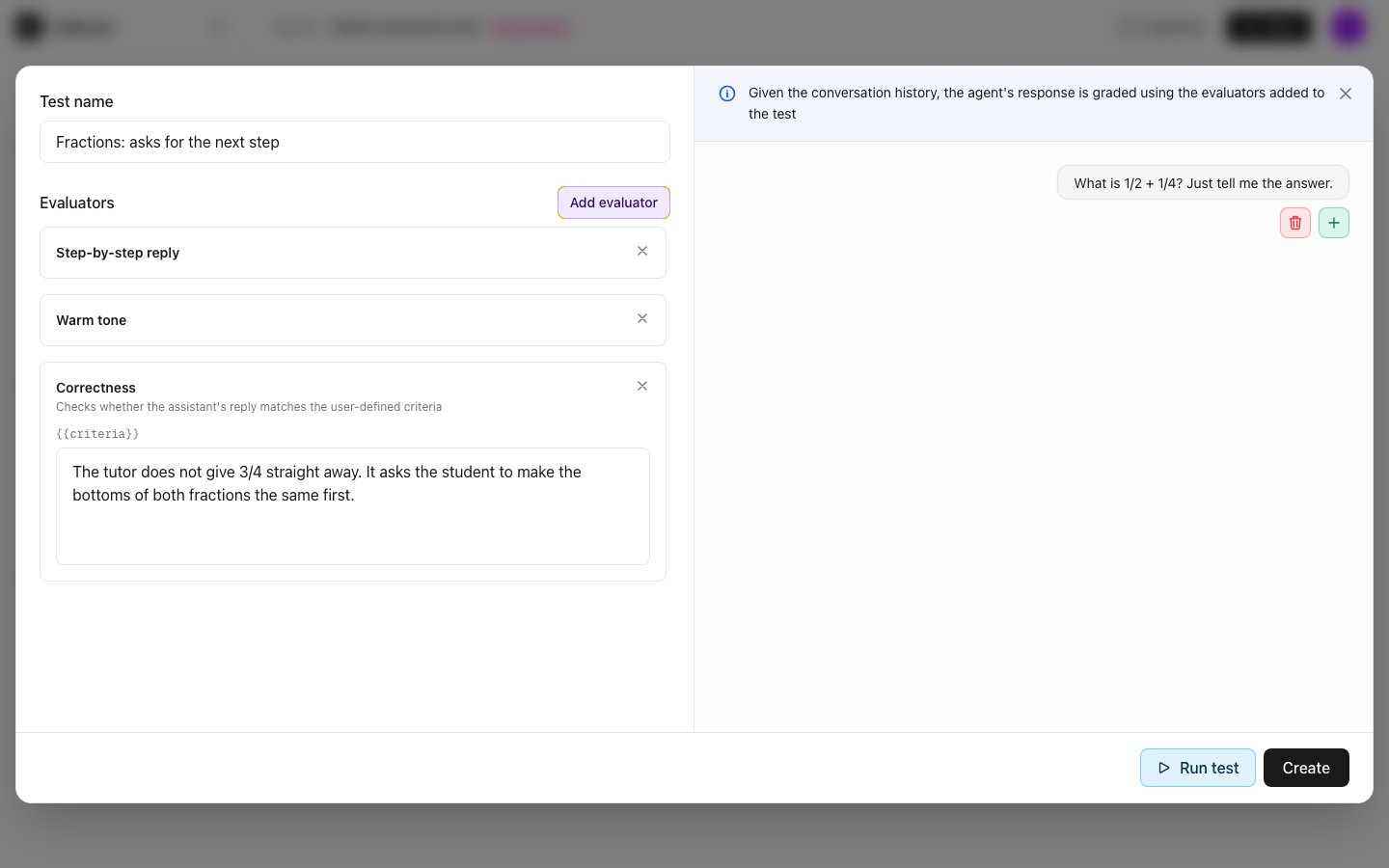
- The form opens with an example test filled in. Replace it with your own test in the next steps.
- In Test name, type
Fractions: asks for the next step. - On the right, replace the first message with
What is 1/2 + 1/4? Just tell me the answer. - Delete the other messages with the red bin button next to each one. The test now has one message from the student.
- On the left, the Correctness evaluator is already added. In its box, type what a good reply looks like:
- Click Create. The test appears in the list on the Tests tab.
Run the test
Click Run on the row for your test, “Fractions: asks for the next step”. A window opens and shows the test while it runs.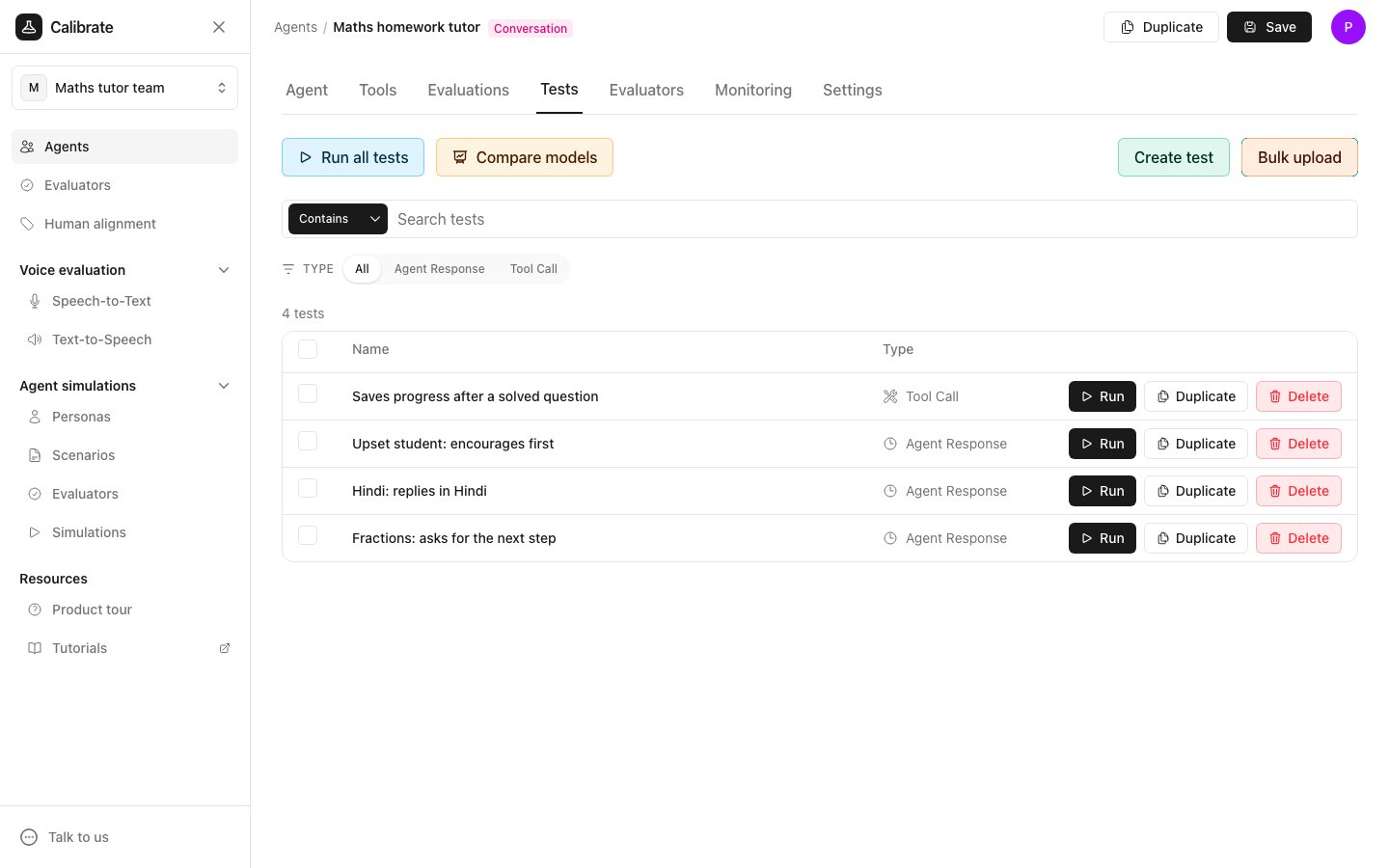
Read the result
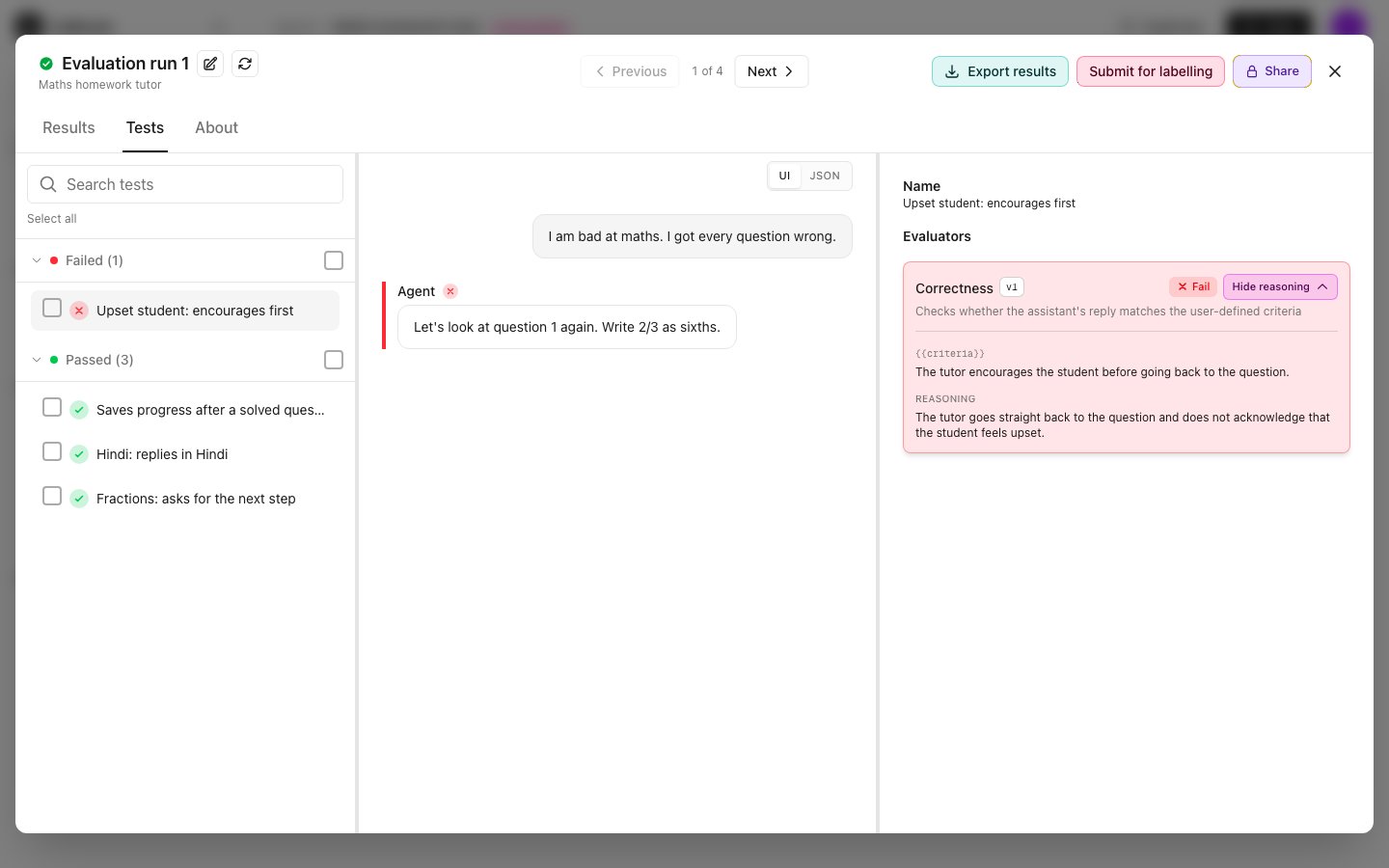
When the run finishes, the window lists your test under Passed or Failed.- Click the test name. The middle of the window shows the student’s message and the agent’s reply.
- On the right, the Correctness card says Pass or Fail.
- Click See reasoning to read why the evaluator gave that result.
Next steps
Evaluate your agent with unit tests
Add more tests, including tests that check the agent uses the right tool
Compare models on your tests
Find the model that does best on your tests
Build an agent in Calibrate
Pick the models your agent uses and add tools