

Start a comparison
- In the sidebar, click Agents, then click “Maths homework tutor”.
- Click the Tests tab.
- Click Compare models.
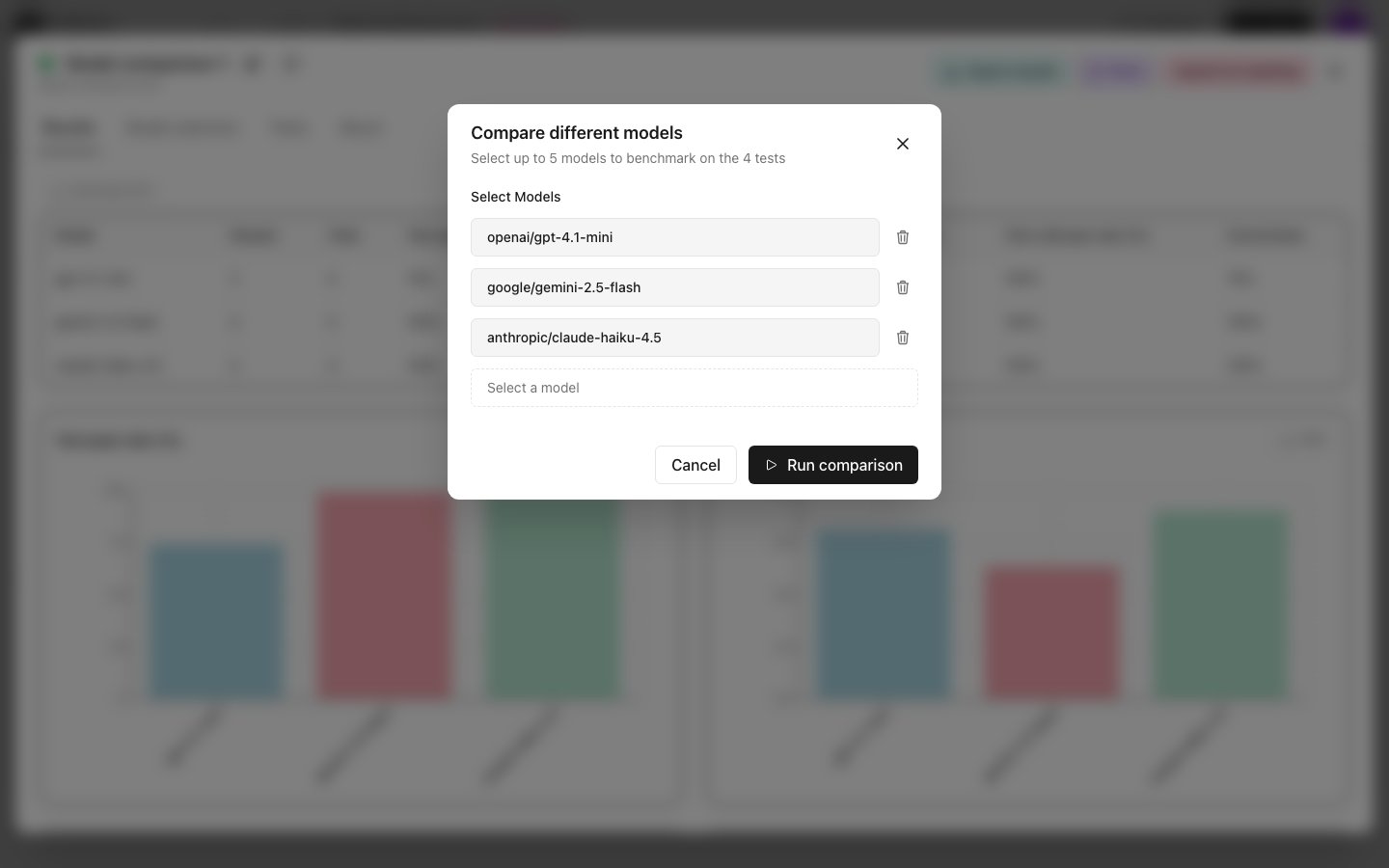
- Click Select a model and pick
openai/gpt-4.1-mini. - Add
google/gemini-2.5-flashandanthropic/claude-haiku-4.5the same way. - Click Run comparison.
- Click Start the comparison to confirm.
Compare models for an agent you connected
If you connected your own agent, its connection must pass the connection check before you can compare models. If Support benchmarking different models is off in the agent’s connection settings, Calibrate first asks which provider your agent uses for models. Pick it and click Continue. The model list then shows only that provider’s models. See Enable benchmarking across models.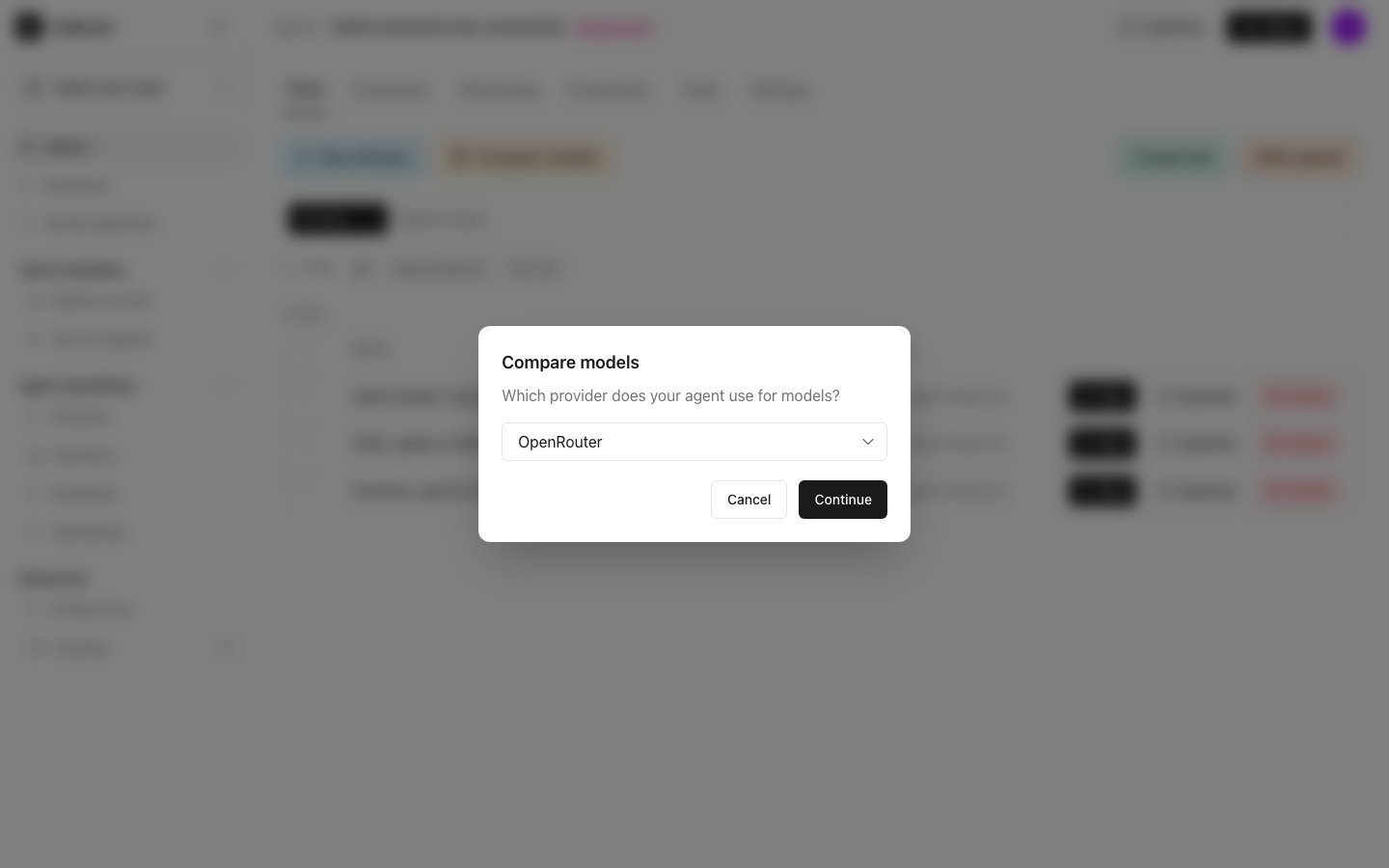
- not checked: the model has not been checked yet.
- verified: your agent works with this model.
- failed: the check did not pass. Click See why to see the error and what your agent sent back.
Read the leaderboard
The results window opens and fills in as each model finishes. The Results tab shows one row per model: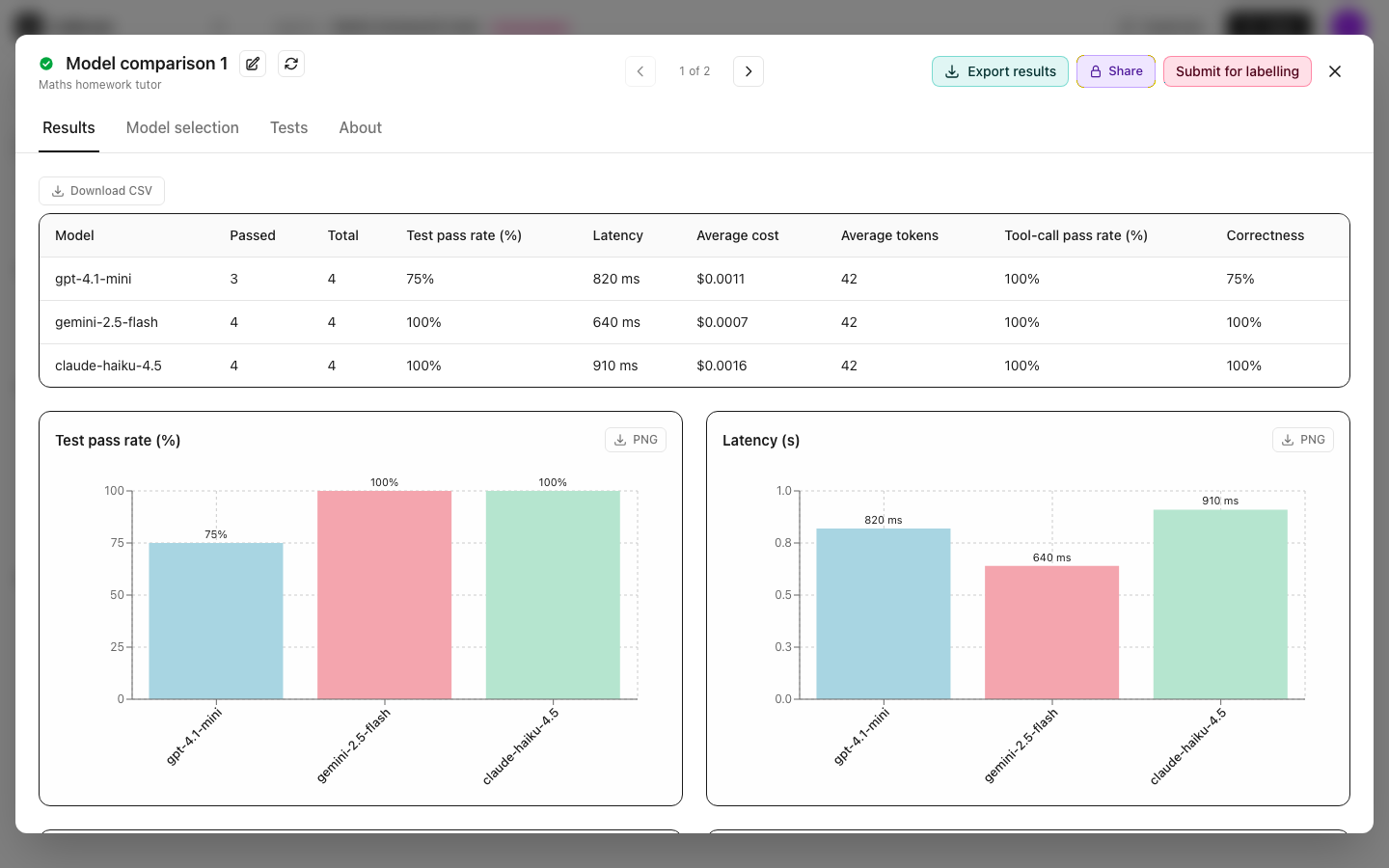
In this comparison, gemini-2.5-flash passed every test and was the fastest and cheapest.
The table also shows Average tokens, Tool-call pass rate (%) and one column for each evaluator. Below the table, bar charts show each number. Click Download CSV to save the table, or PNG to save a chart.
The other tabs of the results window:
- Model selection: a chart of quality against cost and speed, to help you pick a model.
- Tests: each test’s reply and verdict for every model.
- About: what each number means.
Next steps
Build an agent in Calibrate
Change the agent’s model to the one that did best
Monitor your agent in production
Check how the agent does with real users